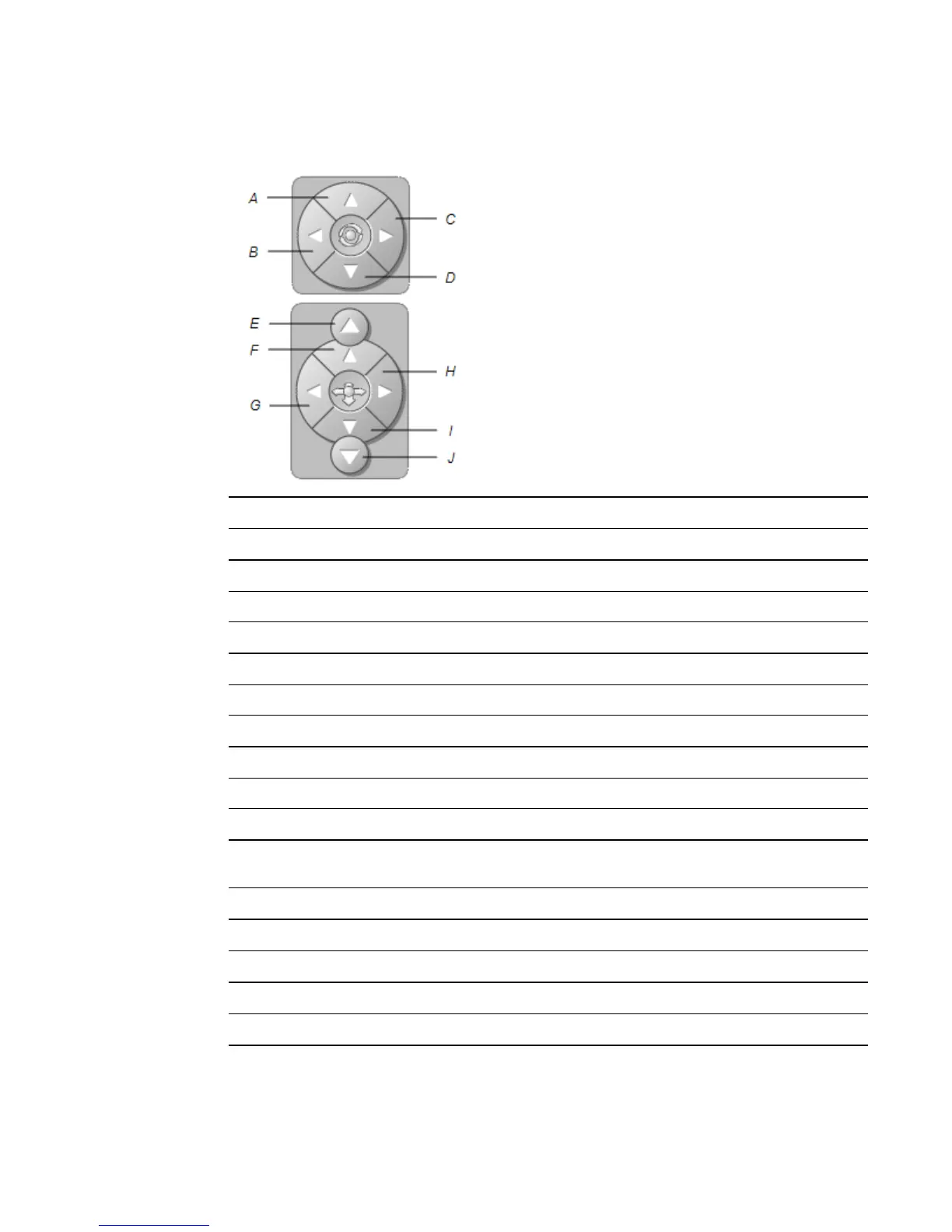
3. Navigate the 3D scene using the navigation controls.
Button Use to:
A Change your orientation upward.
B Change your orientation to the left.
C Change your orientation to the right.
D Change your orientation downward.
E Raise elevation.
F Move forward in the scene.
G Move to the left in the scene.
H Move to the right in the scene.
I Move backward in the scene.
J Lower elevation.
Alternatively, you can use keyboard buttons to navigate the 3D scene.
Keyboard button Use to:
W Change your orientation upward.
A Change your orientation to the left.
D Change your orientation to the right.
S Change your orientation downward.
C H A P T E R 7
Using 3DTools for SMARTNotebook software and Mixed Reality Tools
68



 To Next Page