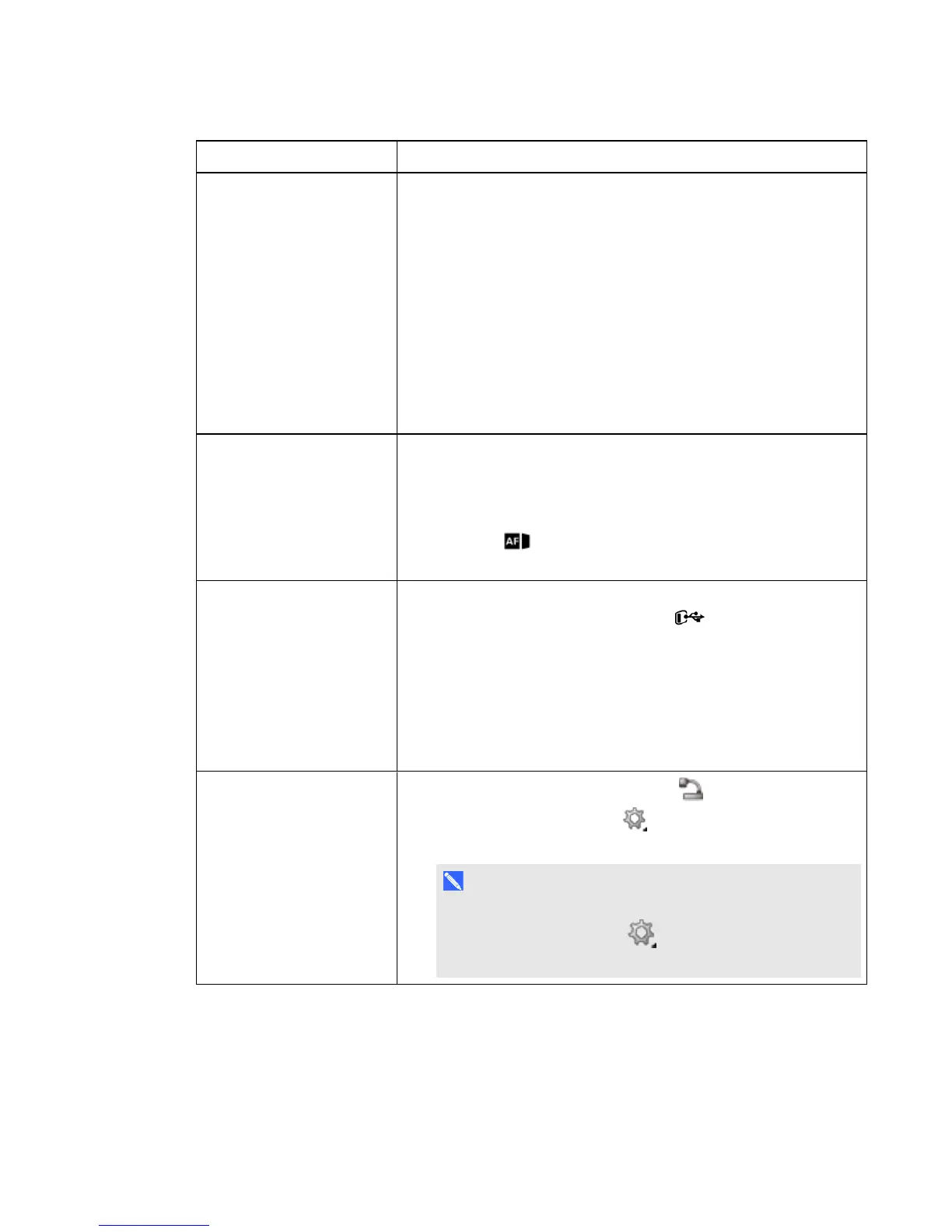
Issue Solution
The presentation screen is
dark and unreadable.
l Turn on Auto Image in your document camera’s on-screen
display (OSD) menu (Menu > IMAGE > Advanced > Auto
Image) to adjust the image brightness..
l Reset your document camera to its default settings (Menu >
SYSTEM >Default > Yes > Enter).
l
Make sure there’s enough light in the room, or turn on the
overhead light on your document camera.
l Adjust the brightness and contrast levels manually in the
document camera's OSD menu, or use the control panel
buttons.
l If you are using a projector, check the bulb.
The image on the
presentation screen is
distorted or blurry.
l Reset your document camera to its default settings (Menu >
SYSTEM > Default > Yes).
l Adjust the brightness and contrast manually to reduce the
distortion.
l
Press the button on the control panel if the image is blurry or
out of focus.
SMARTNotebook software
doesn’t detect your
document camera.
l Make sure your USB cable is connected.
l
Make sure the USB switch is set to .
l
Make sure your software is up-to-date (you should have at least
SMART Notebook software 11 SP1).
l Make sure the USB cable and the computer USB receptacle are
working properly.
l Make sure the USB to PC setting is set to CAMERA in the
document camera's OSD menu.
SMARTNotebook software
enters Mixed Reality mode
unexpectedly.
l
Press SMART Document Camera in the toolbar.
l
Press Additional Settings , and then clear the selection of
Automatically Start Mixed Reality Tools.
1.
N O T E
To enable the automatic detection of Mixed Reality again,
press Additional Settings , and then select
Automatically Start Mixed Reality Tools.
C H A P T E R 8
Troubleshooting
76



 To Next Page