Selecting the setting for ferry connections
X
Select Navigation > Settings > Route
planning > Ferry connections.
Select one of the following settings:
R
Ask for ferries on my route
R
Always avoid ferries
R
Do not avoid ferries
i
Route planning treats the Eurotunnel as
a ferry connection.
Selecting the setting for unpaved roads
X
Select Navigation > Settings > Route
planning > Unpaved roads.
Select one of the following settings:
R
Ask for unpaved roads on my route
R
Always avoid unpaved roads
Selecting the setting for carpool lanes
Carpool lanes are lanes which can only be
used by vehicles with at least two occu-
pants.
X
Select Navigation > Settings > Route
planning > Carpool lane settings.
Select one of the following settings:
R
Ask for carpool lanes on my route
R
Always avoid carpool lanes
R
Never avoid carpool lanes
Using information during route guid-
ance
Useful information
Navigation announcements provide guid-
ance during the journey without distract-
ing you from traffic conditions. In addition,
the display shows information about the
route.
Switching navigation announcements
on/off
X
Tap on the area of the next navigation
manoeuvre during route guidance.
X
Select Turn on voice guidance or Turn
off voice guidance.
Information such as traffic reports and
warnings will be played even if the naviga-
tion announcements have been deactivated.
During route guidance, traffic information
can be shown for the route ahead. The fol-
lowing traffic information can be received:
R
Traffic announcements (RDS/TMC)
R
HD Traffic (a TomTom Live service)
i
HD Traffic Information takes prece-
dence.
Live services are not available in all coun-
tries and regions. Further information:
http://tomtom.com/services
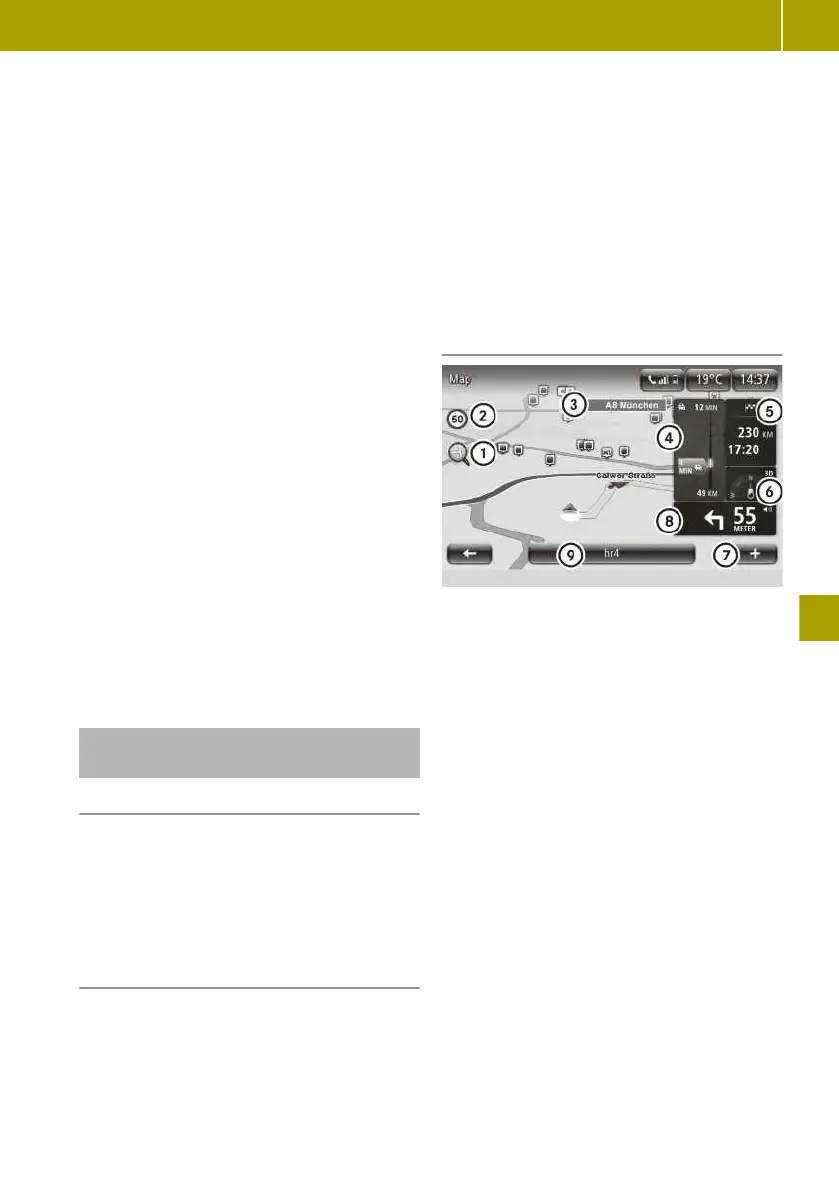
Tracking navigation on the display
X
To call up a function, tap on an area on
the map display or on a symbol.
X
Tap directly on the map to switch to the
overview map.
The following functions can be selected:
R
:: to zoom in and out of the map view
R
;: maximum permissible speed is dis-
played
R
=: name of the next main road or infor-
mation about the next street sign is dis-
played
R
?: to have traffic reports on the route
displayed
R
A: to have the route details displayed
Warning for remaining range to destina-
tion appears.
R
B: compass display and to switch
between two or three-dimensional map
display
R
C: to open the context menu
R
D: next navigation manoeuvre with dis-
tance is displayed and to repeat the nav-
igation announcement, change the vol-
Using the navigation system
145
>> Using the smart Media-System.
Z














 To Next Page