ume of the navigation announcement or
switch off
R
E: information about current radio or
audio equipment playback is displayed
Switch to the corresponding radio, multi-
media or telephone menu.
The navigation system zooms in on the map
view as the vehicle approaches a junction.
This makes it possible to follow turning
manoeuvres more accurately.
Shortly before navigating a motorway junc-
tion or exit, the display will show a three-
dimensional representation of the lanes
and the exit.
i
Lane Keeping Assist is not available for
all junctions in all countries.
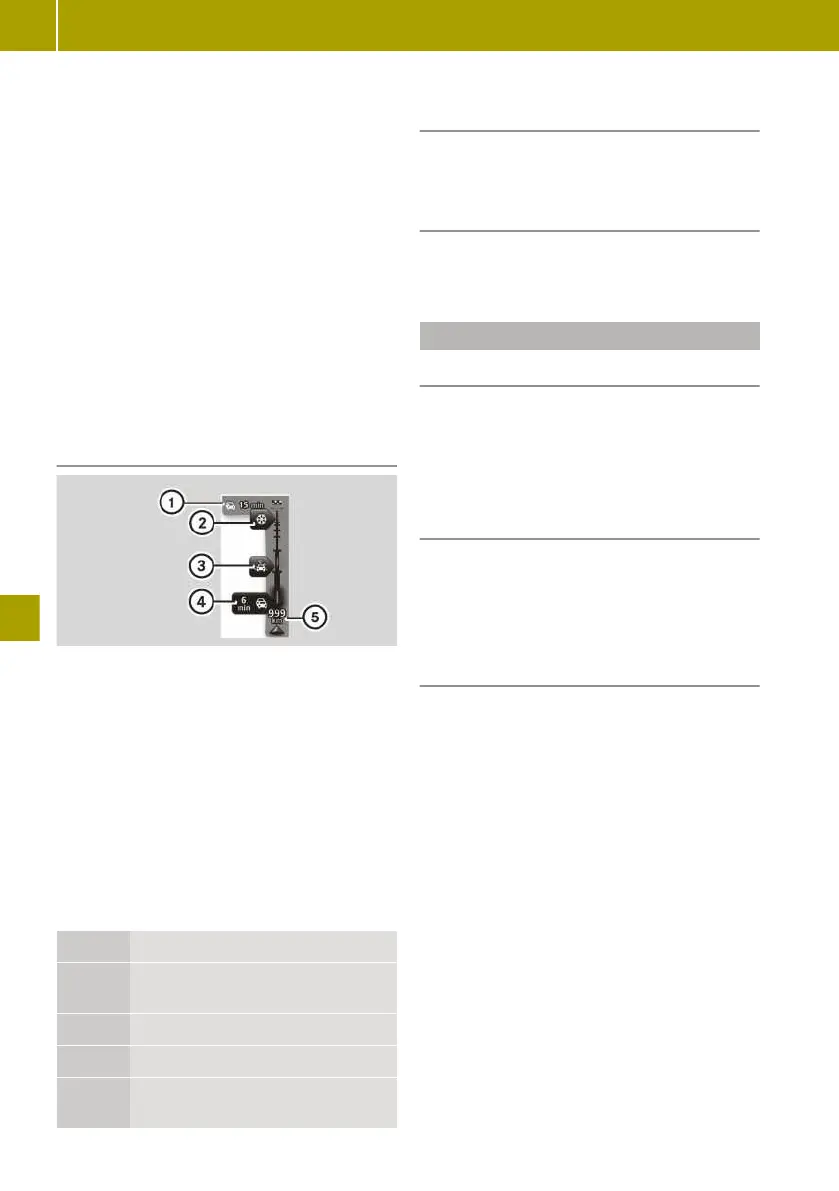
Traffic information details
:
Overall delay on route
;
Traffic disruption (packed snow)
=
Traffic disruption (rain)
?
Traffic disruption (traffic jam)
A
Current location and distance to next
traffic disruption
During route guidance, traffic information
is shown for the route ahead. When there
are a number of traffic disruptions in quick
succession, only the very next disruption
on the route will be displayed.
Traffic information is not available in all
countries and regions.
Colour Meaning
Grey Unknown or unexplained situa-
tion
Orange Slow-moving traffic
Red Traffic jam
Dark
red
Standstill or road blocked
Calling up more detailed information
about the traffic problems
X
Tap on the display for traffic information
during route guidance.
Scrolling through the traffic reports
X
Tap on the message on the touchscreen
and swipe left or right.
Displaying the overview map
Useful information
With the "View map" function, the display
shows a slidable, two-dimensional over-
view map. The map shows your current
position, as well as a number of other ele-
ments, such as favourites.
Displaying a map
X
Select Navigation > View map.
A map of the surrounding area will be
shown.
X
To search: select W > Find.
Controlling the map view
Moving the map
X
Tap on the centre of the touchscreen.
X
Swipe in the desired direction. The map
will then move in the respective direc-
tion.
Zooming in on the map
X
Place two fingers slightly apart in the
middle of the touchscreen.
X
Move your fingers away from each other.
Reducing the scale of the map
X
Place two fingers at a greater distance
apart on the screen. Do not place your
fingers at the very top area or very bot-
tom area of the display.
X
Swipe your fingers towards each other.
146
Using the navigation system
>> Using the smart Media-System.





 To Next Page