11 | CHAPTER 2 – USING YOUR SMART TABLE
Media
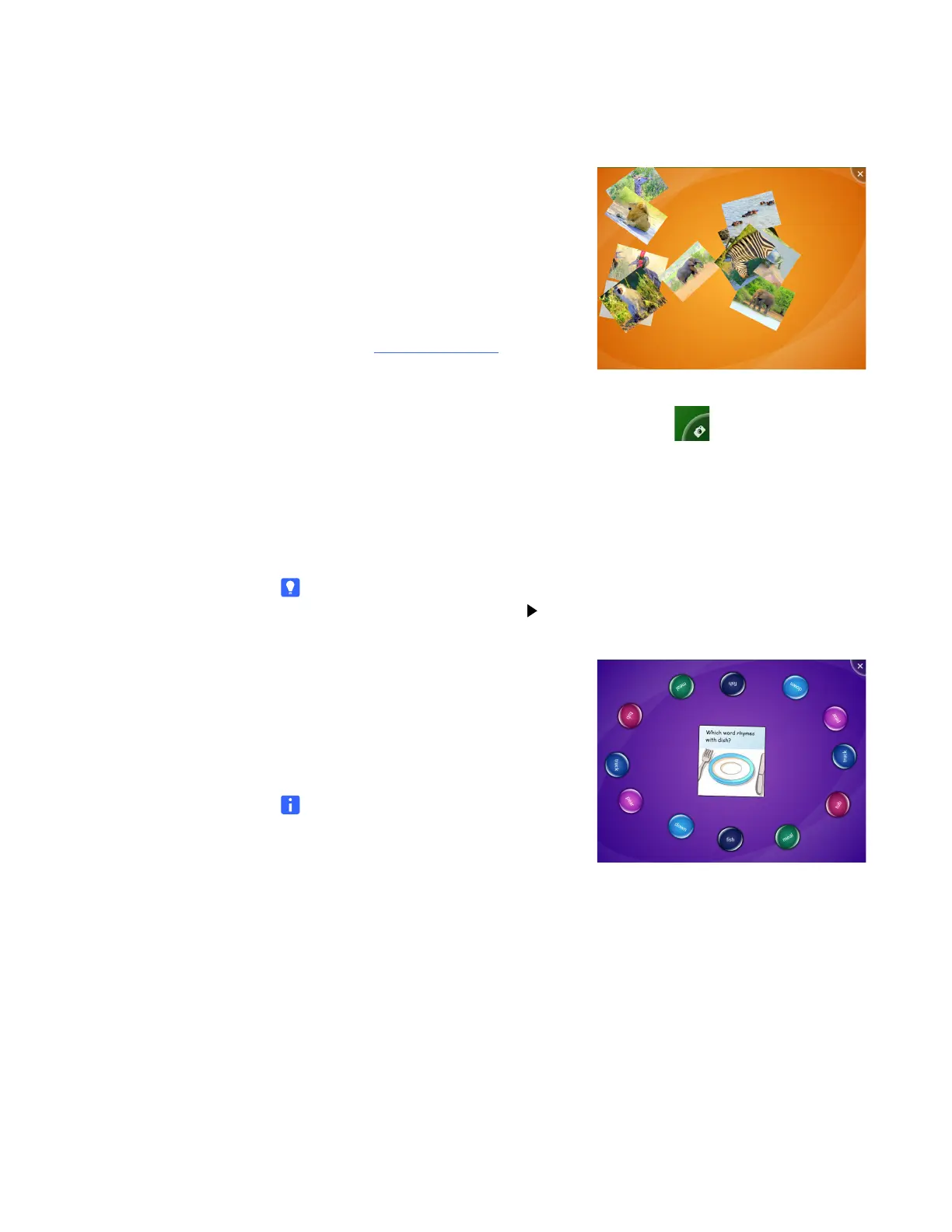
Media can display sets of pictures and
videos that students drag and resize.
Students can resize the picture or video by
placing their fingers in opposite corners
and dragging out to increase the size or
dragging in to reduce the size. Media
comes with a standard set of pictures. You
can also connect a SMART Document
Camera (see document 122667
) to the
table’s USB interface to capture images
and insert them into the activity.
When you connect the document camera, a camera icon appears in the corner
of the display. Press the icon to view the camera image on the table’s screen. An
on-screen toolbar allows you to capture an image.
You can add your own pictures and videos using the SMART Table Toolkit
(see page 25).
TIP
To play a video in Media, press on the on-screen clip.
Multiple Choice
In Multiple Choice, students work as a
team to answer questions by dragging the
answers to the middle of the table’s
surface.
NOTE
You can create custom questions that
complement your class curriculum
(see page 27).
Each question appears in the center of the table surface, and the possible answers to
it are arranged in a circle around it. Students can answer by pressing and dragging a
possible answer to the question.
Depending on the activity:
• Students may need to answer the question correctly to proceed to the next
question.
• All students, a majority of students or the first student to pick an answer must
answer the question correctly to proceed to the next question.



 To Next Page