51 | CHAPTER 8 – TROUBLESHOOTING
Remodeling the Background
When you turn on your SMART Table, the camera models the touch surface’s
background. This allows the camera to detect touch. Problems with background
modeling can cause the camera to detect extra touches, causing your SMART Table
to respond erratically. Remodel the background in these situations to remove the
detection of extra touches.
To remodel the
background
1. Set up your SMART Table for troubleshooting (see page 50).
2. Click the SMART Touch Service task bar button.
The SMART Touch Service window appears.
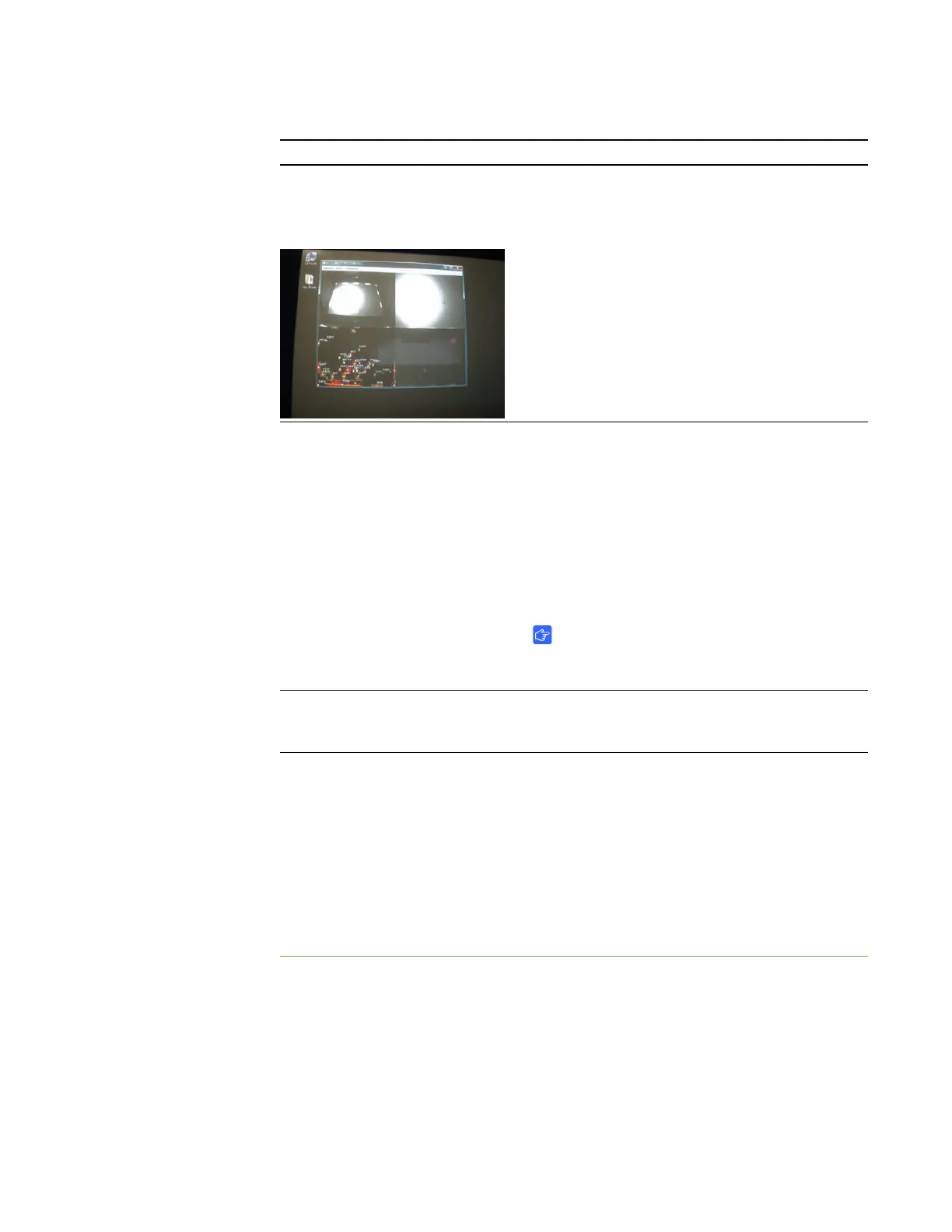
Touch isn’t working properly, and
one or more white spots appear in
the two upper quadrants of the
SMART Touch Service window.
Infrared light may be interfering with the
camera’s ability to sense touch.
Turn off or remove any pot lights or other
incandescent lighting in the room.
Close any open blinds or curtains to prevent
direct sunlight from shining on your SMART
Table.
Touch isn’t working or doesn’t line
up with your contact point.
The orientation may be incorrect. When
orienting the surface (see page 47), do the
following:
• Press and hold each target until the red cross
moves to the next target.
• Touch the surface lightly. Touching the
surface hard may register as multiple
touches.
IMPORTANT
Ensure the cabinet doors are closed when
orienting or using the table.
You’ve followed the solutions in
this table but touch still isn’t
working.
Remodel the background (see page 51).
Problem Solution



 To Next Page