28 | CHAPTER 4 – CUSTOMIZING WITH SMART TABLE TOOLKIT
7. Select the correct answer’s icon, and then click Set as Correct Answer.
8. Click Add, and then repeat steps 1 to 7 for each question you want to include in
the activity.
TIPS
– To edit a question, select it in the All Questions list, and then repeat
steps 1 to 5.
– To remove a question, select it in the All questions list, and then
click Remove.
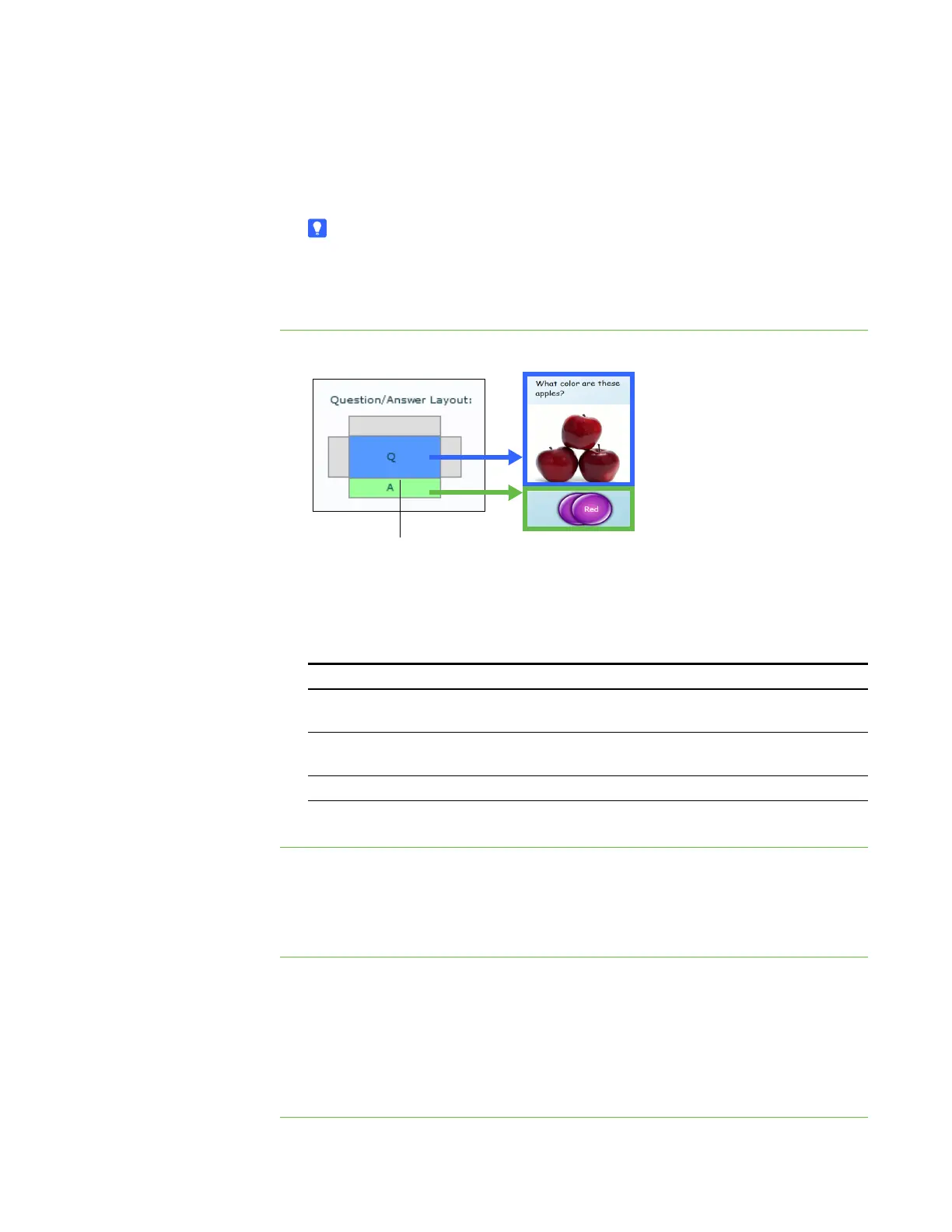
To set up the activity 1. Define the question/answer layout using the Question/Answer Layout control.
2. Select the Correct Answer Required check box to require students to select the
correct answer to proceed to the next question.
3. Click one of the following options:
4. Click Save All, or Save As.
To edit a question set 1. Click Multiple Choice.
2. Select the question set in the All Activities list.
3. Refer to the three previous procedures to edit the activity’s questions and settings.
To remove an activity 1. Click Multiple Choice.
2. Select the activity in the All Activities list, and then click the Remove button below
the All Activities list.
The Confirmation dialog box appears.
3. Click Yes.
To have: Click:
A majority of students answer the question before they can
proceed to the next question
Majority Rules
All students answer the question before they can proceed to
the next question
All Must Agree
The first student that answers the question win First Wins
The question appears in the middle. Move the answer
to one of the four sides by clicking the gray boxes.



 To Next Page