■ Refresh: Click this button to refresh all current connections.
■ Add to deny list: You can select entries from the Connection Status list and add them to
the Deny List to deny access. Please note that those checked connections will only be
disconnected temporarily and will automatically try to re-link again (IE Explore or Quick Time
Player). If you want to enable the denied list, please check Enable access list filtering and
click Save in the rst column.
■ Disconnect: If you want to break o the current connections, please select them and click this
button. Please note that those checked connections will only be disconnected temporarily
and will automatically try to re-link again.
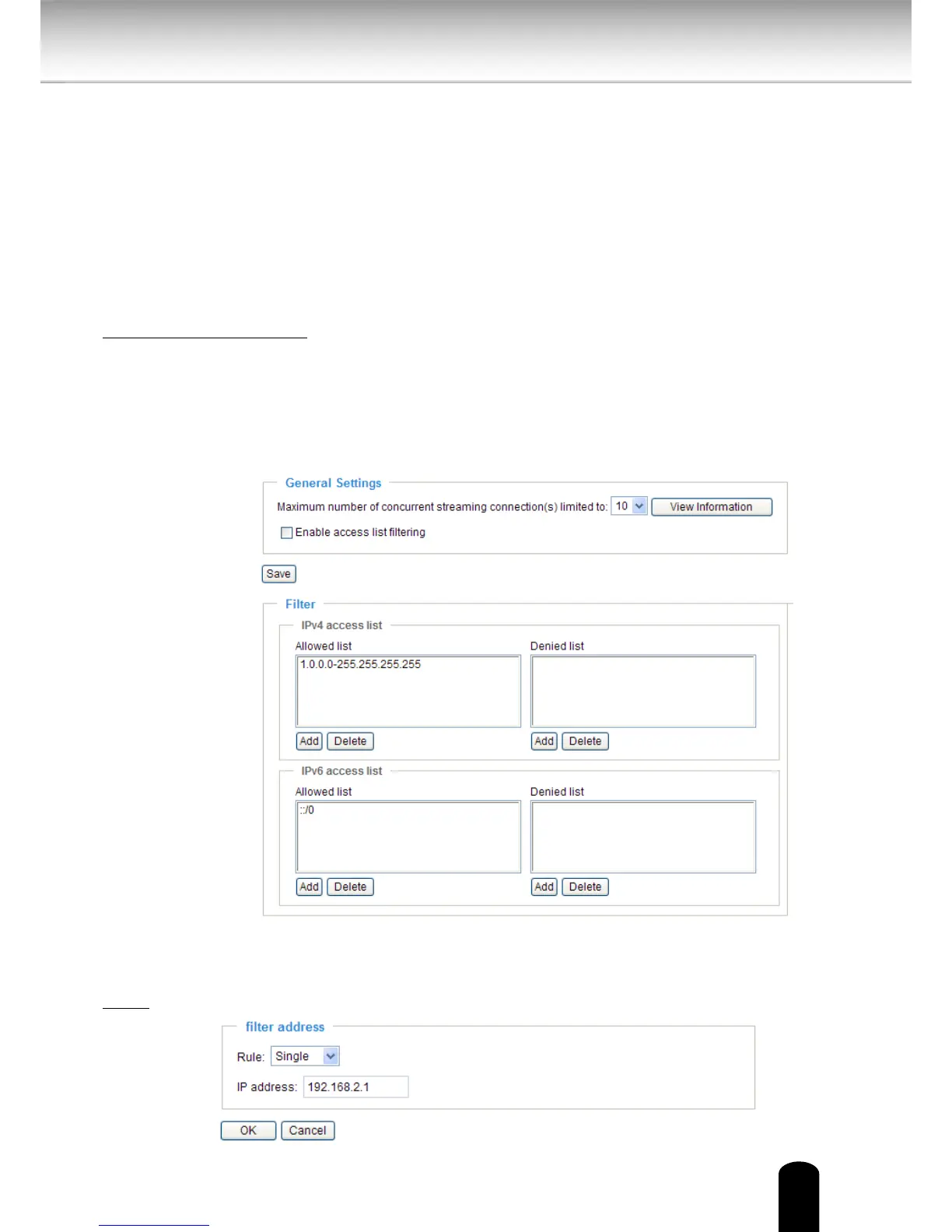
Enable access list ltering: Check this item and click Save if you want to enable the access list
ltering function.
Filter
There are two lists for permission control: Allowed list and Denied list. Only those clients
whose IP addresses are on the Allowed list and not on the Denied list can access the Network
Camera. Please note that the IPv6 access list column will not be displayed unless you enable
IPv6 on the Network page.
■ Add a rule to Allowed/Denied list: Click Add to add a rule to Allowed/Denied list.
There are three types of rules:
Single: This rule allows the user to add an IP address to the Allowed/Denied list.
For example:


 To Next Page