32
This chapter explains how to select the stream transmission mode and saving options
on the local computer. When completed with the settings on this page, click Save on
the page bottom to enable the settings.
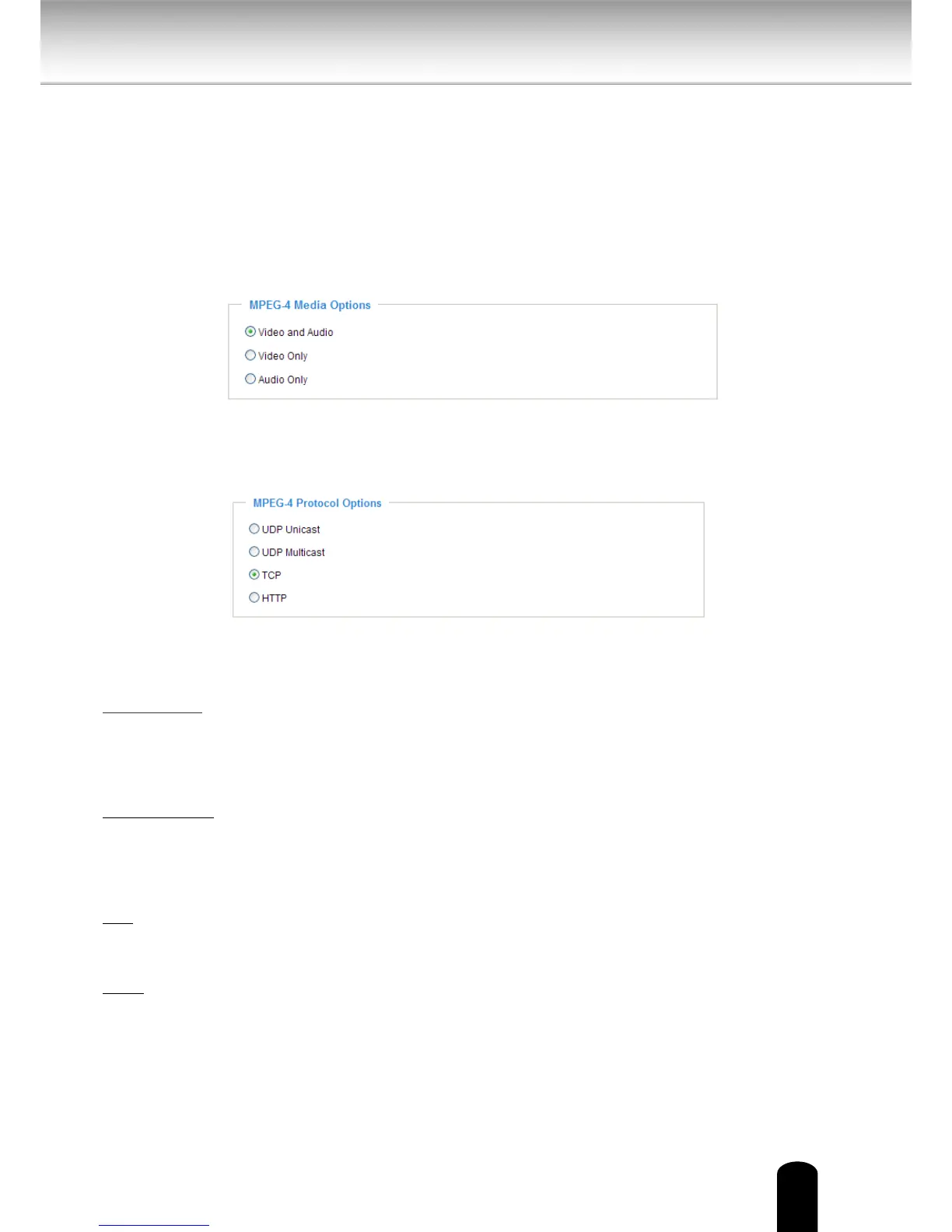
Clicking the Client Settings in Conguration Area of a Main Page, the following window
is shown.
MPEG-4 Media Options
Select to stream video or audio data or both. This is enabled only when the video mode is set to
MPEG-4.
MPEG-4 Protocol Options
Depending on your network environment, there are four transmission modes of MPEG-4
streaming:
UDP unicast: This protocol allows for more real-time audio and video streams. However,
network packets may be lost due to network burst trac and images may be broken. Activate
UDP connection when occasions require time-sensitive responses and the video quality is less
important. Note that each unicast client connecting to the server takes up additional bandwidth
and the Network Camera allows up to ten simultaneous accesses.
UDP multicast: This protocol allows multicast-enabled routers to forward network packets to
all clients requesting streaming media. This helps to reduce the network transmission load of
the Network Camera while serving multiple clients at the same time. Note that to utilize this
feature, the Network Camera must be congured to enable multicast streaming at the same
time. For more information, please refer to RTSP Streaming.
TCP: This protocol guarantees the complete delivery of streaming data and thus provides better
video quality. The downside of this protocol is that its real-time eect is not as good as that of
the UDP protocol.
HTTP: This protocol allows the same quality as TCP protocol without needing to open specic
ports for streaming under some network environments. Users inside a rewall can utilize this
protocol to allow streaming data through.
Client Settings


 To Next Page