Full Screen: Click this button to switch to full screen mode. Press the “Esc” key to switch back
to normal mode.
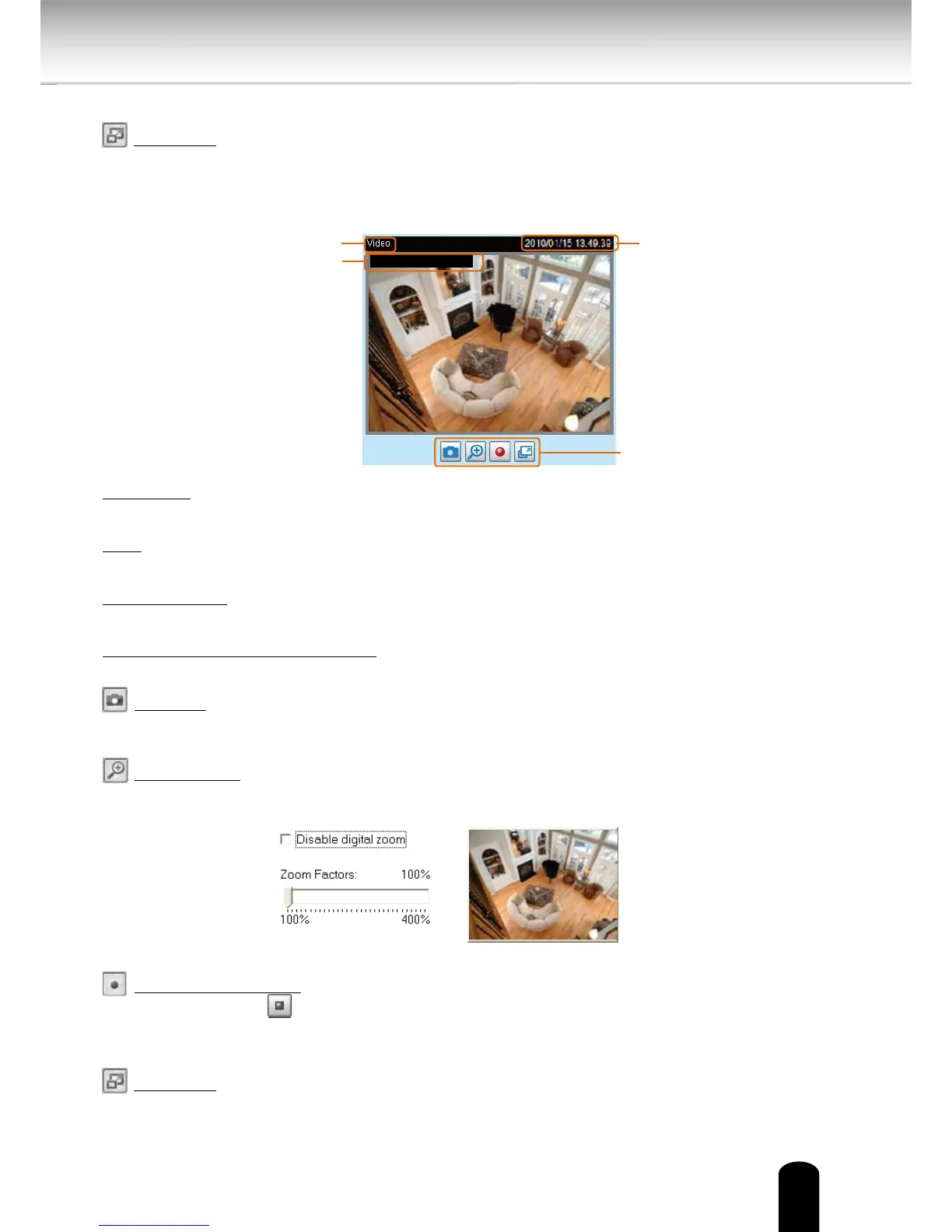
■ The following window is displayed when the video mode is set to MJPEG:
Video Title: The video title can be configured. For more information, please refer to Video
Settings on page 66.
Time: Displays the current time. For more information, please refer to
Video Settings on page
66.
Title and Time: Video title and time can be stamped on the streaming video. For more
information, please refer to
Video Settings.
Video and Audio Control Buttons: Depending on the Network Camera model and Network
Camera conguration, some buttons may not be available.
Snapshot: Click this button to capture and save still images. The captured images will be
displayed in a pop-up window. Right-click the image and choose Save Picture As to save it in
JPEG (*.jpg) or BMP (*.bmp) format.
Digital Zoom: Click and uncheck “Disable digital zoom” to enable the zoom operation.
The navigation screen indicates the part of the image being magnied. To control the zoom
level, drag the slider bar. To move to a dierent area you want to magnify, drag the navigation
screen.
Start MP4 Recording: Click this button to record video clips in MP4 file format to your
computer. Press the
Stop MP4 Recording button to end recording. When you exit the web
browser, video recording stops accordingly. To specify the storage destination and le name,
please refer to MP4 Saving Options for details.
Full Screen: Click this button to switch to full screen mode. Press the “Esc” key to switch back
to normal mode.


 To Next Page
 Loading...