Video Title: The video title can be configured. For more information, please refer to Video
Settings.
MPEG-4 Protocol and Media Options: The transmission protocol and media options for MPEG-4
video streaming. For further conguration, please refer to Client Settings.
Time: Displays the current time. For further conguration, please refer to Video Settings on
page 66.
Title and Time: The video title and time can be stamped on the streaming video. For further
conguration, please refer to Video Settings on page 66.
Video and Audio Control Buttons: Depending on the Network Camera model and Network
Camera conguration, some buttons may not be available.
Snapshot: Click this button to capture and save still images. The captured images will be
displayed in a pop-up window. Right-click the image and choose Save Picture As to save it in
JPEG (*.jpg) or BMP (*.bmp) format.
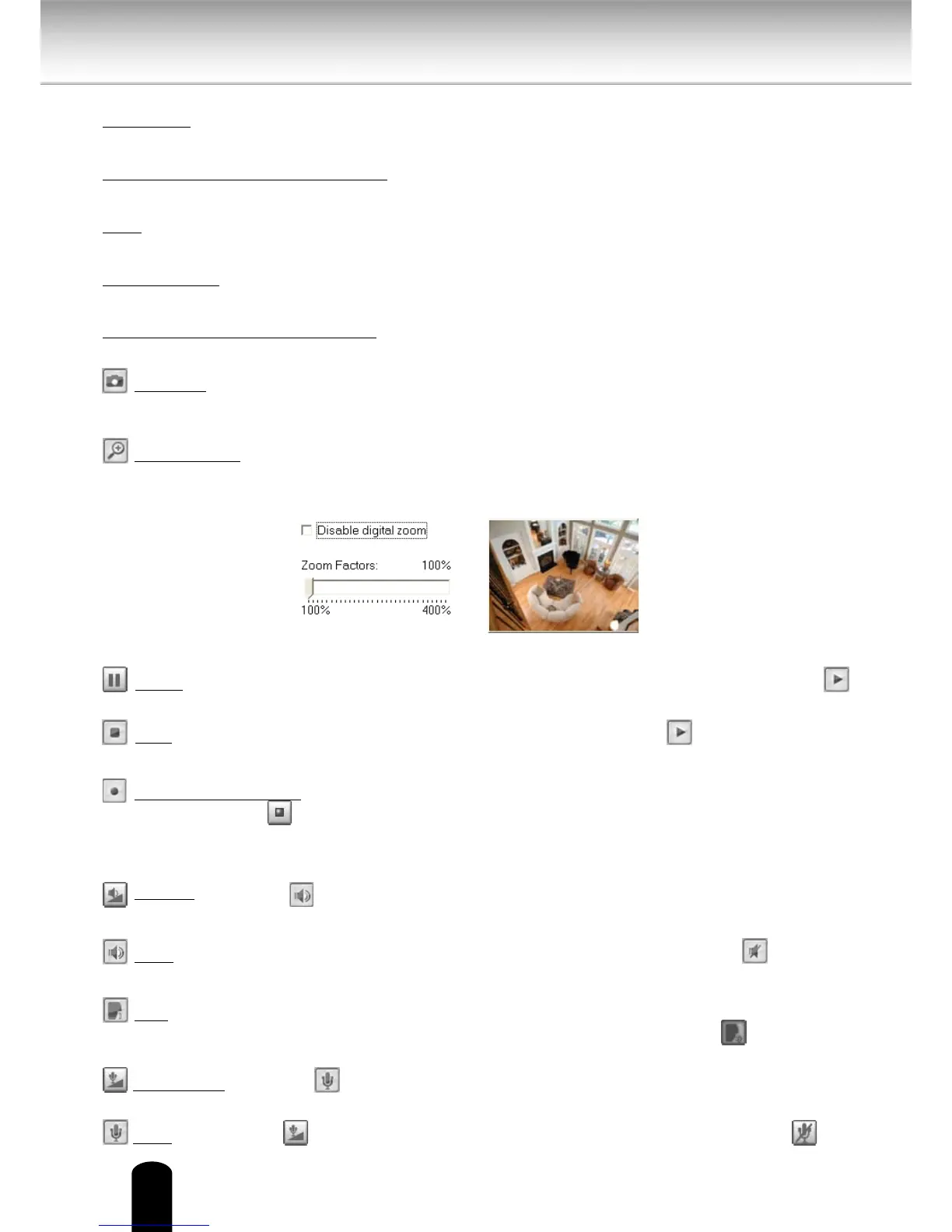
Digital Zoom: Click and uncheck “Disable digital zoom” to enable the zoom operation.
The navigation screen indicates the part of the image being magnied. To control the zoom
level, drag the slider bar. To move to a dierent area you want to magnify, drag the navigation
screen.
Pause: Pause the transmission of the streaming media. The button becomes the
Resume button after clicking the Pause button.
Stop: Stop the transmission of the streaming media. Click the Resume button to
continue transmission.
Start MP4 Recording: Click this button to record video clips in MP4 file format to your
computer. Press the
Stop MP4 Recording button to end recording. When you exit the web
browser, video recording stops accordingly. To specify the storage destination and le name,
please refer to MP4 Saving Options.
Volume: When the Mute function is not activated, move the slider bar to adjust the
volume on the local computer.
Mute: Turn o the volume on the local computer. The button becomes the Audio On
button after clicking the Mute button.
Talk: Click this button to talk to people around the Network Camera. Audio will project
from the external speaker connected to the Network Camera. Click this button
again to end
talking transmission.
Mic Volume: When the Mute function is not activated, move the slider bar to adjust the
microphone volume on the local computer.
Mute: Turn o the Mic volume on the local computer. The button becomes the Mic


 To Next Page
 Loading...