Pan: Click this button to start the auto pan. When the current position is Home or on the left
side of Home, the camera starts panning from the current position to the left-most position,
then to the right-most position, and nally backward to the original position. When the current
position is on the right side of Home, the camera starts panning from the current position to
the right-most position, then to the left-most position, and nally backward to the original
position.
Stop: Click this button to stop the Auto Pan and Auto Patrol functions.
Patrol: Once the Administrator has determined the list of preset positions, click this button to
command the camera to patrol among those positions on the Patrol List. For more information,
please refer to Camera control of Conguration on page 35.
Pan /Tilt speed: Adjust the speed of
pan/ tilt.
Conguration Area
Client Settings: Click this button to access the client setting page. For more information, please
refer to Client Settings.
Conguration: Click this button to access the conguration page of the Network Camera. It is
suggested that a password be applied to the Network Camera so that only the administrator
can congure the Network Camera. For more information, please refer to Conguration.
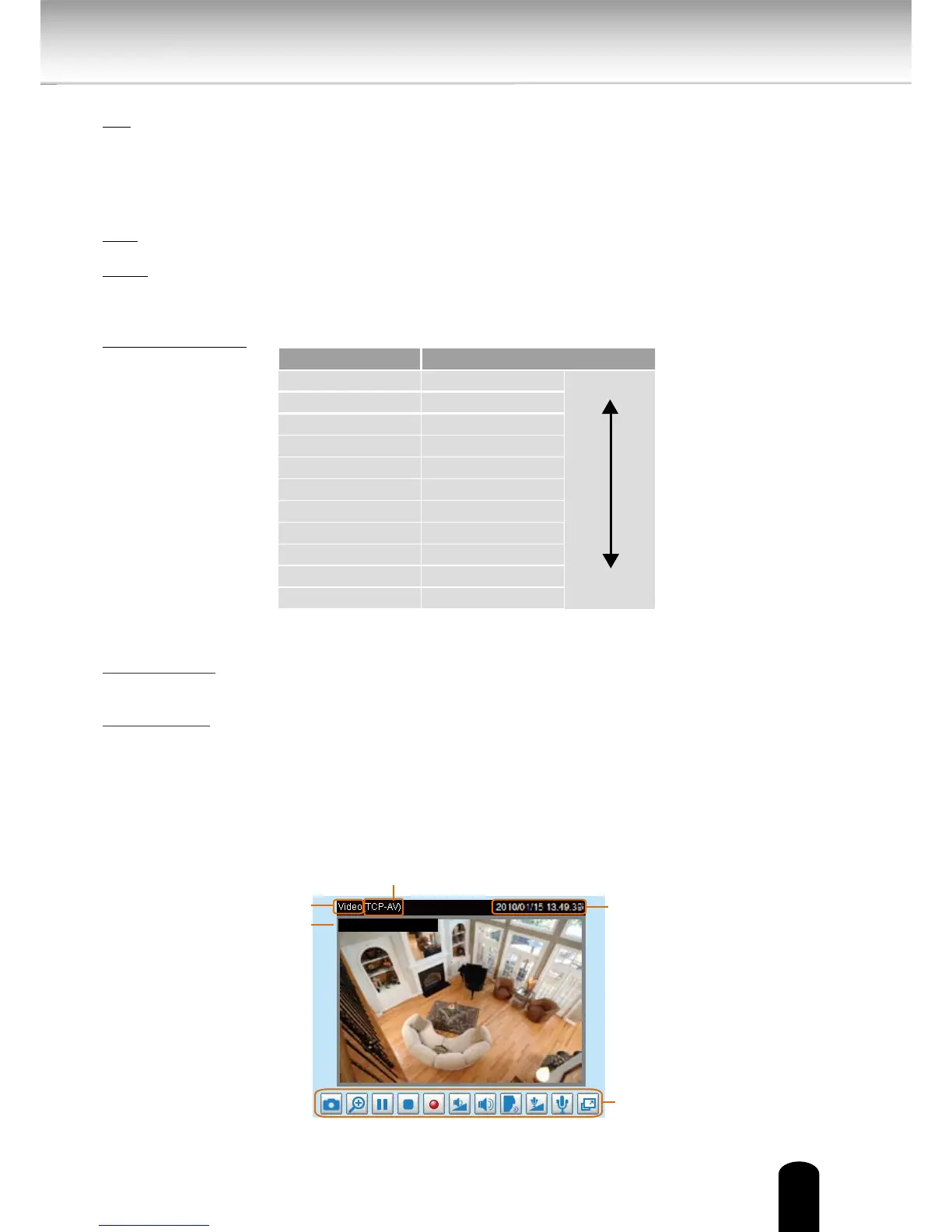
Live Video Window
■ The following window is displayed when the video mode is set to MPEG-4:
Pan speed Tilt speed
-5 -5 Slower
Faster
-4 -4
-3 -3
-2 -2
-1 -1
0 0
1 1
2 2
3 3
4 4
5 5


 To Next Page
 Loading...