Cropping Setting
Advanced Mode
Click Cropping Setting to open the Cropping Settings page.
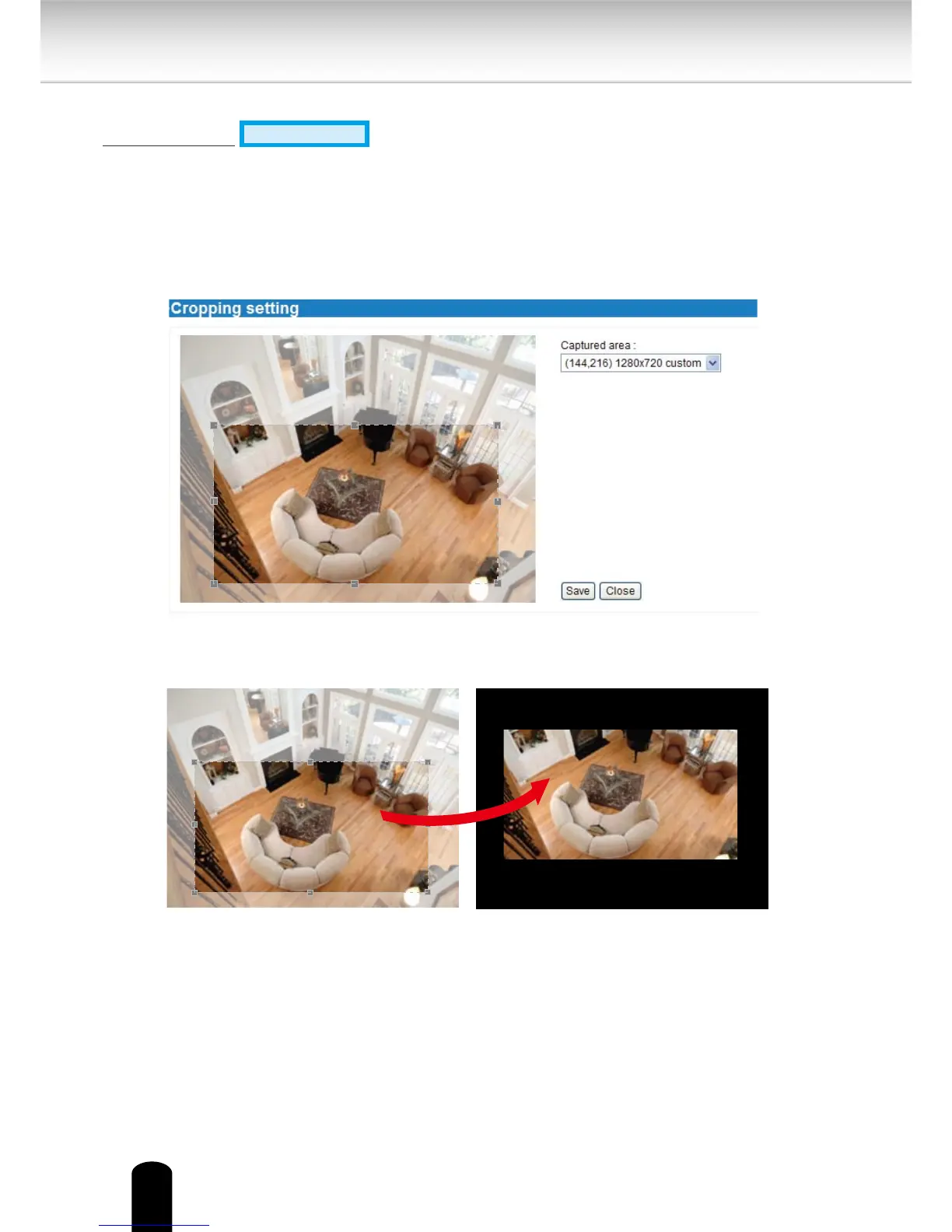
Please follow the steps below to set up cropping mode for mutiple streams:
1. Click Cropping Setting to open the window as shown below.
2.
Select a Captured area from the drop-down list. The oating frame, the same as the one
in the Global View window on the home page, will resize accordingly. If you want to set up
a customized viewing region, you can also resize and drag the oating frame to a desired
position with your mouse.
3. Click Save to enable the settings and click Close to exit the window. Below is the illustration
of cropped image:


 To Next Page