Source: Select the recording source (stream 1 ~ 4).
Recording Schedule: Specify the recording duration.
■ Select the days of the week.
■ Select the recording start and end times in 24-hr time format.
Destination: You can select the SD card or network storage that was set up for the recorded
video les.
Capacity: You can choose either the entire free space available or limit the recording size. The
recording size limit must be larger than the reserved amount for cyclic recording.
File name prex: Enter the text that will be appended to the front of the le name.
Enable cyclic recording: If you check this item, when the maximum capacity is reached, the
oldest file will be overwritten by the latest one. The reserved amount is reserved for cyclic
recording to prevent malfunction. This value must be larger than 15 MBytes.
When completed, select Enable this recording. Click Save to enable the setting and click Close
to exit this page. When the system begins recording, it will send the recorded files to the
Network Storage.
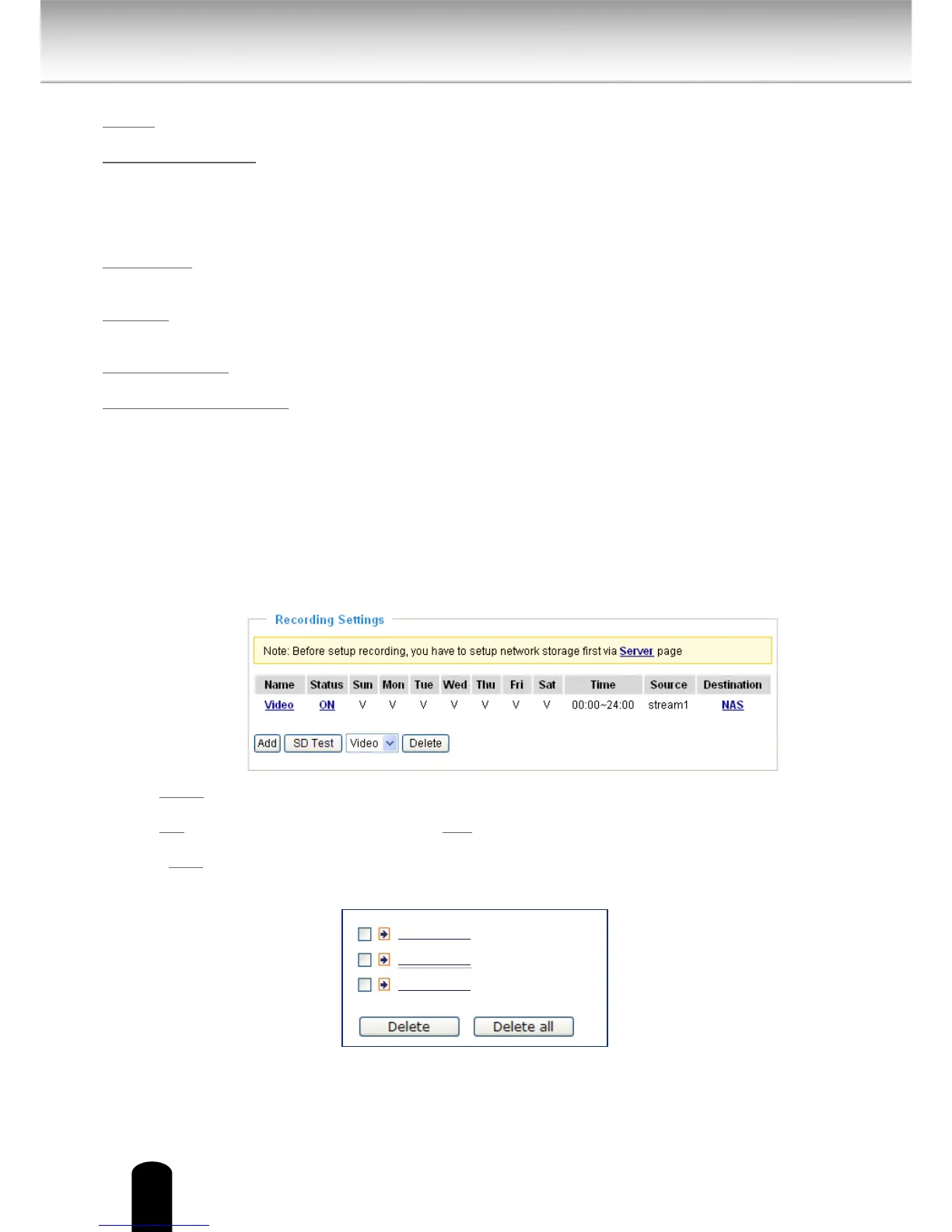
The new recording name will appear in the drop-down list on the recording page as shown
below.
To remove a recording setting from the list, select a recording name from the drop-down list
and click Delete.
■ Click Video (Name): Opens the Recording Settings page to modify.
■ Click ON (Status): The Status will become OFF and stop recording.
■ Click NAS (Destination): Opens the file list of recordings as shown below. For more
information about folder naming rules, please refer to page 96 for details.


 To Next Page