56
snom 720 User Manual Using the Phone
Call forwarding
The phone can be set to forward incoming calls, either always or under certain conditions. The settings
can be done on the phone and on the web interface. For further information on using the web interface
for these settings, see "Call forwarding" on page 70.
Forward All: Forwarding all incoming calls to the number of the phone, extension, or mailbox
specified as this function’s target.
As the default setting, the function key
CFwd
in the function key line turns forwarding of all calls
on and off, but you can also map the function onto another function key or use the settings menu as
shown in the table, below.
Forward when Busy: Forwarding calls ringing while phone is busy to the number of the phone,
extension, or mailbox specified as this function’s target.
Forward after Timeout: When a call starts ringing, the phone will wait for the number of seconds
specified in the setting "Call forwarding time". If the call is not accepted by the end of this time period,
it is forwarded to the number of the phone, extension, or mailbox specified as this function’s target.
Changing the settings on the phone and turning on call forwarding
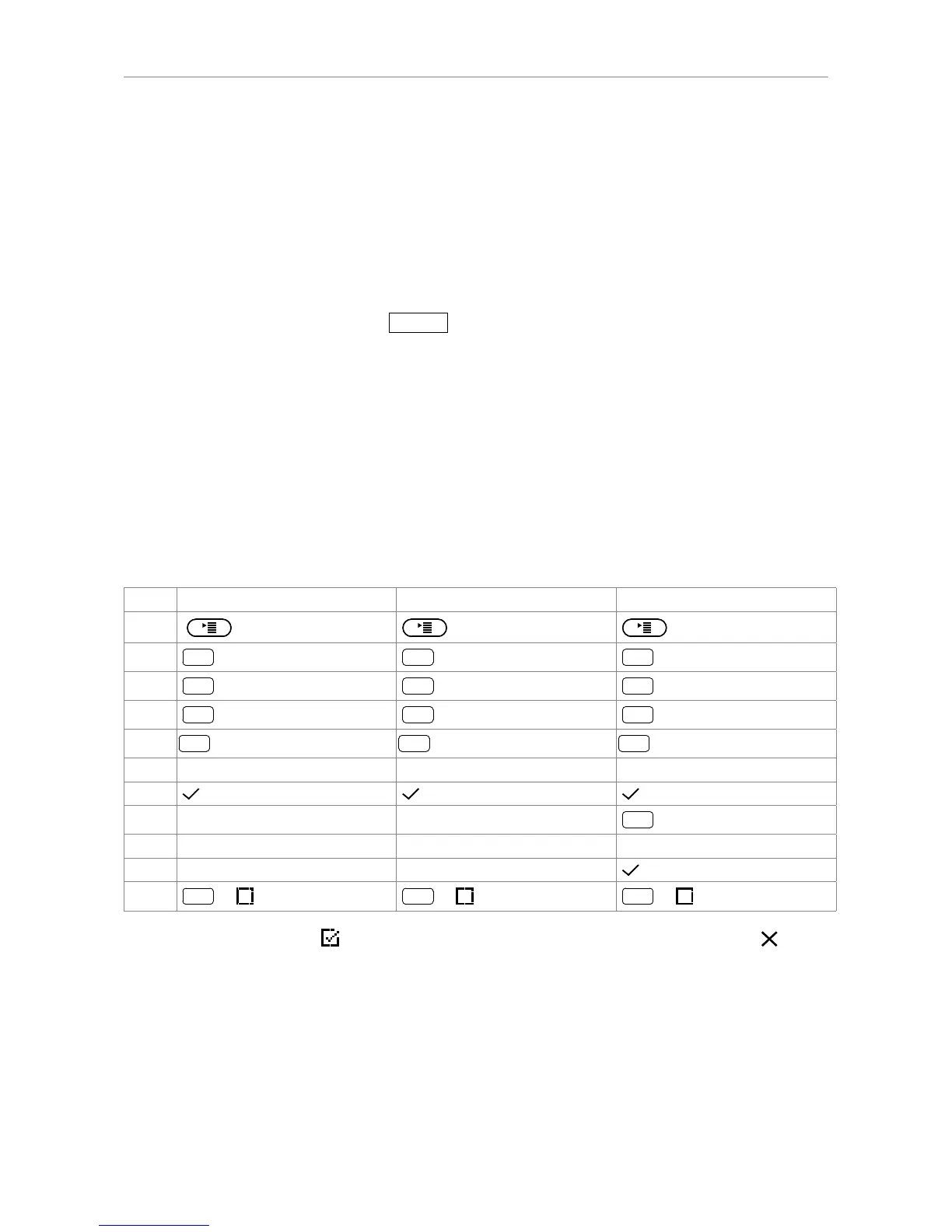
Forward all Forward when busy Forward after timeout
Press
Press
1 Activate
The setting will change to "1
Activate", indicating that call forwarding is now active. Press for
two seconds to return to the idle screen.
The status line and the status info screen will indicate that call forwarding is turned on and what
number calls will be forwarded to.
Note: Forwarding when busy and after timeout are indicated in the status bar, which can
display only one message at a time. When both are active at the same time, only "Forward
when busy" will be displayed. If there are other status messages with a higher priority
than "Forward when Busy" (e.g., firmware update available, reboot required, waiting for
call completion, etc.), they will take precedence over the call forwarding indication.


 To Next Page