Saving and loading user data
25
This section explains ways to save and load user data.
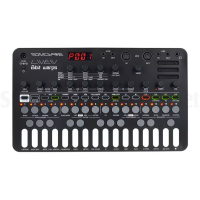
User data can be saved and loaded via MIDI. Connect a
device that can transmit and receive data by MIDI to the
LIVEN 8bit warps.
Exporting patch memories
① Select a patch memory you want to export. (See p.7
“Changing patch memories and playing.)
② While pressing
, press DATA.
③ Turn the
VALUE knob to select MEM.
④ Press
to start transmission.
ーーーーーーーーーーーーーーーーーーーーーーーーーーーーーー
• Regardless of data transmission status,
can be pressed to cancel.
• After transmission completes, DONE will appear on
the display and regular mode will resume.
• The data being edited will be exported.
Exporting patterns
① Select the pattern you want to export (See p.14 “Se-
lecting patterns”).
② While pressing
, press DATA.
Turn the
VALUE knob to select PTN.
④ Press
to start transmission.
ーーーーーーーーーーーーーーーーーーーーーーーーーーーーーー
• Regardless of data transmission status,
can be pressed to cancel.
• After transmission completes, DONE will appear on
the display and regular mode will resume.
• The data being edited will be exported.
Exporting patch memories and patterns
① Select a patch memory you want to export. (See p.7
“Changing patch memories and playing.)
② Select the pattern you want to export (See p.14 “Se
-
lecting patterns”).
③ While pressing
, press DATA.
④
Turn the
VALUE knob, and select P+M.
⑤ Press
to start transmission.
ーーーーーーーーーーーーーーーーーーーーーーーーーーーーーー
• Regardless of data transmission status,
can be pressed to cancel.
• After transmission completes, DONE will appear on
the display and regular mode will resume.
• The data being edited will be exported.
Importing patch memory and pattern data
① Put the unit into regular mode, and start transmit-
ting data from the transmitting device.
ーーーーーーーーーーーーーーーーーーーーーーーーーーーーーー
• After receiving patch/pattern data completes, this
data will be reected in the current patch/pattern. (It
will not be saved.)
• If the received data needs to be saved, save the
patch memory or pattern.
Exporting waveform data
① Enter waveform editing mode and select the wave-
form you want to export (See p.12 “Editing wave-
forms (easy mode)” steps ① – ④ ).
② While pressing
, press .
③ Press
to start transmission.
Importing waveform data
① Enter waveform editing mode and select the desti-
nation for the imported waveform (See p.12 “Editing
waveforms (easy mode)” steps ① – ④ ).
② Start transmission on the transmitting device (after
receiving completes,
lights green and waveform
editing mode is activated).
ーーーーーーーーーーーーーーーーーーーーーーーーーーーーーー
• After reception completes, the received waveform
data will be reected in the current waveform. (It will
not be saved.)
• If the received data needs to be saved, save the
waveform.


 To Next Page