11
© Copyright 2018 Karaoke Home Entertainment www.khe.com.au / www.khe.co.nz / www.picknmix.com.au
Recording Assistance on an MP600
Step 1 Make sure the machine is connected (see Page 2), plug in your
microphones and insert your disc/USB/SD Card. If you are singing off a disc,
you will need to insert a USB as well, to record your performance to. If you
are singing a song from your USB stick, it will record back to itself, creating a
new folder “Record”.
Step 2 Play your song, from either the disc or the USB stick/SD Card.
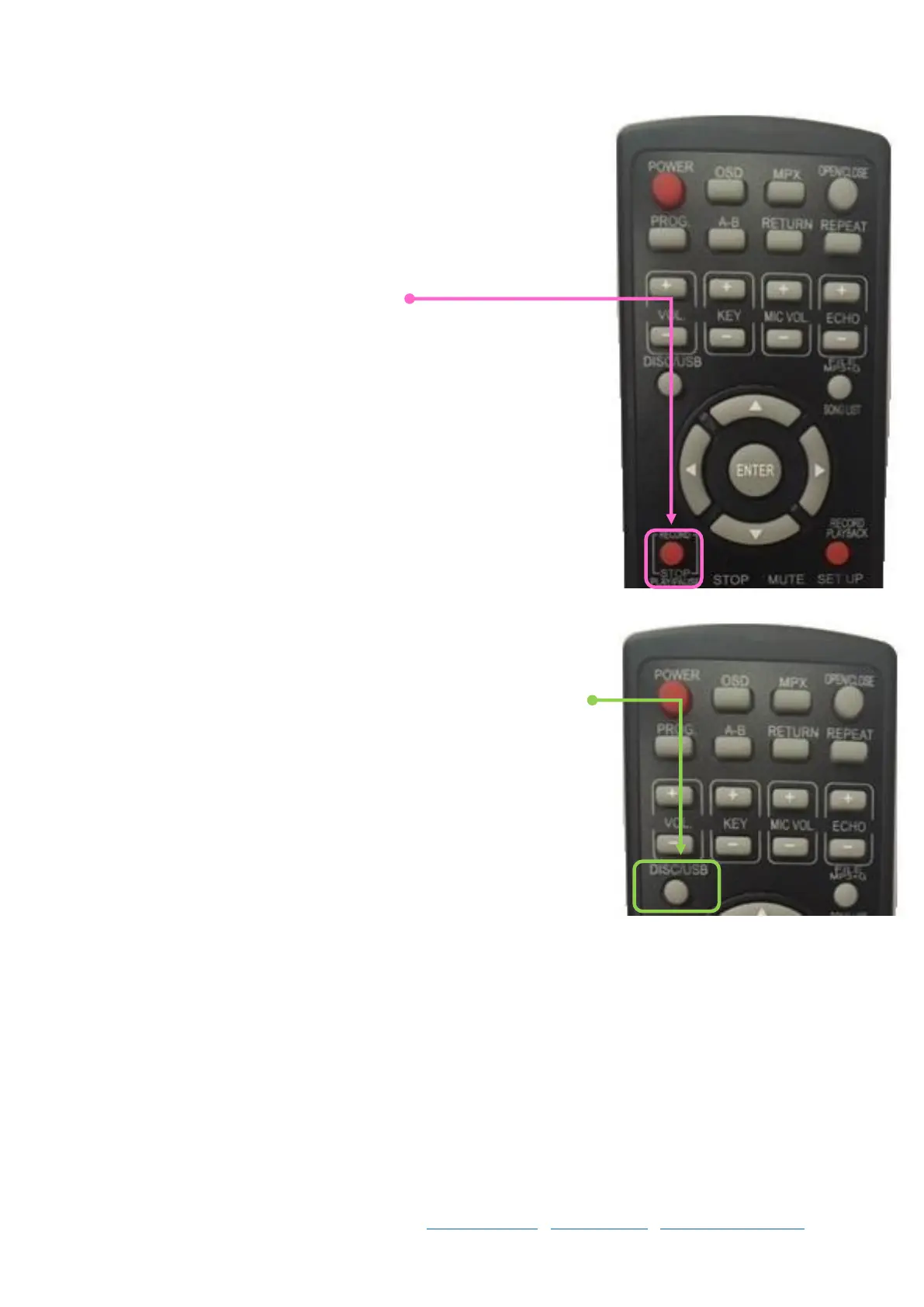
Step 3 Press the “RECORD” button on the remote.
Step 4 Then, over the top of the songs, a screen should appear with a
keyboard and REC001. If you wish to change the name of the recording you
can do so here, or you can do this later in your computer. In this case, use the
arrows on the remote to navigate to the “ENTER” button, and select.
Step 5 From here the song you have selected will restart from the beginning,
and a little red “REC •” should appear in the top left hand corner of your
screen: You can now sing and the music will be recording to the USB Stick, in
a separate folder called “Record”.
Step 6 When you wish to stop the recording, simply press the “RECORD”
button on the remote again. This will return to you the USB menu.
Recording Playback on an MP600
Playback on the MP600
Step 1 Keep the USB inserted in the front of the machine, click the DISC/USB
button on the remote
Step 2 Locate the “record” folder and select it, then use the → (right) arrow to
move across into the folder.
Step 3 There will be the list of your recorded files, either REC0001, REC0002 or
the names you entered in.
Step 4 Press enter to play any of these as you would any other file.
Playback on your Computer
Step 1 Plug the USB into your computer
Step 2 Open the USB so you can view all the folders
Step 3 Find the “record” folder and open it
Step 4 You will see the REC0001, REC0002 etc files that you recorded earlier, or the names you entered instead
Step 5 Double click on a file to play, doing this on your PC you will only hear the audio.



 To Next Page