19
© Copyright 2018 Karaoke Home Entertainment www.khe.com.au / www.khe.co.nz / www.picknmix.com.au
MP600 FAQ Page
Q: Can the machine remove the singing on a disc?
A: The MP600 has the Multiplex (MPX) function
(see Page 3) which allows you to switch on/off the
full guide vocals on a MPX karaoke track. However,
a common misconception with these machines, is
that they can remove the vocal on a normal CD, this
is not the case. If you play a normal CD in them,
they will play just as an audio CD. Only proper formats (CD+G, MP3+G and Karaoke DVD) will perform as Karaoke.
Q: Does the machine record?
A: Yes, the MP600 does record from either CD+G or MP3+G to a USB stick. See Page 5 and 6 for detailed information.
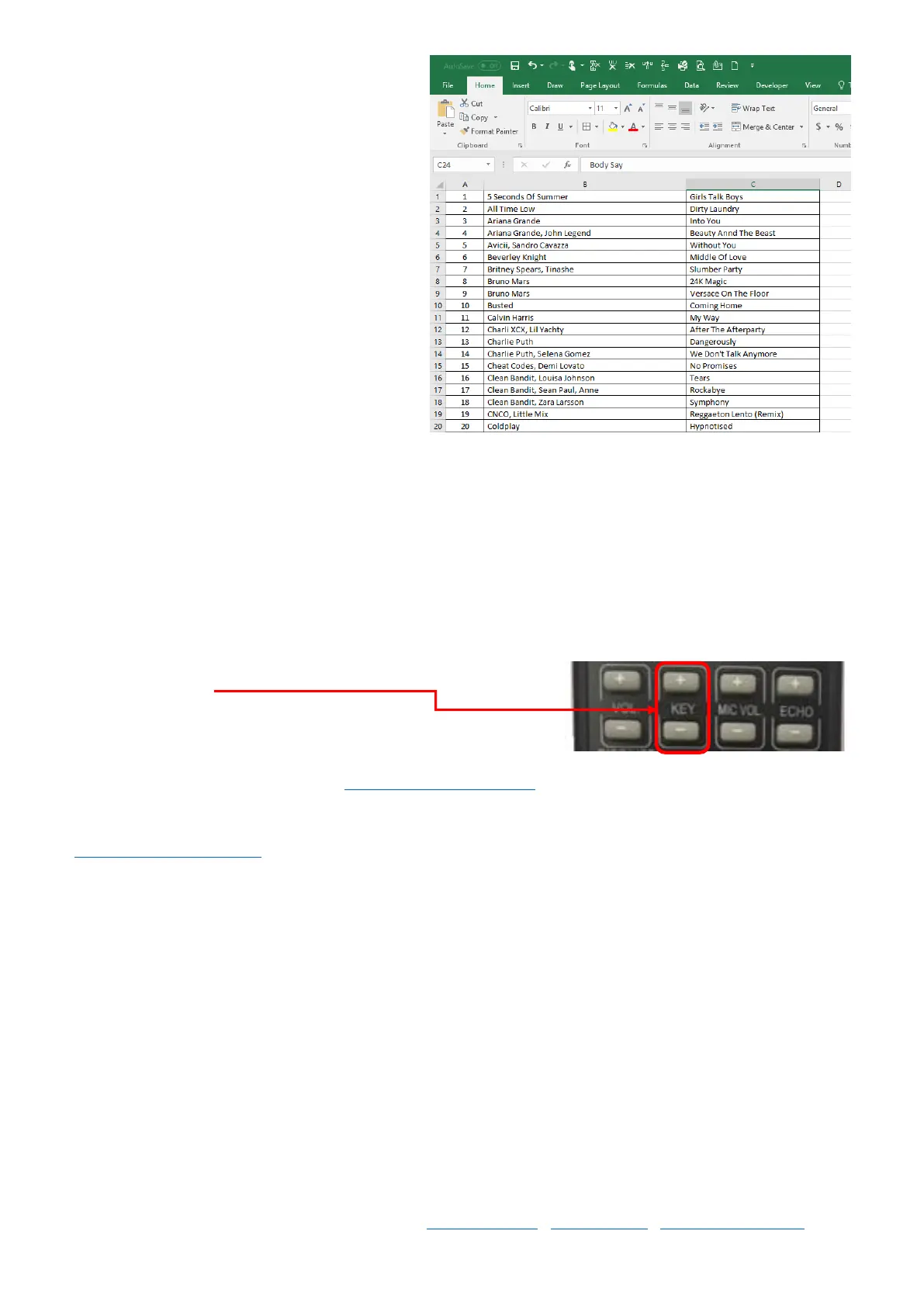
Q: Does it have key control?
A: Yes, the MP600 has key control on the remote control you have a 6-Step Key Control to step the song up or down
to better suit your vocal range.
On top half of remote
Q: How do I download songs?
To download MP3+G Karaoke Files, go to www.karaokemp3g.com.au and create an account. Purchase credit of your
choice via PayPal and then select your songs and download to your computer. Unzip and copy unzipped files to a
USB stick which goes into the front of the MP600. For support and detailed instructions on the download process go
to www.picknmix.com.au/faq
Q: Can I connect my iPod or Smart Phone to the Karaoke Machine?
A: No, although the machine does have USB port it does not support these devices; however, if you are wanting to
play normal MP3 songs you can. Just transfer the songs to an empty 8GB (Maximum) USB Stick and insert it into the
front of the machine. Please Note: Normal MP3 songs will NOT display lyrics or any other visuals on the screen you
will just hear the audio.
Q: Can I put my CD+G discs on the USB stick for quicker playback?
You certainly can, if you have lot of discs to convert doing so in the player can be time consuming as the players are
slower at converting process. If your song files need renaming that is a very tedious process with a remote control as
the keyboard. But don’t worry there is a much faster way using your Windows based PC to convert your discs using



 To Next Page