12
© Copyright 2018 Karaoke Home Entertainment www.khe.com.au / www.khe.co.nz / www.picknmix.com.au
Understanding the USB Platform on an MP600
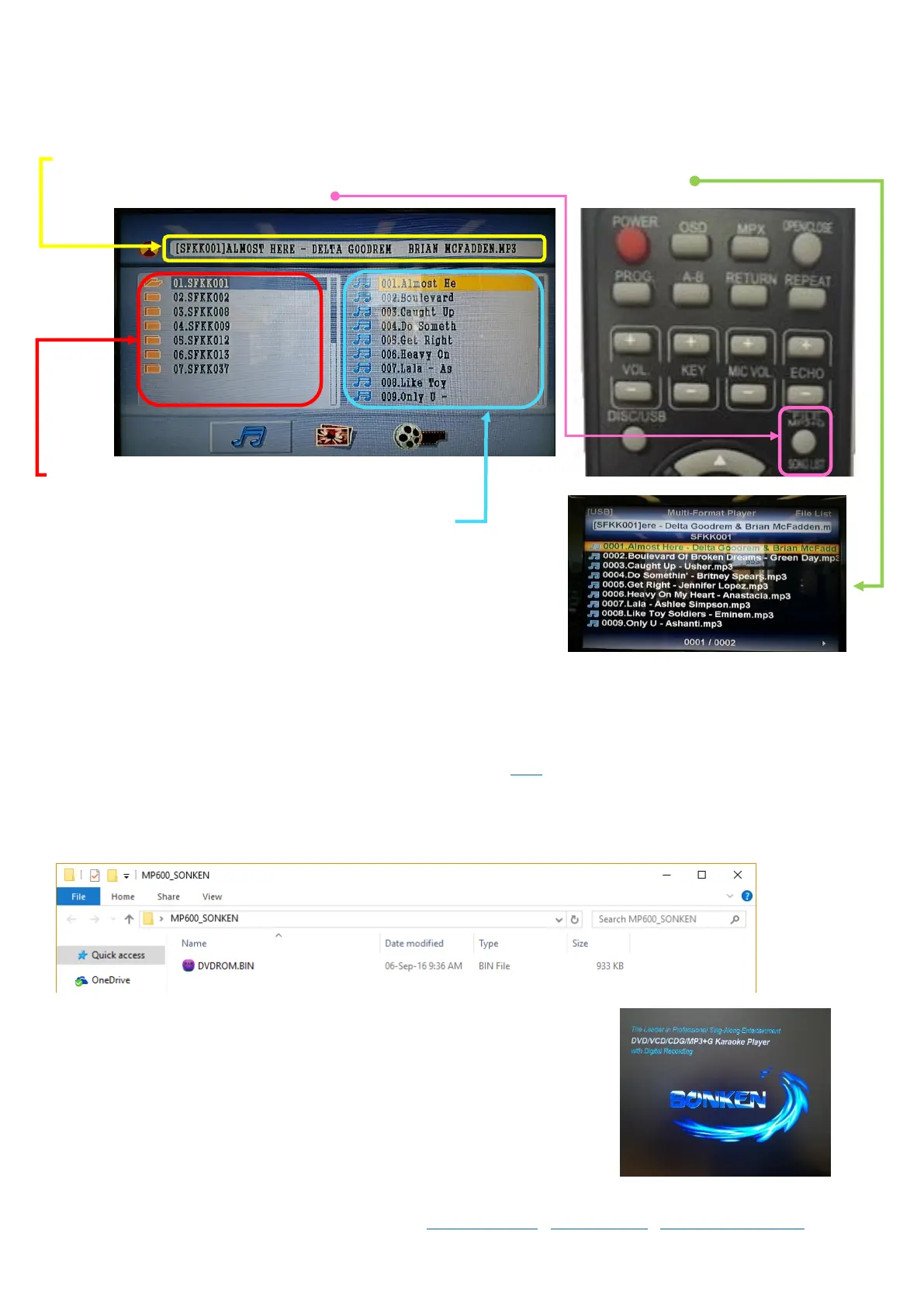
When you insert a USB stick (up to 8GB) your MP600 will recognise and start switching to USB mode where it will
show you two columns, like below.
At the top you will see the currently title and artist that you have highlighted, if you’re having trouble reading the
song titles in this view, click “FILE MP3+G SONG LIST” on the remote to switch to wide view
On
the left hand column side is the folders that you have on your USB stick
On the right hand side is the song within the given folder
Download & Install Song Book Generator
For MP600’s Purchased Before July 2017
For MP600’s purchased after July 2017 your machines are already installed with the Song Book Generator therefore
you do not need this information, however, if you purchased your machine before then and would like the Song
Book Generator function in your machine, keep reading.
Step 1 You can purchase the Song Book Generator Upgrade from here.
Step 2 Once you’ve completed the purchase, you need to download the DVDROM.BIN file to your PC.
Step 3 Copy the DVDROM.BIN file to an empty USB Memory Stick (Maximum 8GB)
Step 4 Plug in and turn on your MP600 Karaoke Player, and turn on the TV too
so you can watch the installation process
Step 5 Make sure there is no CD in the draw.
Step 6 Insert your USB stick with the DVDROM.BIN file on it into the front of
the MP600.



 To Next Page