9
© Copyright 2018 Karaoke Home Entertainment www.khe.com.au / www.khe.co.nz / www.picknmix.com.au
Creating a Songbook on an MP600
The Sonken MP600 (models purchased after July 2017) have an in-built song book generator function which allows
you to create a printable book with all your songs for super easy song selection.
In order to create the song book, you must have all your songs in MP3+G format (2 files per song .cdg and .mp3) on
no more than an 8GB USB stick, with no other documents [Word Files, Photos etc] present on the USB.
Tip: Before adding your songs, you must format* the USB to FAT32 to clear it of all other items and residual files. (See
below for how to do)
Please Note: These songs need to be in MP3+G in order for the words to appear on the screen, they need to be
unzipped, and named identically except for the .cdg and .mp3 extensions. The number of songs which a USB (8GB
approx. 1600) will hold is variable upon the song lengths.
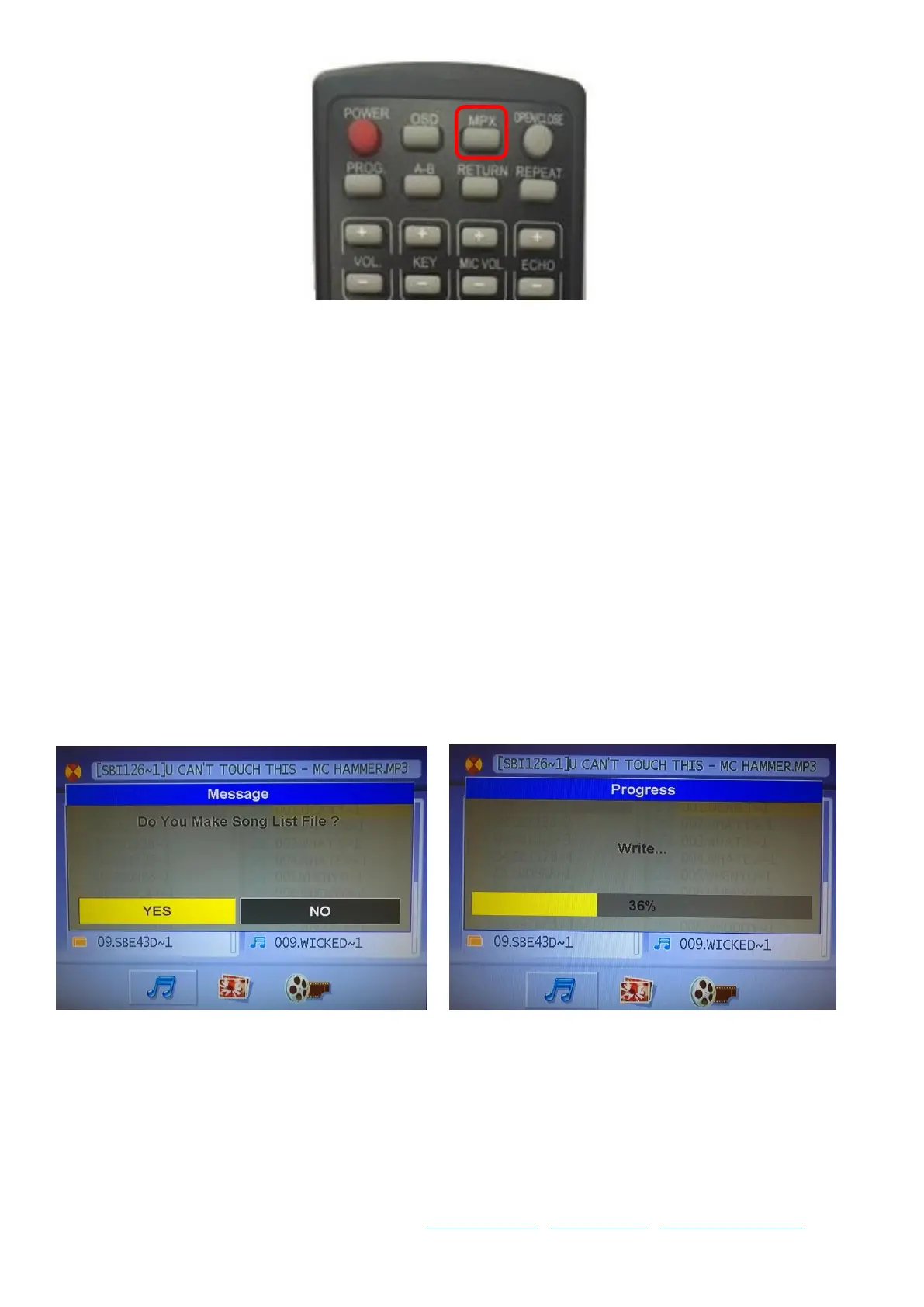
Step 1 Insert the USB stick and wait for the USB menu to come up on the screen
Step 2 Press the A-B button on the remote, follow on-screen prompts and wait for the machine to finish crunching
your songbook
Step 3 Once its done, take out the USB stick and insert it into your computer
Step 4 Open the songbook file .csv document on the USB and you’ll see all your songs listed with a dedicated
number in front of the machine, this is the song number that you’ll enter to bring up that specific song.



 To Next Page