Section 2 Getting Started
CAUTION
Care should be taken when using or storing the
system so that excessive force is not applied to
the touch screen, as it is may become
permanently damaged.
SCREEN CONTRAST ADJUSTMENT
1. From the Main Screen, select the
[ SET DATE ] button at the bottom of the
screen (see Figure 2-1). Verify that the Set
Date and Time Screen appear on the display
(see Figure 2-2).
2. To adjust the contrast, select the
[ CONTRAST Ç ] or [ CONTRAST È ]
button.
SETTING THE DATE AND TIME
1. From the Main Screen, select the
[ SET DATE ] button at the bottom of the
screen (see Figure 2-1). Verify that the Set
Date and Time Screen appear on the display
(see Figure 2-2).
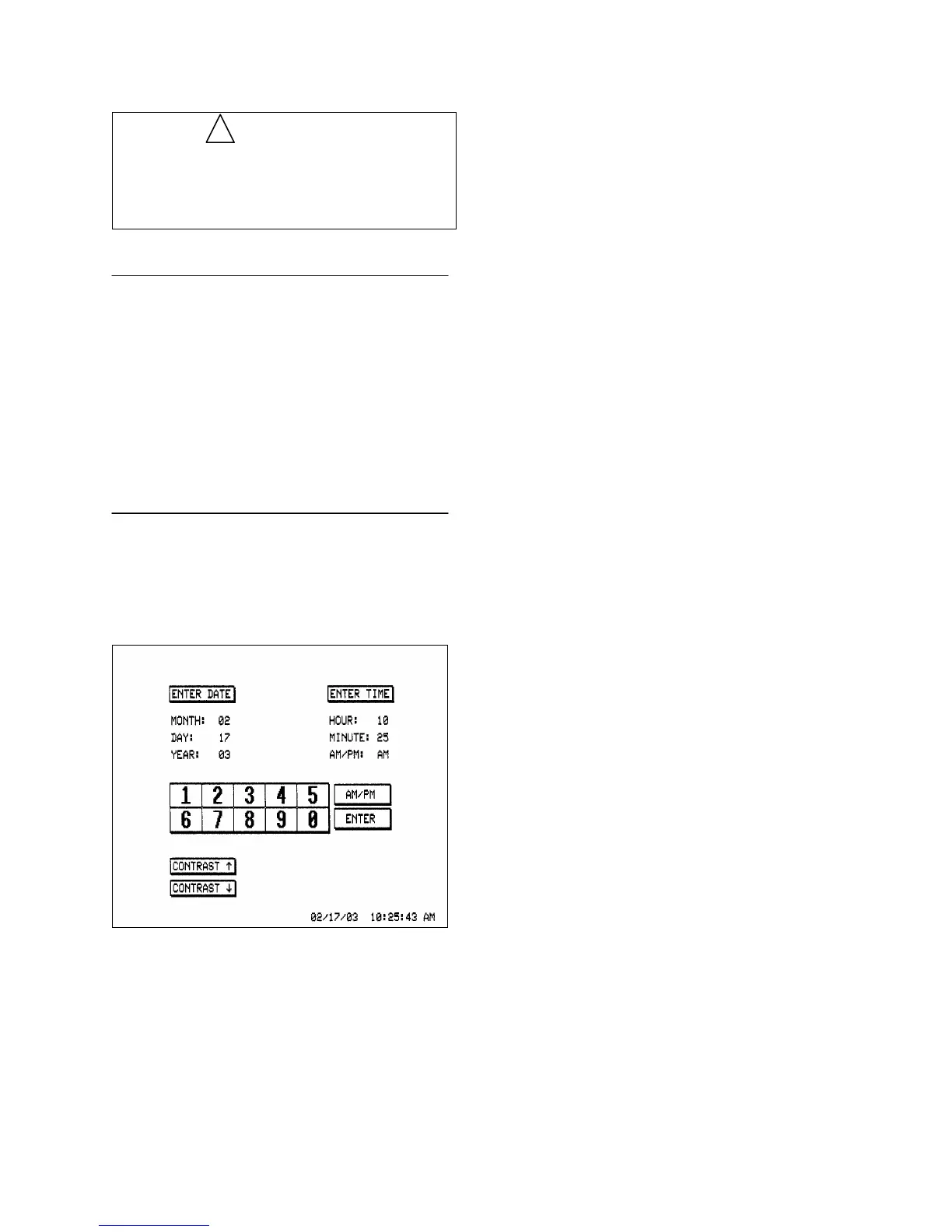
Figure 2-2. Set Date and Time Screen Display
2. To edit the date, select the [ ENTER DATE ]
button. Enter the appropriate two digits for
the month (for example, “01” for January),
and then select the [ ENTER ] button. Repeat
for the day and year.
3. After entering the year, the display will return
to the Main Screen. Verify that the correct
date is displayed on the bottom right corner
of the screen.
!
4. From the Main Screen, select the
[ SET DATE ] button at the bottom of the
screen (see Figure 2-1). Verify that the Set
Date and Time Screen appears on the display
(see Figure 2-2).
5. To edit the time, select the [ ENTER TIME ]
button. Enter the appropriate two digits for
the hour, and then select the [ ENTER ]
button. Repeat for entering minutes. Hit the
[ AM/PM ] button to select and then the
[ ENTER ] button.
6. After entering the year, the display will return
to the Main Screen. Verify that the correct
time is displayed on the bottom right corner
of the screen.
Doc # 0300-A-1901-3D 2 - 5



 To Next Page