EasyManua.ls Logo

Sony DPP-FP70 - User Manual

Sony DPP-FP70
84 pages
Print Icon
To Next Page IconTo Next Page
Loading...
3-097-069-13 (1)
2007 Sony Corporation
Operating Instructions
Before operating this unit, please read "Read This First"
supplied and this manual "Operating Instructions"
thoroughly and retain them for future reference.
Owner’s Record
The model and serial numbers are located on the
bottom. Record the serial number in the space provided
below. Refer to these numbers whenever you call upon
your Sony dealer regarding this product.
Model No. DPP-FP70/FP90
Serial No.
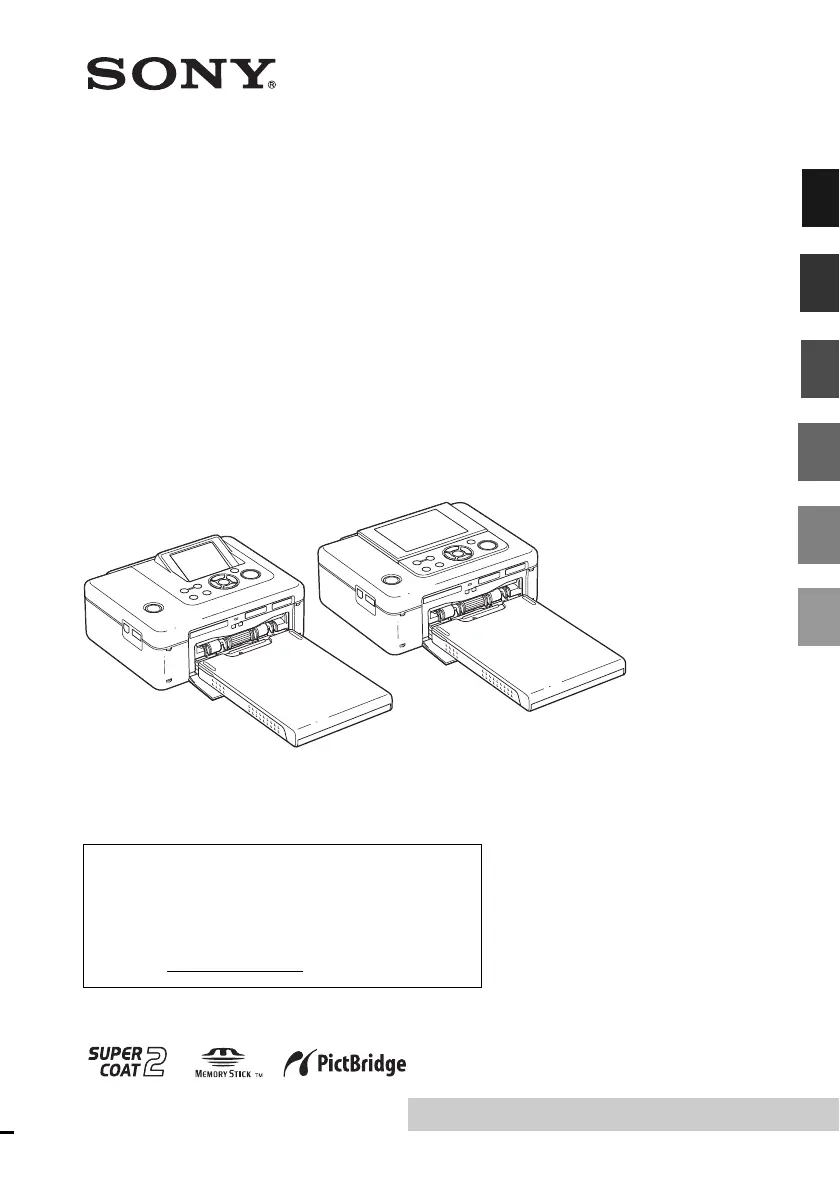
Digital Photo
Printer
DPP-FP70/FP90
Before you begin
Making various printing
Printing from a PictBridge
camera or external device
Printing from a PC
Troubleshooting
Additional information
Please read the supplied "Read This First".

Table of Contents

Other manuals for Sony DPP-FP70

Questions and Answers

  • D
    danielwoodwardAug 27, 2025
    How to turn off date print on Sony DPP-FP70 Printer?
    • D
      Dr. Charles GarciaAug 27, 2025
      If the date is printed unintentionally on your prints from the Sony Printer, set “Date Print” in the Print setup menu to “Off”. Also, check and change the camera settings.
  • S
    Stephanie HarringtonAug 25, 2025
    Why does the LCD screen display no images on my Sony Printer?
    • K
      Katie TownsendAug 26, 2025
      If the LCD screen on your Sony Printer displays no images, it could be due to the following reasons: * If a PictBridge camera or a PC is connected and the printer is in PictBridge/PC mode, no images will be displayed. Operate with the PictBridge camera or PC, or remove them to display images from a memory card or external device. * Follow any messages displayed on the screen to troubleshoot the problem. * Ensure that the memory card or external device is properly inserted. * Verify that the memory card or external device contains recorded images and that the file formats are compatible with the printer. * If an image is not compatible with the DCF standard, it may not be printed even if displayed on a PC monitor.
  • S
    Samantha VegaAug 23, 2025
    Why are the printed pictures from my Sony Printer inferior in quality?
    • N
      Nicole VazquezAug 23, 2025
      If your Sony Printer is producing printed pictures of inferior quality, it might be due to several reasons: * If you are using preview images, their printed quality will not be as good as the primary images. Note that deleting preview images may damage the data for the primary images. * If the image is small, the printing quality will be rough due to the small image size. Try changing the image size setting on your digital camera. * Enlarging an image may cause deteriorated picture quality, depending on its original size. * Avoid touching the shiny side of the print paper, as fingerprints can cause imperfect printing. * Do not reuse print paper or ink ribbon. Printing an image twice on the same paper will not make it thicker.

Sony DPP-FP70 Specifications

General IconGeneral
Print TechnologyDye-sublimation
Maximum Print Size4 x 6 inches
Print Resolution300 x 300 dpi
ConnectivityUSB, PictBridge
USB VersionUSB 2.0
Power SourceAC Adapter
TypePhoto Printer
Display2.5" LCD
Print Speed (4x6)45 seconds
Memory Card SlotsMemory Stick, SD Card

Related product manuals