54
HVR-V1E/V1P
2-887-521-12(1)
L:\SONY\PV\CX91030\1130insatuPDF\2887521121_GB\2887521111HVRV1UVIN\01GB05BAS.
fm
Changing/checking the settings in your
camcorder
You can turn on and off the display of the
time code, tape counter, and other
information on the screen.
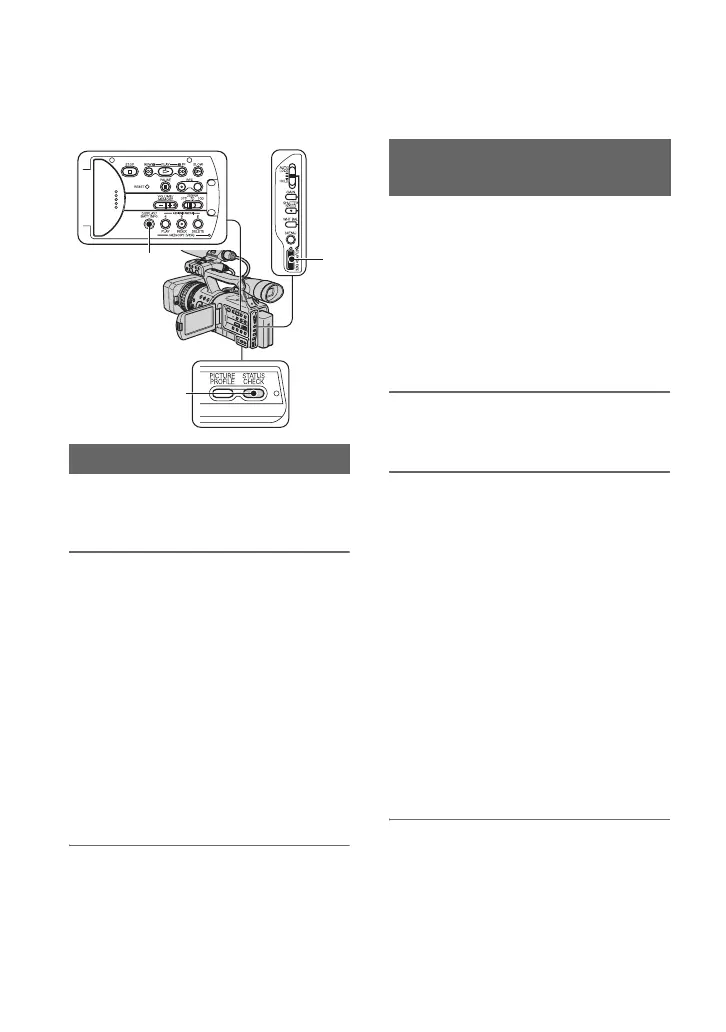
Press the DISPLAY/BATT INFO
button C.
The screen indicators turn on (displayed)
and off (undisplayed) as you press the
button.
When the POWER switch is set to
CAMERA, the screen changes (detailed
display t simple display t no display) as
you press the button.
z Tip
• You can display the screen indicators during
playback on a TV. Select [DISP OUTPUT],
then [V-OUT/PANEL] (p. 81).
You can check the setup value of the
following items.
• Audio setup such as [DV AUDIO MIX] (p. 77)
• Output signal setup ([VCR HDV/DV], etc.)
(p. 82)
• Functions assigned to the ASSIGN buttons
(p. 49)
• Camera setup. (p. 69)
• Picture profile (p. 44)
1 Press the STATUS CHECK button
B.
2 Turn the SEL/PUSH EXEC dial A
to display the desired item.
When the POWER switch is set to
CAMERA, the items appear in the
following order:
AUDIO t OUTPUT t ASSIGN t
CAMERA t PICT.PROFILE
When the POWER switch is set to
VCR, the items appear in the following
order:
AUDIO t OUTPUT t ASSIGN
b Note
• When [PICT.PROFILE] is set to [OFF], the
settings of PICTURE PROFILE are not
displayed.
To turn off the setup value
• Press the STATUS CHECK button B.
Changing the screen
A
B
C
Displaying the settings in your
camcorder (Status check)


 To Next Page