Help Guide
Interchangeable Lens Digital Camera
ILCE-9M3 α9III
Touch function icons
Some functions have icons for touch operations (touch function icons). You can execute or change the settings of the
functions by touching the icons.
Settings for using the touch function icons
[Touch Operation]: [On]
[Shooting Screen] under [Touch Panel Settings]:
Set [Shooting Screen] to [On].
[Swipe Right] or [Swipe Left] → desired setting.
To show/hide the touch function icons
Swipe right or left on the shooting standby screen. The touch function icons will appear on the left and right sides of the
screen according to the settings for [Swipe Right] and [Swipe Left] under [Shooting Screen].
To hide the touch function icons, swipe the screen in the opposite direction from when you made the icons appear.
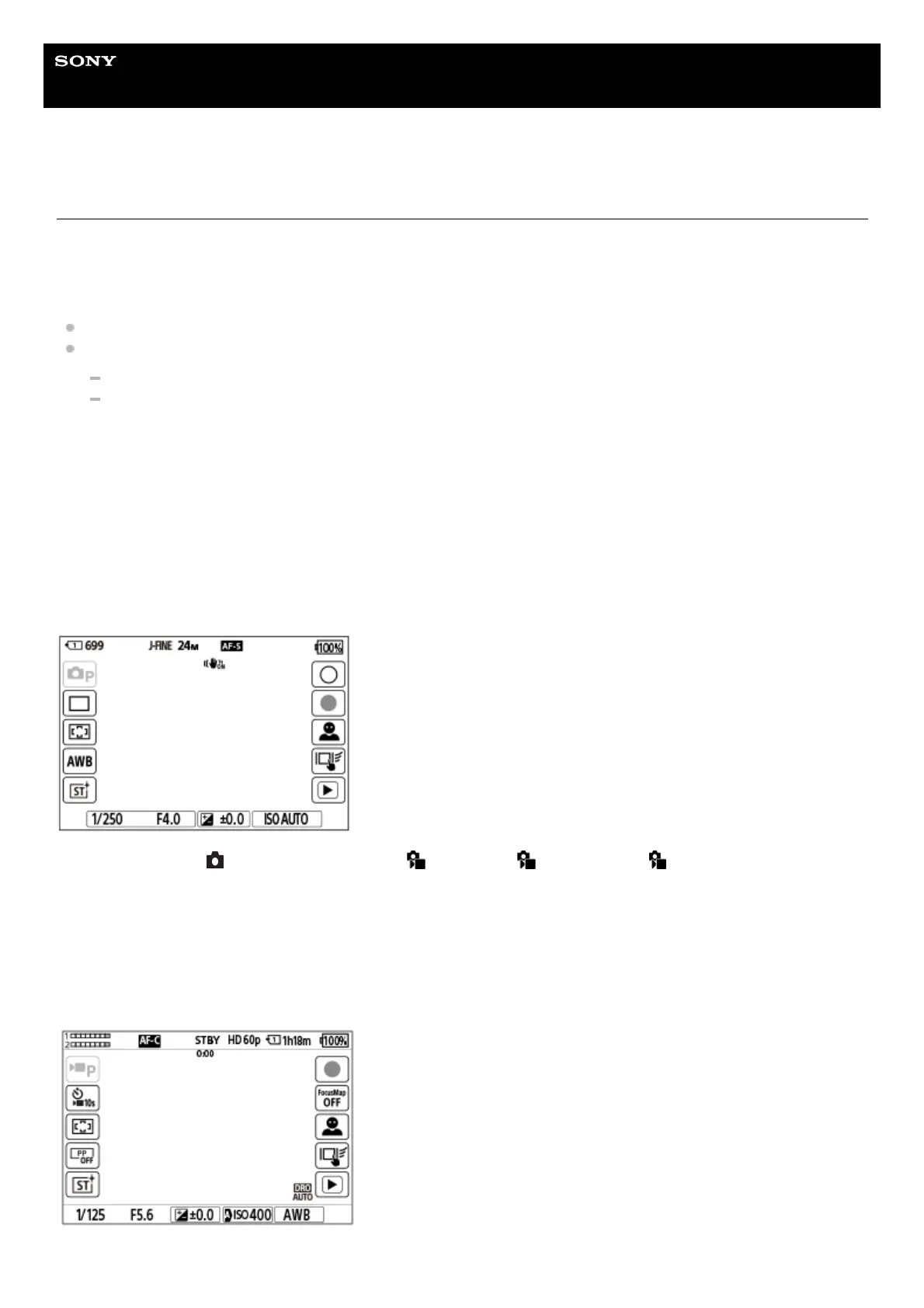
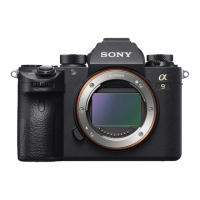
Examples of the touch function icon display and functions of each icon
The examples show the display when you set the icons to appear on both the left and right sides.
During still image shooting
Icons on the left side: Shoot Mode, Drive Mode, Focus Area, White Balance, Creative Look
Icons on the right side: Shoots a still image, starts recording movies, Recog. Target Select, Touch Func. in Shooting,
switches to the playback screen*
During movie recording
The shot mark button is displayed even during movie recording in the still image shooting mode so that shot marks can be set for the movie
being recorded.
*


 To Next Page