19
Changing the audio
language
Some DVDs have multiple audio languages
you can choose from.
ENTER
SEARCH
POWER
DISPLAY
CLEAR
SETUP
AUDIO
ANGLE
SUBTITLE
MENU
TOP MENU
INPUT
123
456
789
0
VOL
AUDIO
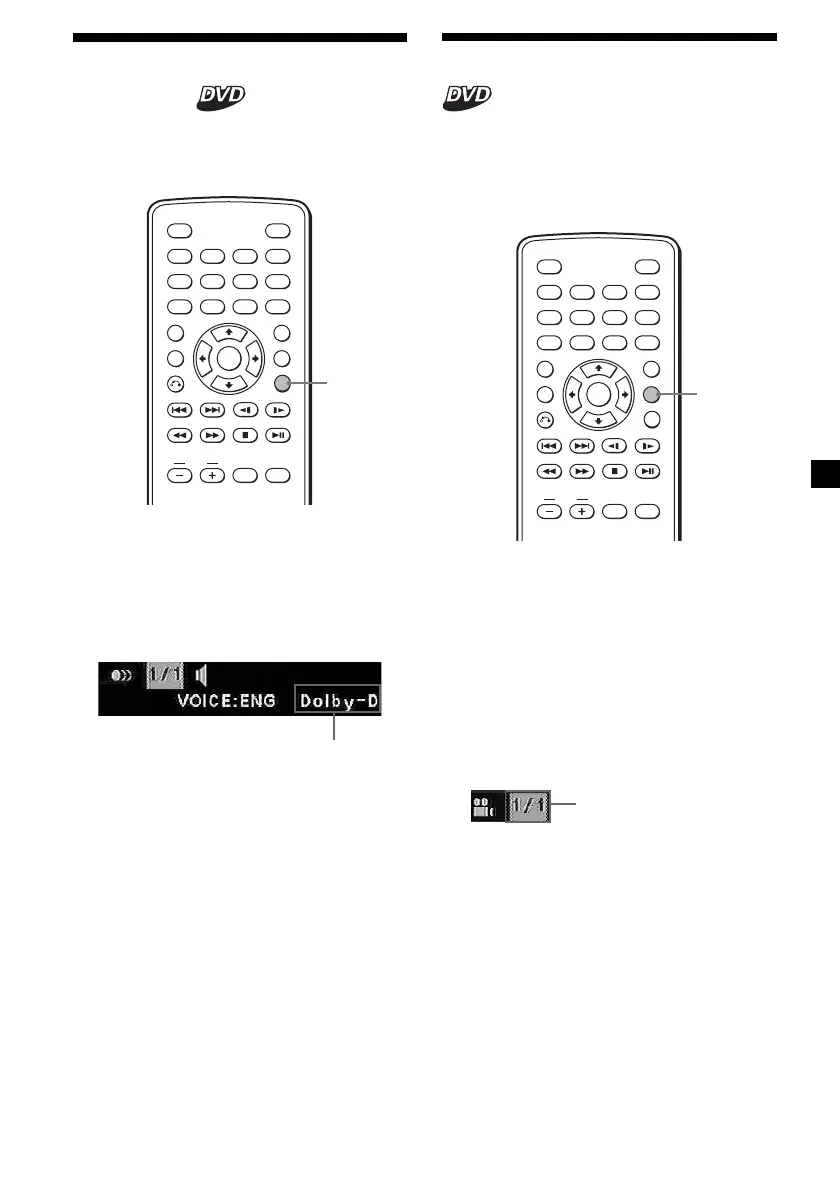
During playback, press (AUDIO)
repeatedly to select the desired audio
language.
The current audio language is displayed at
the upper left.
Example: an audio language display
When the display for the language code
appears, input the language code
corresponding to the desired language
(page 37).
Notes
• You can swit ch the audio language only if
mult iple audio languages are recorded on the
DVD.
• You can also change the audio languages by
using t he DVD menu (page 18) or t he DVD SETUP
menu* (page 22).
* You can change to a specif ic audio language
using t he DVD SETUP menu, only if the
language is included in bot h the disc and t he
menu. In some discs, t he init ial language to be
out put is specif ied regardless of the DVD SETUP
menu set t ing.
• This funct ion varies or may not w ork, depending
on t he DVD.
The format of the sound source
(Dolby D, DTS, or LPCM) may appear.
Changing angles
Some DVDs have multiple alternative angles
recorded for certain scenes. If you have set
“ANGLE MARK” to “ON” (page 23), a notice
appears at the scene.
ENTER
SEARCH
POWER
DISPLAY
CLEAR
AUDIO
ANGLE
SUBTITLE
MENU
TOP MENU
INPUT
123
456
789
0
VOL
SETUP
ANGLE
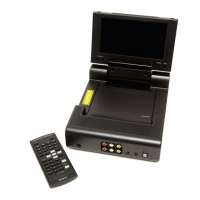
1 During playback of a DVD having
multiple alternative angles recorded,
press (ANGLE) w hen a notice appears.
The number of the currently selected angle
is displayed at the upper right.
2 Press (ANGLE) repeatedly to select your
favorite angle number, w hile the angle
number is displayed.
Each time you press (ANGLE), the angle
number switches.
Notes
• You can swit ch the angle only if multiple angles
are recorded on t he DVD.
• The tot al number of recorded angles diff ers
depending on t he DVD and scene.
• You can swit ch the angle only during normal
playback. You cannot sw itch t he angle during
fast f orward/reverse playback.
• When t he select ed scene w ith mult i angles
appears, t he angle is aut omatically sw itched t o
the angle number you selected in st ep 2.
• This funct ion varies or may not w ork, depending
on t he DVD.
The angle number you
have currently selected/
the total number of
multiple alternative
angles
Downloaded from: https://www.usersmanualguide.com/





 To Next Page