27
Selecting the color system
for the input video signal
The player detects the color system of the
input video signal (NTSC or PAL) and changes
the setting automatically (auto mode).
Do the steps below to change the color system
setting for the input video signal manually.
1 Press (POWER) to turn on the player.
The current input channel (DVD) appears
on the screen for 5 seconds.
2 Press (VOL) +/ – on the monitor
repeatedly to select “NTSC” or “PAL.”
Note
When changed manually, color system set t ing f or
the input video signal does not ret urn t o auto
mode until t he player is t urned of f or input
channel set t ing is changed. Theref ore, when it is
set to “ PAL,” the DVD recorded in NTSC syst em
cannot be viewed on the monit or of t he player
unless you t urn of f the player, then turn it on
again.
Settings by using the
M ENU button on the
monitor
You can make settings for the monitor and
frequency for the FM transmitter by using
(MENU) on the monitor.
Each time you press (MENU), the setting
screen changes in the following sequence:
Picture t Brightness t Color t Hue*
1
t
Dimmer t Video Adjust t Mode t FM
Transmitter t Blue Back t Menu Off.
*
1
“ Hue” appears only w hen the NTSC color syst em
is selected as t he input source (page 27).
Note
While making the f ollow ing sett ings, the VOL +/–
but t ons on t he card remot e commander can be
used to adjust the volume.
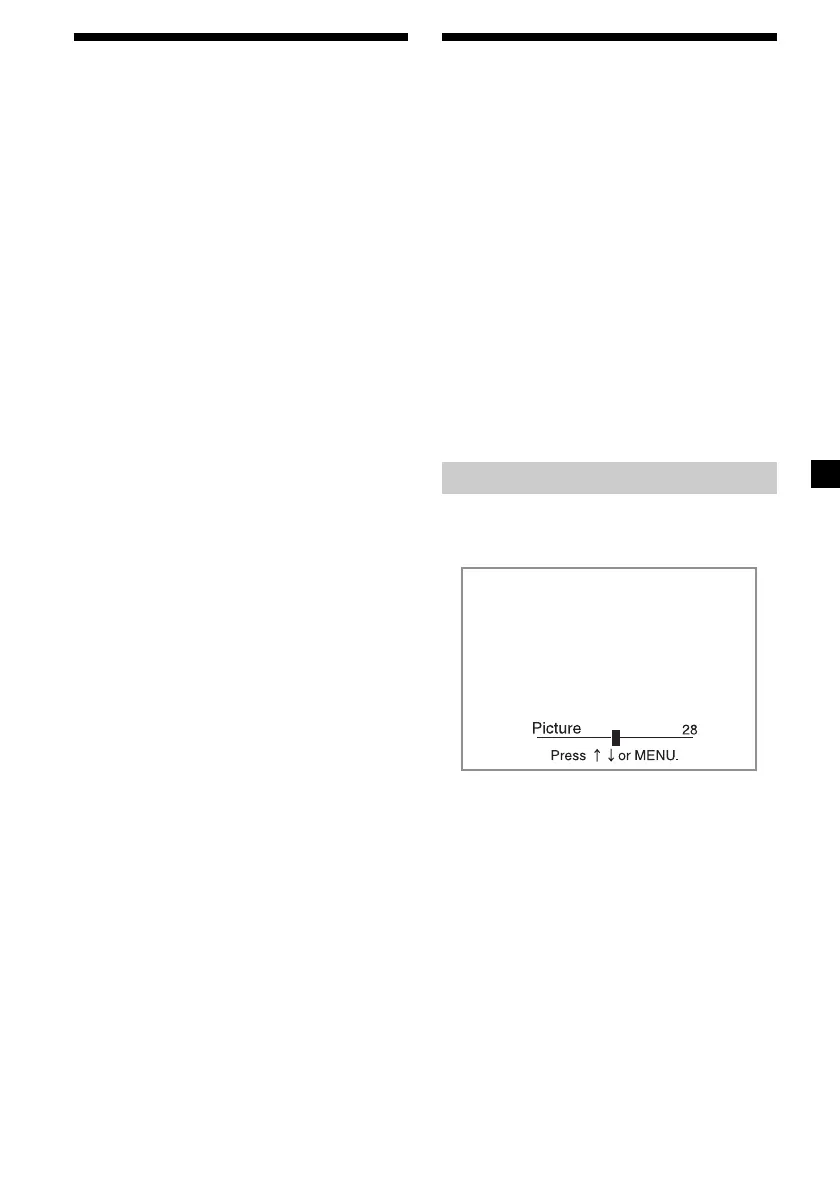
Adjusting the contrast
1 Press (MENU) on the monitor.
The “Picture” screen appears.
2 Press (VOL) +/ – on the monitor
repeatedly to adjust the contrast.
The settable range is 0 to 63, and the default
setting is 32.
When 5 seconds elapse with no button
pressed, normal display resumes.
Downloaded from: https://www.usersmanualguide.com/





 To Next Page