23
Menus
To reset a changed value
If you press the STATUS/ CANCEL switch toward
CANCEL before pushing on the menu control knob, the
setting will be returned to its previous value.
To interrupt settings
Set the DISPLAY/MENU switch to OFF to turn off the
menu screen display.
The setting operation can be restarted by setting the
DISPLAY/MENU switch back to MENU.
3 Push on the menu control knob.
The question mark will change back to the pointer, and the
new setting will be registered.
4 To change other setting items on the same menu
page, repeat steps 1 through 3.
To specify a character string
When you press the menu control knob with the pointer
pointing to an item for which a character string, such as a file
ID, is to be specified, a cursor and the list of selectable
characters are displayed.
The displayed cursor can be moved by rotating the menu
control knob.
1 Set the cursor to the position where you wish enter a
character, then push on the menu control knob.
Another cursor appears on the character list.
2 Set the cursor to the character to be entered and push
on the menu control knob.
Repeat steps 1 and 2.
• By selecting INS on the line below the character list, you
can enter a space at the cursor position.
• Selecting DEL deletes the character at the cursor
position.
• You can return to step 1 without changing the character
by selecting RET.
• If you enter the permitted maximum number of
characters (up to the stop mark at the right end of the
line), the cursor moves to ESC on the line below the
character list.
3 Select END and push on the menu control knob.
The new string you have set is registered.
To restore the previous string, select ESC and push on
the menu control knob.
To return a menu item to its standard value
Select the menu item to be returned to its standard value then
hold the menu control knob pressed for 3 seconds while the
arrow marker (,) is displayed.
If “10 SEC CLEAR” has been set to ON on the <FILE CLEAR>
page of the FILE menu, you can return the setting in the
reference file for the item being selected to the factory-set
value by holding the menu control knob pressed for another 10
seconds.
To end menu operations
Set the DISPLAY/MENU switch to OFF.
Editing the USER Menu
You can select desired pages and items from the
OPERATION, PAINT, MAINTENANCE, FILE, and
DIAGNOSIS menus and register them to the USER menu.
If you specify pages or items frequently used for the USER
menu, you can easily call and use them.
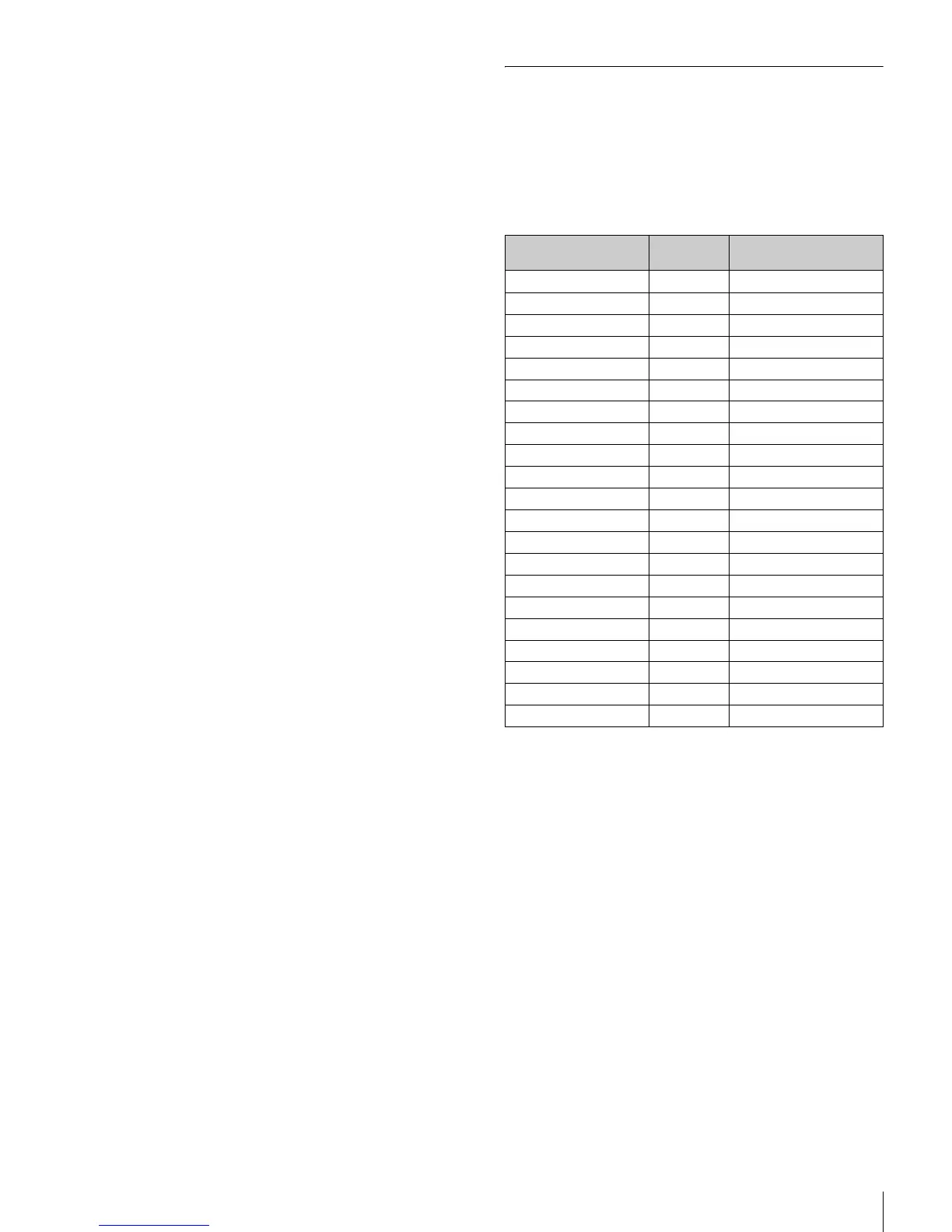
The following pages are included on the factory-set USER
menu:
For the items on each page, see “OPERATION Menu” (page
26), “MAINTENANCE Menu” (page 32), or “DIAGNOSIS
Menu” (page 36).
The USER MENU CUSTOMIZE menu allows you to configure
the USER menu as follows:
• Creating a new page with items selected from multiple menu
pages
• Adding (registering) a menu page (new page you create or
existing menu page) to the USER menu
• Deleting (unregistering) a page from the USER menu
• Changing the order of pages of the USER menu
Editing by items
While the EDIT page contains factory-preset items, the USER
1 EDIT to USER 19 EDIT pages are all blank in their initial
state. You can register up to 10 items, including blank lines, on
each of these pages.
Menu page title USER menu
No.
Source menu / page No.
<VF OUT> U01 OPERATION 08
<VF DETAIL> U02 OPERATION 04
<FOCUS ASSIST> U03 OPERATION 05
<VF DISPLAY> U04 OPERATION 01
<‘!’ IND> U05 OPERATION 02
<VF MARKER> U06 OPERATION 03
<CURSOR> U07 OPERATION 07
<ZEBRA> U08 OPERATION 06
<SWITCH ASSIGN1> U09 OPERATION 09
<SWITCH ASSIGN2> U10 OPERATION 10
<POWER SAVE> U11 MAINTENANCE M12
<LENS FILE> U12 OPERATION 17
<HEAD SET> U13 OPERATION 11
<INTERCOM LEVEL> U14 OPERATION 12
<MIC GAIN> U15 MAINTENANCE M06
<OUTPUT FORMAT> U16 MAINTENANCE M08
<TEST OUT> U17 MAINTENANCE M10
<SDI OUT> U18 MAINTENANCE M11
<DOWN CONVERTER> U19 MAINTENANCE M09
<TRUNK> U20 MAINTENANCE M13
<ROM VERSION> U21 DIAGNOSIS D03










 To Next Page