1-12
49
Sound Adjustments
•“TVS NIGHT” only works with Dolby Digital
and MPEG audio discs. However, not all discs
will respond to the “TVS NIGHT” function in the
same way.
• If you use the DIGITAL OUT (COAXIAL) jack
and set “DOLBY DIGITAL” to “DOLBY
DIGITAL” or “DTS” to “ON” in “AUDIO
SETUP,” sound will come from your speakers but
it will not have the TVS effect.
50
Enjoying Movies
Changing the Angles
If various angles (multi-angles) for a scene
are recorded on the DVD, “ANGLE” appears
in the front panel display. This means that you
can change the viewing angle.
1 Press ANGLE during playback.
The number of the angle appears on the
display.
The number in parentheses indicates the
total number of angles.
2 Press ANGLE repeatedly to select
the angle number.
The scene changes to the selected angle.
Note
Depending on the DVD, you may not be able to
change the angles even if multi-angles are recorded
on the DVD.
Displaying the Subtitles
If subtitles are recorded on the discs, you can
change the subtitles or turn them on and off
whenever you want while playing a DVD.
1 Press SUBTITLE during playback.
The following display appears.
The number in parentheses indicates the
total number of available subtitles.
2 Press SUBTITLE repeatedly to
select the language.
Depending on the DVD, the choice of
language varies.
When 4 digits are displayed, they
indicate a language code. Refer to
“Language Code List” on page 74 to see
which language the code represents.
ANGLE
SUBTITLE
51
Enjoying Movies
To turn off the subtitles
Select “OFF” in Step 2.
Note
Depending on the DVD, you may not be able to
change the subtitles even if multilingual subtitles
are recorded on it. You also may not be able to turn
them off.
Adjusting the Picture
Quality (BNR)
The Block Noise Reduction (BNR) function
adjusts the picture quality by reducing the
“block noise” or mosaic like patterns that
appear on your TV screen.
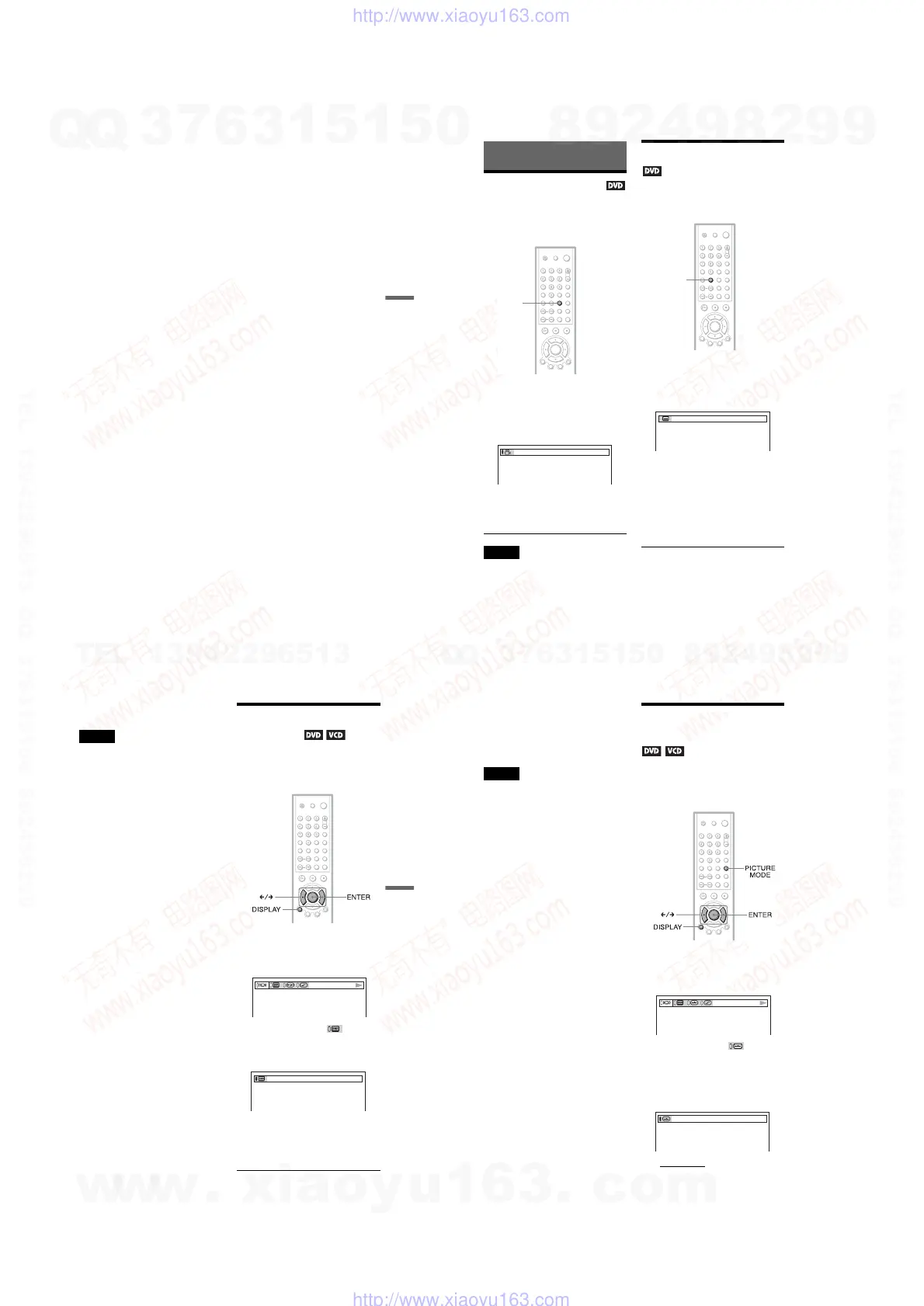
1 Press DISPLAY twice during
playback.
The following Control Bar appears.
2 Press C/c to select (BNR),
then press ENTER repeatedly to
select a level.
• 1: reduces the “block noise.”
• 2: reduces the “block noise” more than
1.
• 3: reduces the “block noise” more than
2.
c
continued
52
To cancel the “BNR” setting
Select “OFF” in Step 2.
To turn off the Control Bar
Press DISPLAY repeatedly until the Control
Bar is turned off.
Notes
• If the outlines of the images on your screen should
become blurred, set “BNR” to “OFF.”
• Depending on the disc or the scene being played,
the “BNR” effect may be hard to discern.
Adjusting the Playback
Picture (CUSTOM PICTURE MODE)
You can adjust the video signal of the DVD or
VIDEO CD from the player to obtain the
picture quality you want. Choose the setting
that best suits the program you are watching.
1 Press DISPLAY twice during
playback.
The following Control Bar appears.
2 Press C/c to select (CUSTOM
PICTURE MODE), then press
ENTER repeatedly to select the
setting you want.
The default setting is underlined.
• STANDARD:
displays a standard
picture.
• DYNAMIC 1: produces a bold
dynamic picture by increasing the
picture contrast and the color intensity.
w
w
w
.
x
i
a
o
y
u
1
6
3
.
c
o
m
Q
Q
3
7
6
3
1
5
1
5
0
9
9
2
8
9
4
2
9
8
T
E
L
1
3
9
4
2
2
9
6
5
1
3
9
9
2
8
9
4
2
9
8
0
5
1
5
1
3
6
7
3
Q
Q
TEL 13942296513 QQ 376315150 892498299
TEL 13942296513 QQ 376315150 892498299
http://www.xiaoyu163.com
http://www.xiaoyu163.com


 To Next Page