1-14
58
6
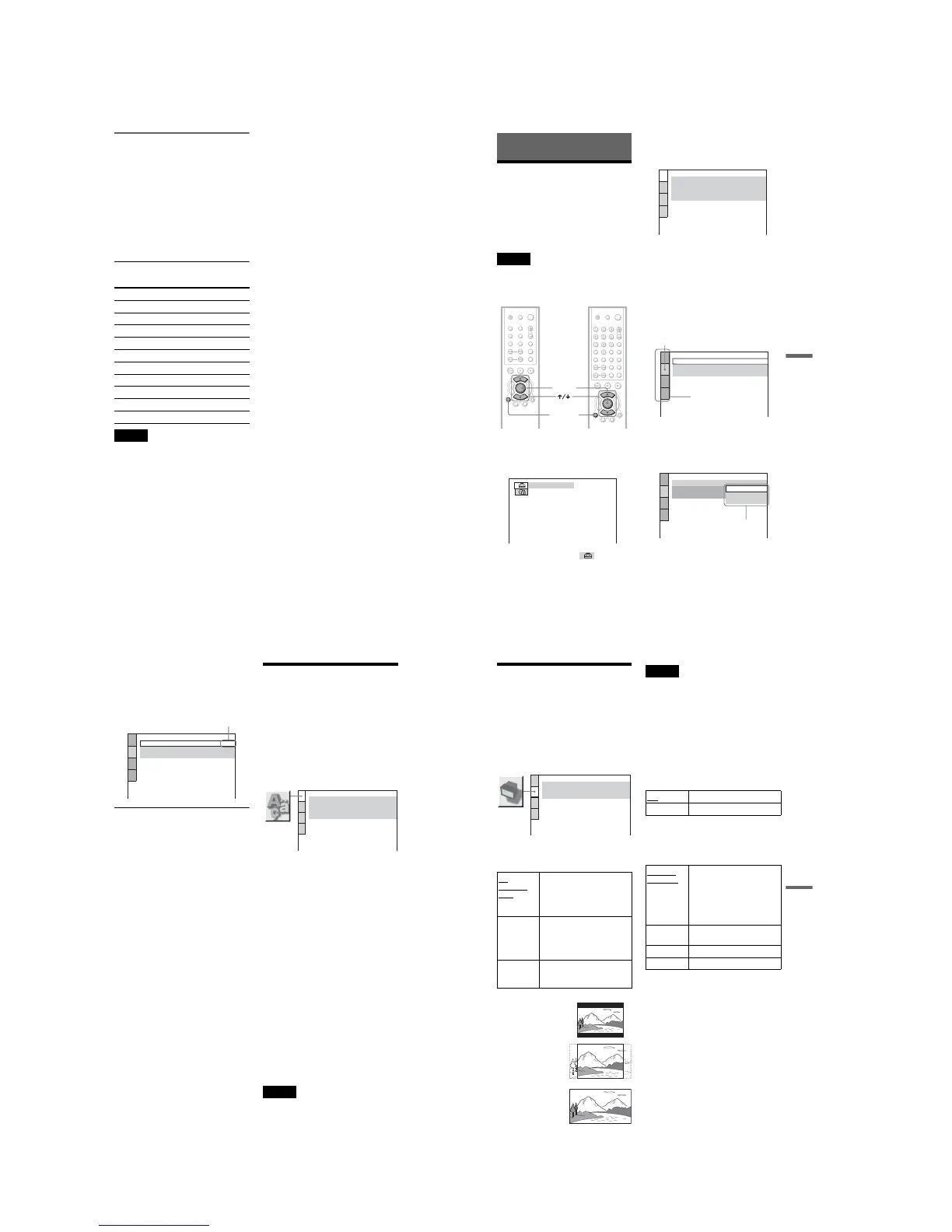
Select a setting using X/x, then
press ENTER.
The setting is selected and setup is
complete.
Example: “16:9”
To turn off the display
Press DISPLAY repeatedly until the display
is turned off.
To enter the Quick Setup mode
Select “QUICK” in Step 3. Follow from Step
5 of the Quick Setup explanation to make
basic adjustments (page 25).
To reset all of the “SETUP” settings
If you select “RESET” in Step 3, you can
reset all of the “SETUP” settings on pages 58
to 62 to the default settings. After you select
“RESET” and press ENTER, select “YES”
and press ENTER to reset the settings (it
takes a few seconds to complete), or select
“NO” and press ENTER to return to the
Control Bar. Do not press [/1 when resetting
the player.
Setting the Display or
Sound Track Language
(LANGUAGE SETUP)
“LANGUAGE SETUP” allows you to set
various languages for the on-screen display or
sound track.
Select “LANGUAGE SETUP” in the Setup
Display. To use the display, see “Using the
Setup Display” (page 57).
◆ OSD (On-Screen Display)
Switches the display language on the screen.
◆ MENU (DVD only)
You can select the desired language for the
disc’s menu.
◆ AUDIO (DVD only)
Switches the language of the sound track.
When you select “ORIGINAL,” the language
given priority in the disc is selected.
◆ SUBTITLE (DVD only)
Switches the language of the subtitle recorded
on the DVD.
When you select “AUDIO FOLLOW,” the
language for the subtitles changes according to
the language you selected for the sound track.
z Hint
If you select “OTHERS t” in “MENU,”
“SUBTITLE,” and “AUDIO,” select and enter a
language code from “Language Code List” on
page 68 using X/x to select the digit, followed by
C/c to move the cursor. You can also use the
number buttons to enter the digits (DVP-NS415
only).
Note
When you select a language in “MENU,”
“SUBTITLE,” or “AUDIO” that is not recorded on
the DVD, one of the recorded languages will be
automatically selected.
SCREEN SETUP
TV TYPE:
SCREEN SAVER:
BACKGROUND:
16:9
ON
JACKET PICTURE
Selected setting
LANGUAGE SETUP
OSD:
MENU:
AUDIO:
SUBTITLE:
ENGLISH
ENGLISH
ORIGINAL
ENGLISH
59
Settings and Adjustments
Settings for the Display
(SCREEN SETUP)
Choose settings according to the TV to be
connected.
Select “SCREEN SETUP” in the Setup
Display. To use the display, see “Using the
Setup Display” (page 57).
The default settings are underlined.
◆ TV TYPE
Selects the aspect ratio of the connected TV
(4:3 standard or wide).
Note
Depending on the DVD, “4:3 LETTER BOX” may
be selected automatically instead of “4:3 PAN
SCAN” or vice versa.
◆ SCREEN SAVER
The screen saver image appears when you
leave the player in pause or stop mode for 15
minutes, or when you play back a CD or
DATA CD (MP3 audio) for more than 15
minutes. The screen saver will help prevent
your display device from becoming damaged
(ghosting). Press H to turn off the screen
saver.
◆ BACKGROUND
Selects the background color or picture on the
TV screen in stop mode or while playing a
CD or DATA CD (MP3 audio).
4:3
LETTER
BOX
Select this when you connect a
4:3 screen TV. Displays a wide
picture with bands on the upper
and lower portions of the
screen.
4:3
PAN SCAN
Select this when you connect a
4:3 screen TV. Automatically
displays the wide picture on the
entire screen and cuts off the
portions that do not fit.
16:9 Select this when you connect a
wide-screen TV or a TV with a
wide mode function.
SCREEN SETUP
TV TYPE:
SCREEN SAVER:
BACKGROUND:
4:3 LETTER BOX
ON
JACKET PICTURE
4:3 PAN SCAN
4:3 LETTER BOX
16:9
ON Turns on the screen saver.
OFF Turns off the screen saver.
JACKET
PICTURE
The jacket picture (still picture)
appears, but only when the
jacket picture is already
recorded on the disc (CD-
EXTRA, etc.). If the disc does
not contain a jacket picture, the
“GRAPHICS” picture appears.
GRAPHICS A preset picture stored in the
player appears.
BLUE The background color is blue.
BLACK The background color is black.
56
Controlling other TVs with the
remote (DVP-NS415 only)
You can control the sound level, input source,
and power switch of non-Sony TVs as well.
If your TV is listed in the table below, set the
appropriate manufacturer’s code.
1 While holding down TV [/1, press the
number buttons to select your TV’s
manufacturer’s code (see the table
below).
2 Release TV [/1.
Code numbers of controllable TVs
Notes
• If you enter a new code number, the code number
previously entered will be erased.
• When you replace the batteries of the remote, the
code number you have set may be reset to the
default setting. Set the appropriate code number
again.
Manufacturer Code number
Sony (default) 01
JVC 09
Panasonic 19
Philips 21
RCA 10
Samsung 20
Sanyo 11
Sharp 18
Toshiba 07
Zenith 15
57
Settings and Adjustments
Settings and Adjustments
Using the Setup Display
By using the Setup Display, you can make
various adjustments to items such as picture
and sound. You can also set a language for the
subtitles and the Setup Display, among other
things. For details on each Setup Display
item, see pages from 58 to 62.
Note
Playback settings stored in the disc take priority
over the Setup Display settings and not all the
functions described may work.
1 Press DISPLAY when the player is
in stop mode.
The Control Bar appears.
2 Press X/x to select (SETUP),
then press ENTER.
3 Press X/x to select “CUSTOM,”
then press ENTER.
The Setup Display appears.
4 Press X/x to select the setup item
from the displayed list:
“LANGUAGE SETUP,” “SCREEN
SETUP,” “CUSTOM SETUP,” or
“AUDIO SETUP.” Then press
ENTER.
The Setup item is selected.
Example: “SCREEN SETUP”
5 Select an item using X/x, then
press ENTER.
The options for the selected item appear.
Example: “TV TYPE”
ENTER
DISPLAY
DVP-NS315 DVP-NS415
QUICK
LANGUAGE SETUP
OSD:
MENU:
AUDIO:
SUBTITLE:
ENGLISH
ENGLISH
ORIGINAL
ENGLISH
SCREEN SETUP
TV TYPE:
SCREEN SAVER:
BACKGROUND:
4:3 LETTER BOX
ON
JACKET PICTURE
Selected item
Setup items
SCREEN SETUP
TV TYPE:
SCREEN SAVER:
BACKGROUND:
4:3 LETTER BOX
4:3 PAN SCAN
16:9
4:3 LETTER BOX
Options
,
continued



 To Next Page