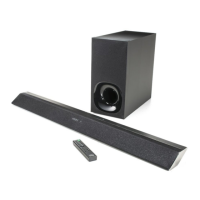
HT-MT300/MT301
20
Software version (Except system version):
Soft-
ware
item
LED
TV
BLUE-
TOOTH
USB
ANA-
LOG
MOV-
IE
MU-
SIC
MTK ○○ AB C
BT
main
S/W
○ AB C
BT
main
H/W
○ AB C ○
BT
woofer
S/W
○ AB C
BT
woofer
H/W
○ AB C ○
no mark: light off, ○: light up,
A: Major version, B: Minor (upper) version,
C: Minor (lower) version,
Example for the fl ashing of major version (A) and minor ver-
sion (B, C):
If the software version is “1.02”, repeat fl ashing in the follow-
ing order.
“USB” LED fl ash once “ANALOG” LED light off (skip)
“MOVIE” LED fl ash twice “USB” LED fl ash once ...
Software version (System version):
Soft-
ware
item
LED
TV
BLUE-
TOOTH
USB
ANA-
LOG
MOV-
IE
MU-
SIC
System A B C D
no mark: light off,
A: Major version, B: Minor (upper) version,
C: Minor (middle) version, D: Minor (lower) version,
Example for the fl ashing of major version (A) and minor ver-
sion (B, C, D):
If the software version is “1.023”, repeat fl ashing in the follow-
ing order.
“BLUETOOTH” LED fl ash once “USB” LED light off
(skip) “ANALOG” LED fl ash twice “MOVIE” LED
fl ash 3 times “BLUETOOTH” LED fl ash once ...
4. Perform other panel test items or release the panel test mode.
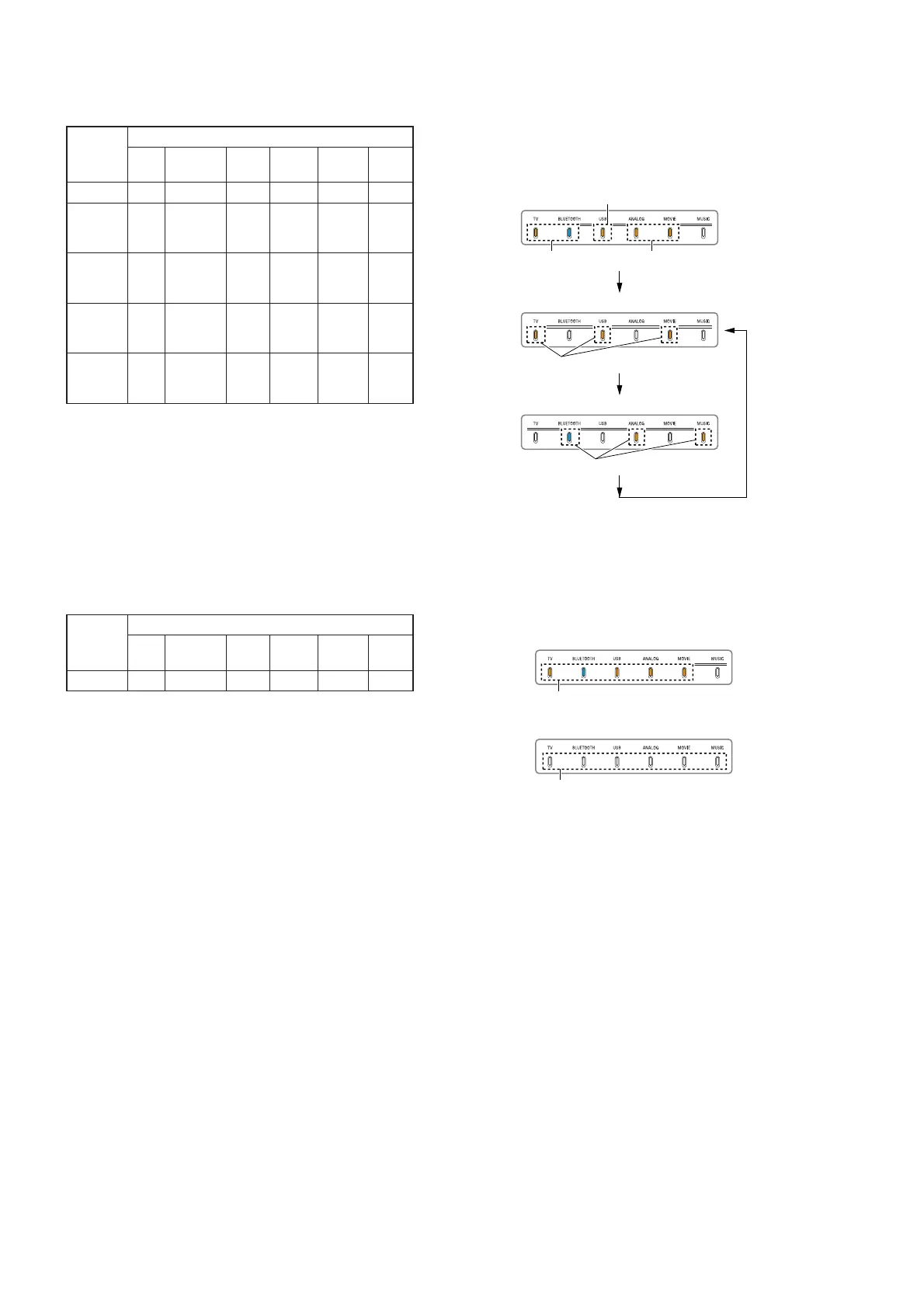
LED light up check:
1. Press the [
2 –] button on the remote control.
2. The LED light up check mode is entered, then the LEDs light
up/fl ash as shown in the following fi gure.
Flash 3 times
Light upLight up
Light up
Pattern 1
Pattern 2
Light up
3. Perform other panel test items or release the panel test mode.
Subwoofer software check:
1. Press the [%] button on the remote control.
2. The subwoofer software check mode is entered, then check
result is displayed.
Light off
Check result: NG
Check result: OK
Continue flashing
3. After about 3 seconds, return to the normal display (function
LED is light up).
4. Perform other panel test items or release the panel test mode.



 To Next Page