EasyManua.ls Logo

Sony SLV-E811NP - Connecting to a VCR or Stereo System

Sony SLV-E811NP
30 pages
Print Icon
To Next Page IconTo Next Page
To Previous Page IconTo Previous Page
Loading...
92-1
Editing
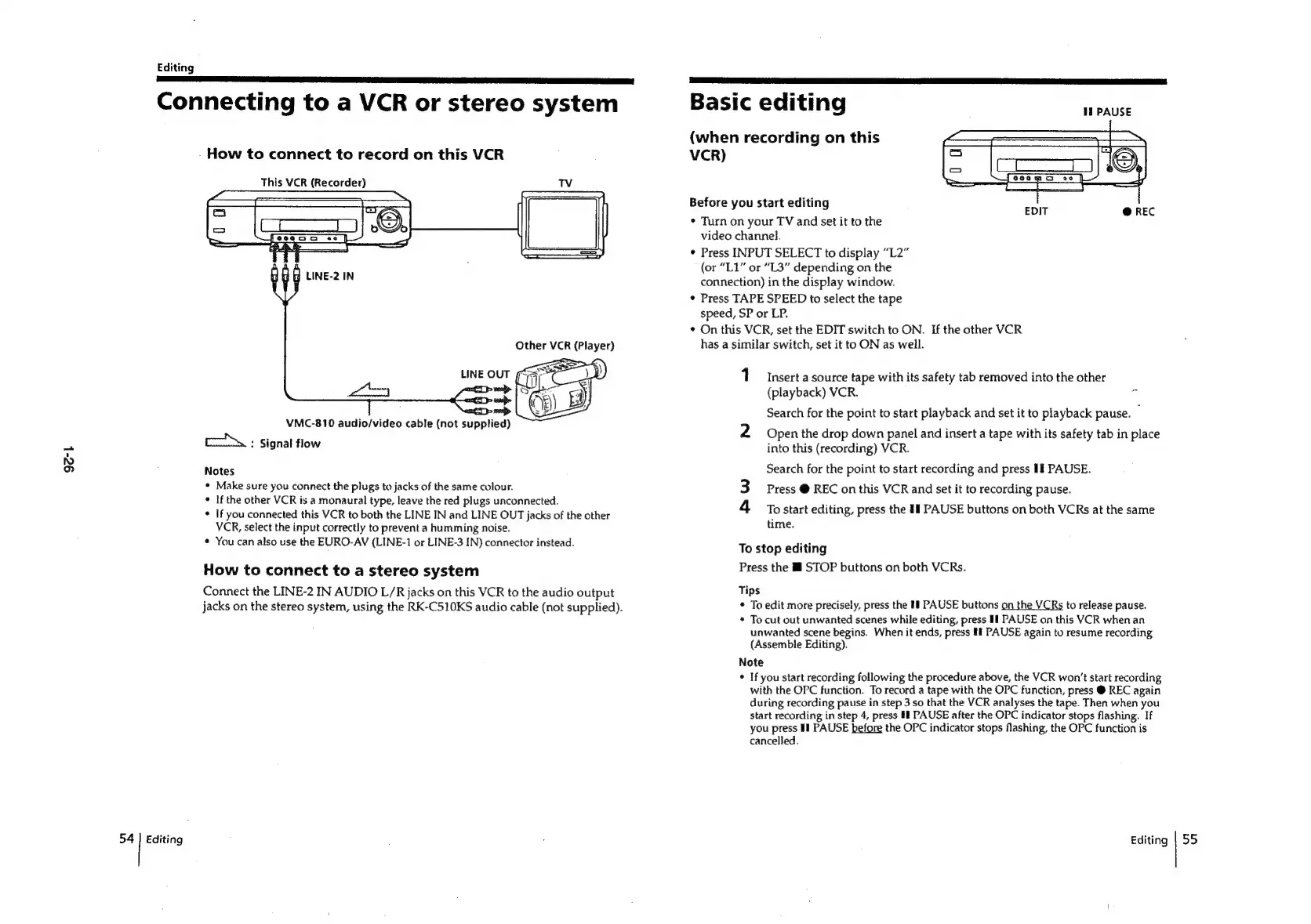
Connecting
to
a
VCR
or
stereo
system
-
How
to
connect
to
record
on
this
VCR
This
VCR
(Recorder)
Tv
Other
VCR
(Player)
ul
BET
why
|
SL
ET
F>
tee
ane
>
xe
VMC-810
audio/video
cable
(not
supplied)
cf:
Signal
flow
Notes
*
Make
sure
you
connect
the
plugs
to
jacks
of
the
same
colour.
°
If
the
other
VCR
is
a
monaural
type,
leave
the
red
plugs
unconnected.
¢
If
you
connected
this
VCR
to
both
the
LINE
IN
and
LINE
OUT
jacks
of
the
other
VCR,
select
the
input
correctly
to
prevent
a
humming
noise.
*
You
can
also
use
the
EURO-AV
(LINE-1
or
LINE-3
IN)
connector
instead.
How
to
connect
to
a
stereo
system
Connect
the
LINE-2
IN
AUDIO
L/R
jacks
on
this
VCR
to
the
audio
output
jacks
on
the
stereo
system,
using
the
RK-C510KS
audio
cable
(not
supplied).
54
|
Editing
Basic
editing
11
PAUSE
(when
recording
on
this
VCR)
Before
you
start
editing
¢
Turn
on
your
TV
and
set
it
to
the
video
channel.
¢
Press
INPUT
SELECT
to
display
“L2”
(or
“L1”
or
“L3”
depending
on
the
connection)
in
the
display
window.
¢
Press
TAPE
SPEED
to
select
the
tape
speed,
SP
or
LP.
*
On
this
VCR,
set
the
EDIT
switch
to
ON.
If
the
other
VCR
has
a
similar
switch,
set
it
to
ON
as
well.
1
Insert
a
source
tape
with
its
safety
tab
removed
into
the
other
(playback)
VCR.
e
Search
for
the
point
to
start
playback
and
set
it
to
playback
pause.
_
2
Open
the
drop
down
panel
and
insert
a
tape
with
its
safety
tab
in
place
into
this
(recording)
VCR.
Search
for
the
point
to
start
recording
and
press
II
PAUSE.
3
Press
@
REC
on
this
VCR
and
set
it
to
recording
pause.
4
Tostart
editing,
press
the
If
PAUSE
buttons
on
both
VCRs
at
the
same
time.
To
stop
editing
Press
the
ii
STOP
buttons
on
both
VCRs.
Tips
¢
To
edit
more
precisely,
press
the
#1
PAUSE
buttons
on
the
VCRs
to
release
pause.
*
To
cut
out
unwanted
scenes
while
editing,
press
If
PAUSE
on
this
VCR
when
an
unwanted
scene
begins.
When
it
ends,
press
ff
PAUSE
again
to
resume
recording
(Assemble
Editing).
Note
*
If
you
start
recording
following
the
procedure
above,
the
VCR
won't
start
recording
with
the
OPC
function.
To
record
a
tape
with
the
OPC
function,
press
@
REC
again
during
recording
pause
in
step
3
so
that
the
VCR
analyses
the
tape.
Then
when
you
start
recording
in
step
4,
press
Il
PAUSE
after
the
OPC
indicator
stops
flashing.
If
you
press
11
PAUSE
before
the
OPC
indicator
stops
flashing,
the
OPC
function
is
cancelled.
Editing
|
55

Related product manuals