Editing 55
Cut editing
You can edit VCR recording from one
deck to the other with cutting your
unwanted event.
Befor e you star t editing
• Turn on your TV and set it to the
video channel.
1 Insert a source tape into one deck and a tape for recording into the
other deck.
Locate the recording start point by rewinding or fast-forwarding.
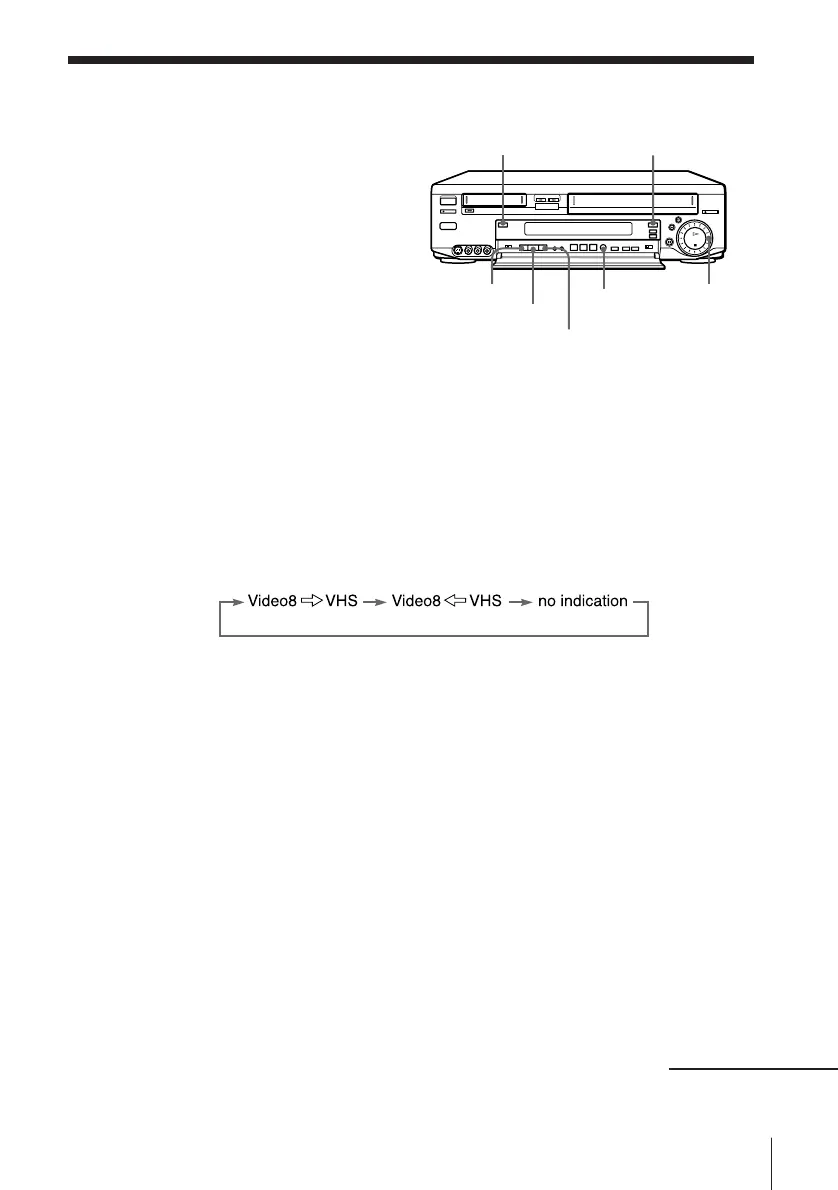
2 Press Video8 or VHS to select the recording deck.
When you select VHS, press SP/LP (VHS) button to select TAPE SPEED
of the VHS tape.
3 Press EDIT ON (DIR)/OFF to select the editing direction.
Each pressing of the button changes as follows:
“Video8 ÷ VHS” means that the recording is made from the 8 mm
tape to the VHS tape.
“Video8 VHS” means that the recording is made from the VHS to
the 8 mm tape.
4 Press EDIT STANDBY/START.
The playback deck enters the playback pause mode and the recording
deck enters the recording pause mode. The indicator above the button
flashes.
5 Press EDIT STANDBY/START again.
Both decks release the pause and starts editing. The indicator above the
button lights.
6 Press EDIT STANDBY/START at the beginning of the unwanted event.
Both decks enter the pause mode. The indicator above the button
flashes.
continued
Video8
VHS
EDIT ON(DIR) /OFF
EDIT STANDBY/START
EDIT STOP
CLICK SHUTTLE
ring
SP/LP
(VHS)



 To Next Page