119
GB
Using the Remote
With the auto power function turned on, Sony
AV and TV components automatically turn on
and the TV switches to the selected input
mode. This function works for Sony
components only.
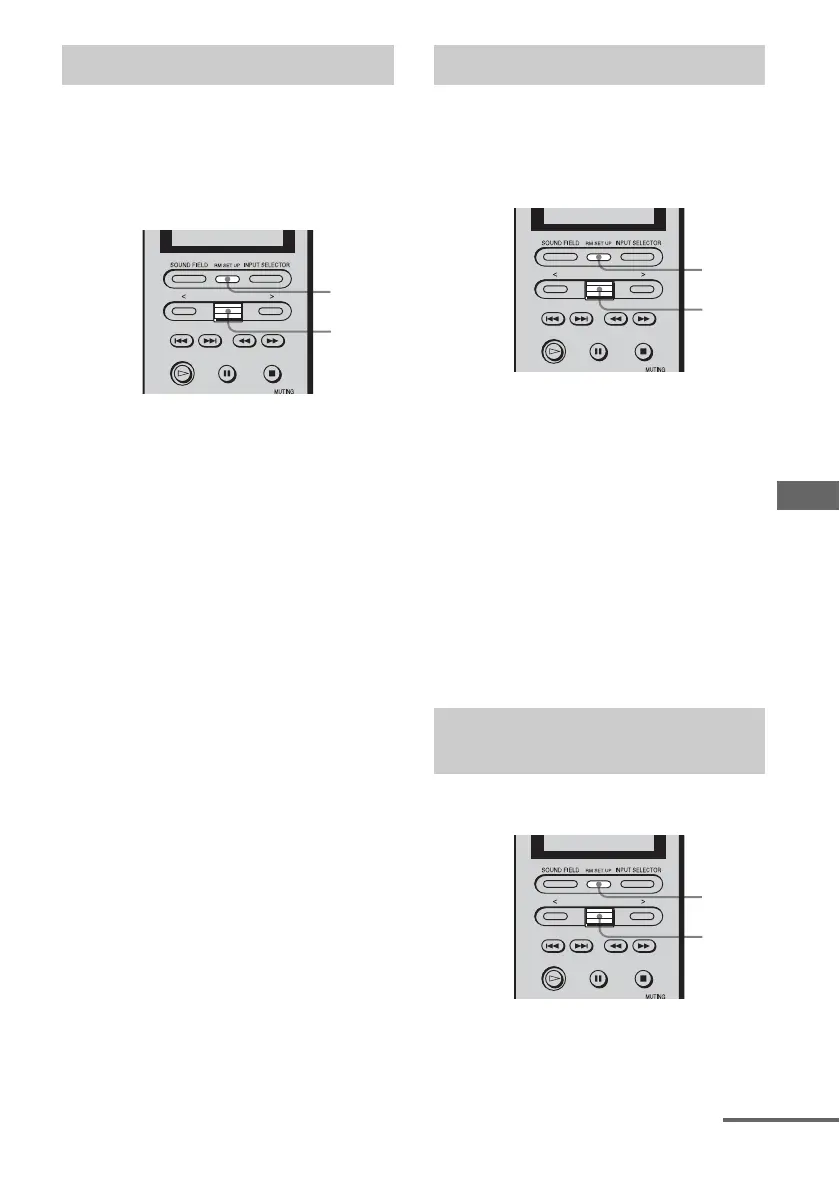
1 Press RM SET UP.
The set up list appears.
2 Move the easy scroll key to
select “AUTO POWER,” then
press the key to enter the
selection.
The AUTO POWER list appears.
3 Move the easy scroll key to
select “On” or “Off,” then press
the key to enter the selection.
When you select “On,” the TV INPUT list
appears.
4 Move the easy scroll key to
select the video input of the TV,
then press the key to enter the
selection.
When you want to select component
video input, select TV-COMPO1 or 2.
Notes
• Switching to VIDEO1–6 input may not be
automatic on all Sony TVs. This is because some
TVs cannot receive remote control codes
immediately after being turned on.
• If you select “(Off)” in step 3, the TV input does
not switch.
Each time you press a button on the remote,
the backlight turns on. If you follow the
procedure below to turn off the backlight, you
can make the batteries last longer.
1 Press RM SET UP.
The set up list appears.
2 Move the easy scroll key to
select “BACK LIGHT,” then
press the key to enter the
selection.
The BACK LIGHT list appears.
3 Move the easy scroll key to
select “On” or “Off,” then press
the key to enter the selection.
You can adjust the contrast of the display.
1 Press RM SET UP.
The set up list appears.
Using the auto power function
1
2,3,
4
Turning the backlight on or off
Adjusting the contrast of the
display
1
2,3
1
2,3
continued




 To Next Page