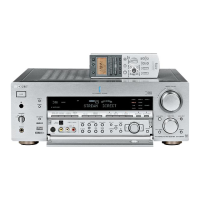
Unpacking
Check that you received the following items with the
remote:
l
FM wire antenna (1)
l
AM loop antenna (1)
Models of area code U, CA only
l
Audio/video/control S connecting cord (1)
l
Control S connecting cord (1)
STR-DB940 only
l
Remote commander RM-LJ304 (remote) (1)
l
LR6 (size-AA) alkaline batteries (3)
STR-DB840 only
l
Models of area code CED only
- Remote commander Rh4-IV’404 (remote) (1)
- R6 (size-AA) batteries (2)
l
Models of other area codes
- Remote commander RM-LP204 (remote) (1)
- LR6 (size-AA) alkaline batteries (3)
Insert batteries with the + and - properly oriented in the
battery compartment
When using the remote, point it at
the remote sensor H on the receiver
For details, refer to the operating instructions supplied
with your remote
‘F When to replace batteries
Under normal conditions, the batteries should last for about
3 months When the remote no longer operates the receiver,
replace all batteries with new ones
Notes
l
Do not leave the remote in an extremely hot or humid place
l
Do not use a new battery with an old one
l
Do not expose the remote sensor to direct sunlight or lighting
apparatuses Doing so may cause a malfunction
l
If you don’t use the remote for an extended period of time,
remove the batteries to avoid possible damage from battery
leakage and corrosion
l
This remote is designed for use with alkaline batteries only. DO
not use a combination of different battery types
l
Turn off the power to all components before making
any connections
l
Do not connect the
AC
power cord until all of the
connections are completed
l
Be sure to make connections firmly to avoid hum and
noise
l
When connecting an audio/video cord, be sure to
match the color-coded pins to the appropriate jacks on
the components: yellow (video) to yellow; white (left,
audio) to white; and red (right, audio) to red


 To Next Page