Operations
-EN
15
Press +
Increase picture
contrast.
Increase color
intensity.
Brighten the picture.
Make picture tones
become greenish.
Sharpen the picture.
Increase emphasis on
picture edges.
Adjusting the picture settings
(VIDEO ADJUST)
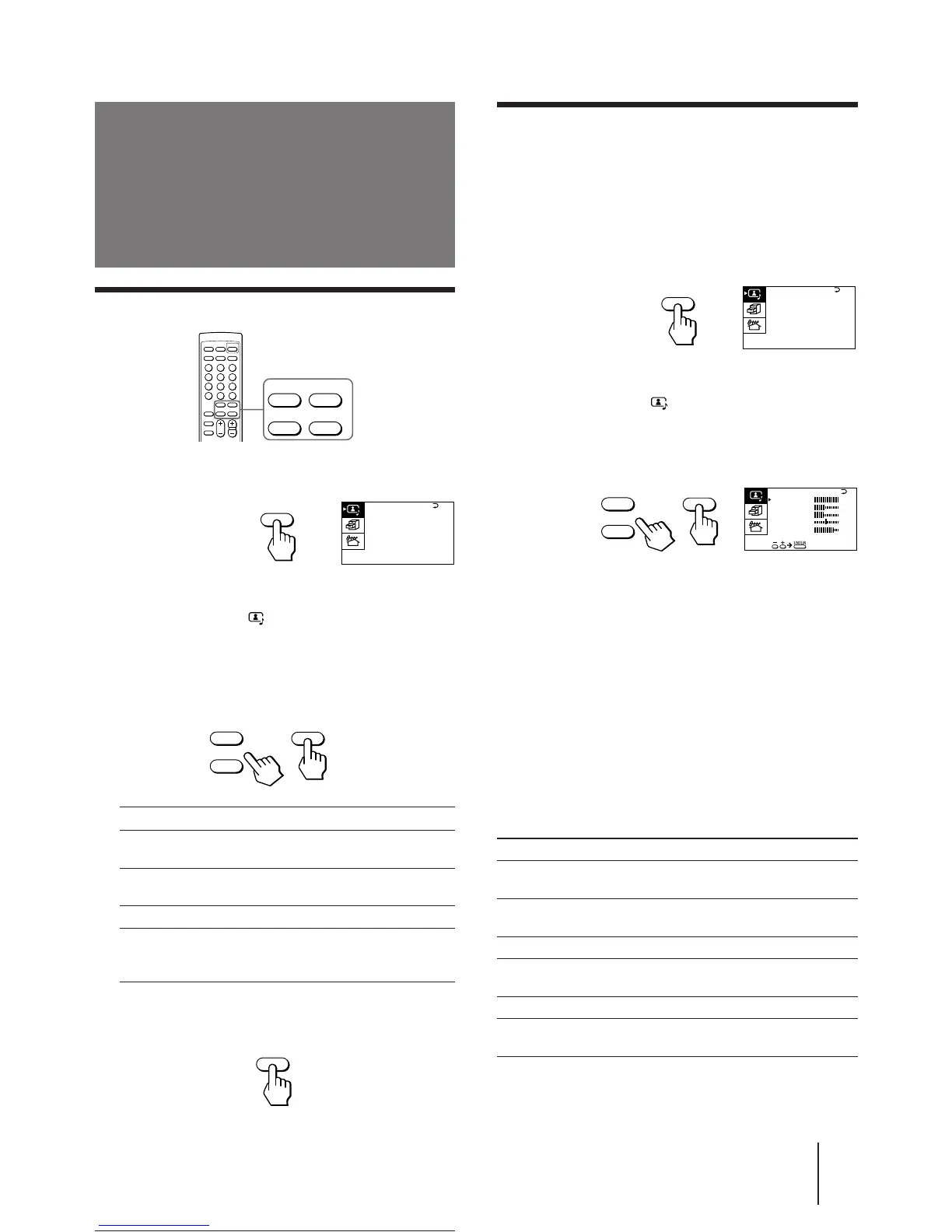
You can adjust the picture settings to suit your taste
with the VIDEO ADJUST option. The adjusted settings
are stored in the PERSONAL option.
1 Press MENU.
2 Make sure the cursor (”) appears in the A/V
CONTROL menu ( ), and press ENTER.
3 Press + or – to move the cursor (”) to VIDEO
ADJUST, and press ENTER.
4 Press + or – to move the cursor (”) to the
item you want to adjust, and press ENTER.
5 Press + or – to adjust the selected item, and
press ENTER.
For details on each item, see “Description of adjustable
items” below.
6 To adjust other items, repeat steps 4 and 5.
7 Press MENU to return to the normal screen.
Description of adjustable items
Item Press –
PICTURE Decrease picture
contrast.
COLOR Decrease color
intensity.
BRIGHT Darken the picture.
HUE Make picture tones
become reddish.
SHARP Soften the picture.
VM Decrease emphasis
on picture edges.
Notes
• You can adjust VM for the KV-J29MF1, KV-J29MF1S,
KV-J29MH2, and KV-J29MN21 models only.
• You can adjust HUE for the NTSC color system only.
Selecting the picture and sound modes
1 Press MENU.
2 Make sure the cursor (”) appears in the A/V
CONTROL menu ( ), and press ENTER.
3 Press + or – to move the cursor (”) to
DYNAMIC, STANDARD, SOFT, or PERSONAL,
and press ENTER.
Select To
DYNAMIC Receive high contrast picture with
powerful sound.
STANDARD Receive normal contrast picture with
medium listening sound.
SOFT Receive mild picture with soft sound.
PERSONAL Receive the last picture and sound
settings that are adjusted using VIDEO
ADJUST and AUDIO ADJUST.
4 Press MENU to return to the normal screen.
Adjusting the
picture and sound
MENU
ENTER
+
–
A / V CONTROL
DYNAMIC
SOFT
STANDARD
PERSONAL
V I DEO ADJUST
AUD I O ADJUST
MENU



 To Next Page