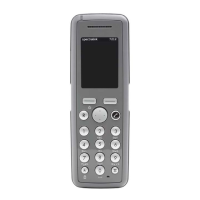
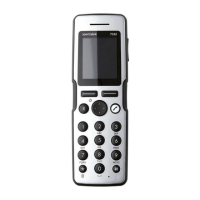
Spectralink S33 Handset User Guide
Handset S33 User Guide.docx
July 2023 20
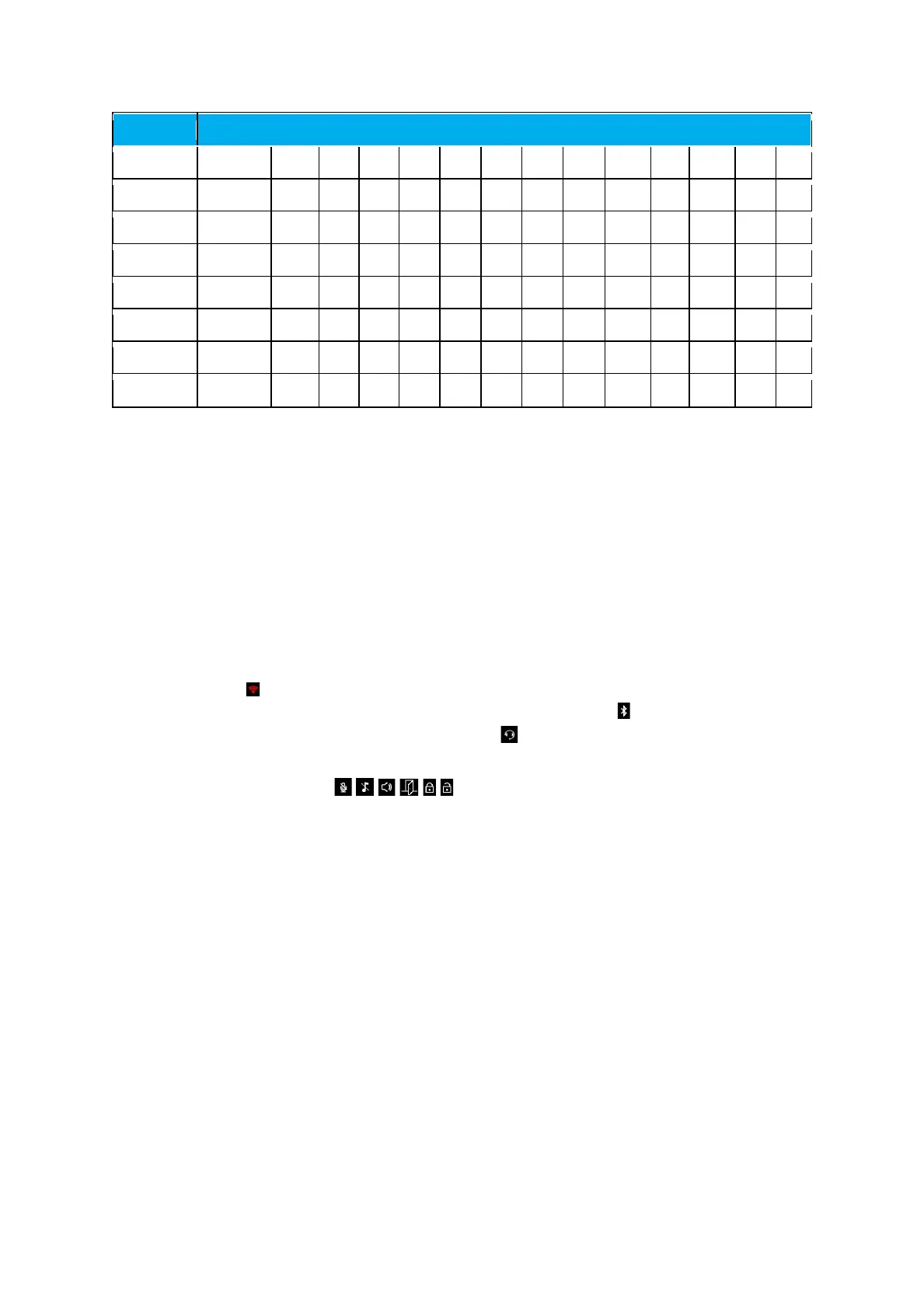
Lower case turkish character set
Handset Display
Home Screen
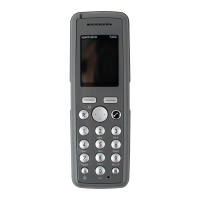
The home screen is divided in three parts:
1. Status Bar Information shown:
• On Hook (home screen/idle) – display shows standby text, battery status, signal
status and e.g. presence status (system dependent) and personal settings and
time. If Bluetooth activated, the Bluetooth icon is visible . If a wireless headset
is connected, the headset icon is visible .
The following icons can also be displayed in the status bar depending on the
personal settings:
For more information, see “Status Icons” on page 21.
• Off Hook – display shows call state.
2. Display Center Information shown:
• On Hook (home screen/idle) – display shows standby logo or call information
when receiving an incoming call
• Off Hook – display shows a telephone icon. If a wireless headset is connected to
the handset, the display shows a telephone icon if the audio is in the handset,
and it shows a headset icon if the audio is in the headset.
3. Softkey Text Information shown:
• On Hook (idle) – display shows Menu and Shortcut
o Menu: gives access to the different functions of the handset. For more
information, see “List of menu Functions” on page 44.


 To Next Page