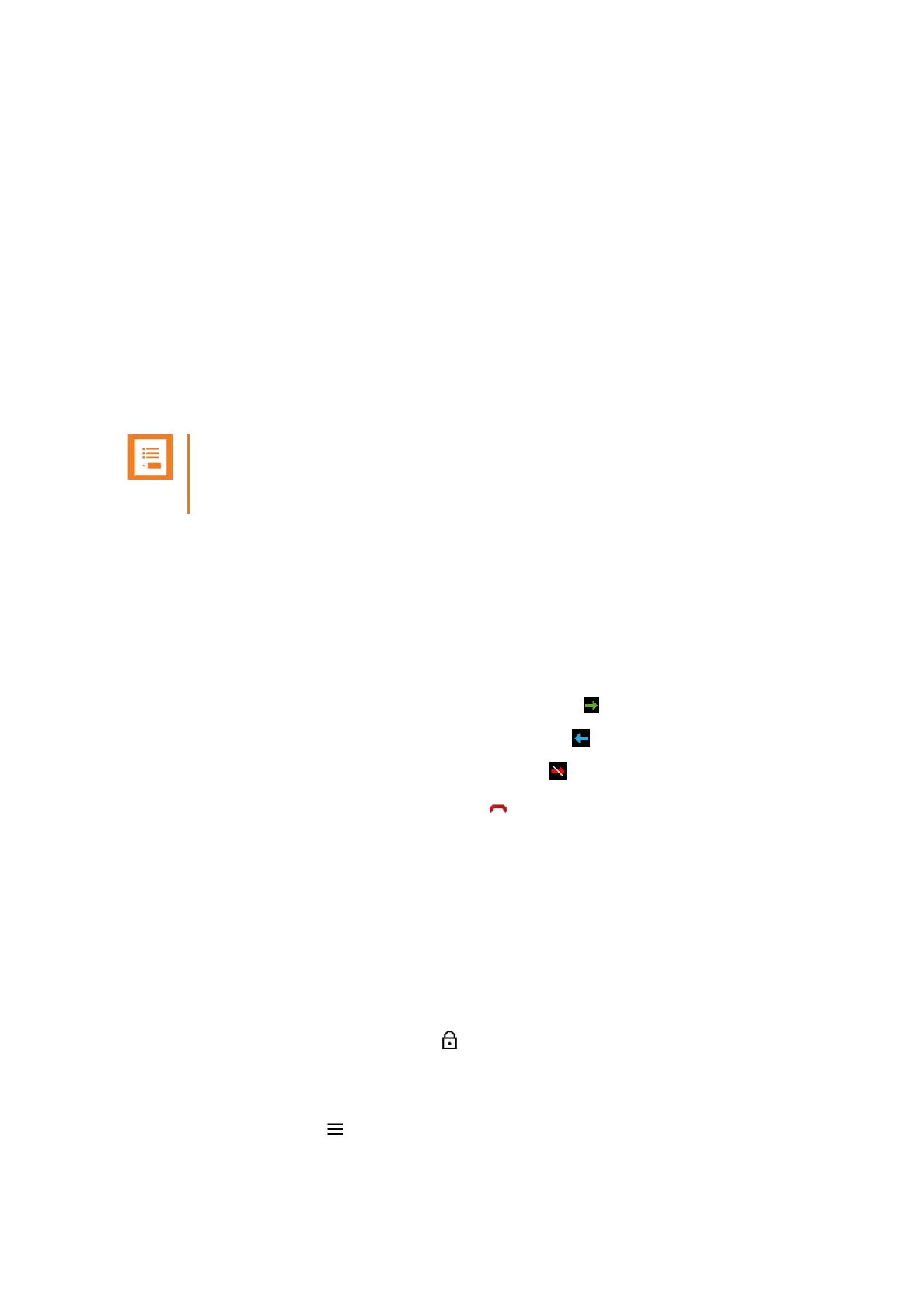
Spectralink S33 Handset User Guide
Handset S33 User Guide.docx
July 2023 39
Using Shortcuts
Types of Shortcuts
The handset contains two types of shortcuts:
• Personal Shortcuts
• Predefined Shortcuts
Predefined Shortcuts
Note:
If a menu/submenu/setting/function is not visible, it is controlled by a local administrator.
Contact them, fi a change is needed.
Predefined shortcuts are unchangeable and assigned to different keys.
In the following, you can find a list of predefined shortcuts and a description of how to
access and use them:
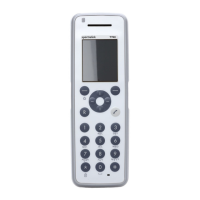
• Call list (system dependent feature): While on hook, press left side of navigation
key to enter the call list:
o Incoming calls are illustrated with green arrows .
o Outgoing calls are illustrated with blue arrows .
o Missed calls are illustrated with red arrows .
• Exit menu: When inside any menu, press to exit to the home screen.
• Find name (local contact list): While on or off hook, press the bottom of the
navigation key to enter the name list
• Company Contacts: While on hook, press the top of the navigation key to enter
the company contact list. Either T9 (default) or abc is displayed in the status bar.
Long press # to change between the two possible search methods T9 (Text on 9
keys) or Multi-tap (abc). You can only change the search method prior to searching.
For more information, see Central Contacts (System Dependent)" on page 32.
• Keypad locked/unlocked: While on hook, press the Menu key followed by *
(Display will show the key lock icon ).
• Missed calls: While on hook, press right side of navigation key to enter a list of
missed call.
• Silent on/off: Press , followed by the # button to turn the handset silent mode
on/off. In silent mode there is no sound for incoming calls and notifications. (Display


 To Next Page