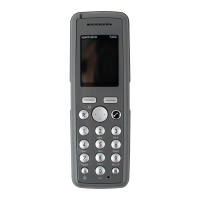
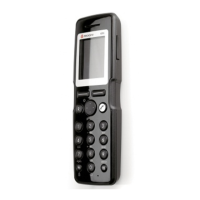
Spectralink S33 Handset User Guide
Handset S33 User Guide.docx
July 2023 72
4. Press the left or right side of the navigation key to adjust the volume of the ring
tone.
5. Press to save the changes.
Caution:
Do not hold the handset next to your ear when it is ringing as you can risk serious and
permanent damage to your hearing.
Profiles
Silent mode
When silent mode is turned on, there is no sound for incoming calls and notifications.
However, you will still be able to see an incoming call and notifications in the display.
To Turn Silent Mode On/Off
1. Press to enter the main menu.
2. Scroll to Profile, and press .
3. Scroll between the three profiles (Default/Vibrate only/Silent) and press on the
profile you want to activate.
Alternatively
1. Press to enter the main menu.
2. Scroll to Audio, and press .
3. Scroll to Silent, and press .
4. Scroll between On or Off using .
Timesaver:
Alternatively, you can also turn silent mode on/off by pressing # while in the
.
Changing Silent Mode Settings
When silent mode is turned on, you can select other ways of indicating incoming calls or
messages:



 To Next Page