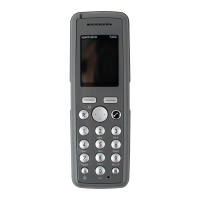
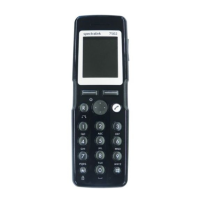
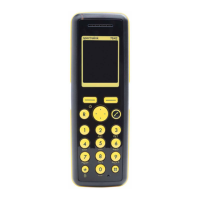
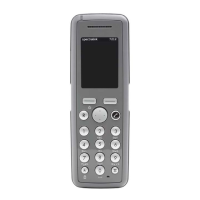
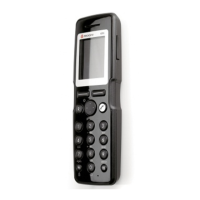
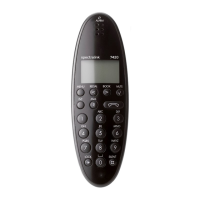
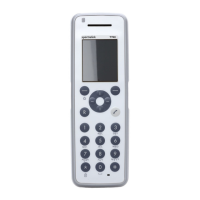
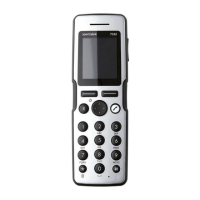
Spectralink S33 Handset User Guide
Handset S33 User Guide.docx
July 2023 49
Managing Contacts
The Contacts menu offers a range of possibilities to manage existing contacts and makes it
easy to add, edit or delete name and directory number/SIP extension. It is possible to add up
to four numbers to a contact (up to 4 directory numbers or a combination of directory
numbers and SIP URIs. The maximum number of SIP URIs are 2. Maximum directory
numbers are 4. The total number of numbers stored must not exceed 4 though. E.g. 4
directory numbers and 0 SIP URIs or 3 directory numbers and 1 SIP URI or 1 directory
number and 2 SIP URIs):
Finding a Contact in Contacts
1. Press to enter the main menu.
2. Scroll to Contacts, and press .
3. Scroll to Local Contacts, and press .
4. Scroll to Find name, and press .
5. To find a name you can:
• Scroll until you reach the desired name. To scroll through the names quickly,
press the navigation key continuously.
• Use quick search by pressing the first letter(s) (max. 5 letters) of the desired
name.
Timesaver:
While on or off hook, press the bottom of the navigation key to enter the
Adding a New Contact to Contacts
Use the Add name/number function when you want to add a new contact to the contact list.
1. Press to enter the main menu.
2. Scroll to Contacts, and press .
3. Scroll to Local Contacts, and press .
4. Scroll to Add name/number, and press .
5. Type the name of the contact using the keys 0-9.
6. Scroll to number, and enter the directory number/SIP extension of the contact (max.
24 digits/64 characters). Before entering a SIP URI, press and hold # until SIP: is
shown.
7. Press to store the name and directory number/SIP extension.


 To Next Page