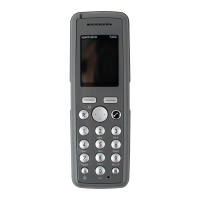
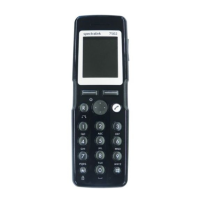
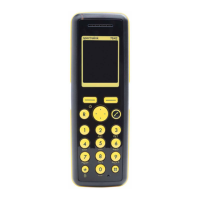
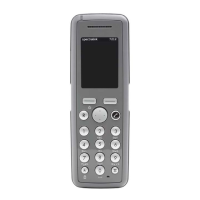
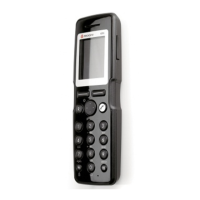
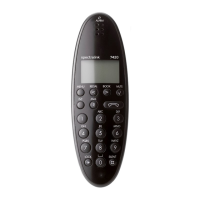
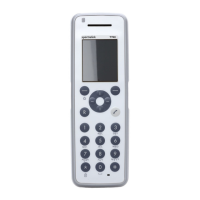
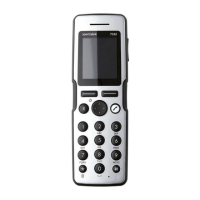
Spectralink S33 Handset User Guide
Handset S33 User Guide.docx
July 2023 64
5. Press to access the Message Options menu, and press .
6. Scroll to Resend, and press .
7. Edit the text.
8. Press , and press Send.
Using Templates
You can create up to 10 templates. When using a template in a message you have two
options:
• Use a template when you begin the process.
• Insert a template in a message when you are in the process of writing a message.
To Use a Template When you Begin a Message
1. Press to enter the main menu.
2. Scroll to Messages, and press .
3. Scroll to Settings, and press .
4. Scroll to Templates, and press .
5. Scroll to the desired template, and press .
6. Scroll to Select, and press .
7. If relevant, write additional text.
8. Press .
9. Scroll to Send, and press .
10. Enter the recipient’s number or press to find the recipient’s number.
11. To find a name you can:
• Scroll until you reach the desired name. To scroll through the names quickly,
press the navigation key continuously.
• Use quick search by pressing the first letter(s) (max. 5 letters) of the desired
name.
12. Press to select the name.
13. If more than one directory number/SIP extension: scroll to the desired directory
number/SIP extension, and press .
14. Press to send the message.


 To Next Page