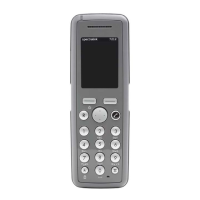
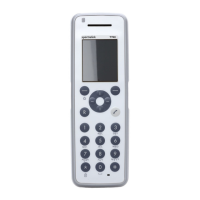
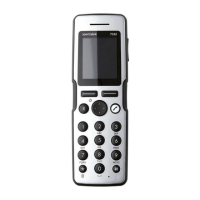
Spectralink S33 Handset User Guide
Handset S33 User Guide.docx
July 2023 80
To Adjust Message Alert Volume
1. Press to enter the main menu.
2. Scroll to Settings, and press .
3. Scroll to Messaging, and press .
4. Scroll to Alert volume, and press .
5. Press the left or right side of the navigation key to adjust the message alert
volume.
6. Press to save the changes.
Note:
You cannot set vibrate to work with message alerts.
MSF Tones in a Call
When receiving an MSF type I/II while in a call, you can define the following options for the
MSF tone: Normal, Key click (key click sound is played), Key beep (key beep sound is
played) and Vibrate. You can choose Vibrate in connection with one of the other options.
Note:
Choosing key beep or key click overrides settings for the MSF message about alerts –
if the handset is in a call.
To Set MSF Tones for MSF type I/II
1. Press to enter the main menu.
2. Scroll to Settings, and press .
3. Scroll to Messaging, and press .
4. Scroll to MSF Tones in a call, and press .
5. Scroll to the desired option, and press to enable it. You can choose Vibrate in
connection with one of the other options.


 To Next Page