Using in-call features
Using in-call features
When you are in an audio call
When you are in an audio call, you can see in-call options:
n
create conference: you can add other people into your call
n
hold call: put the other person on hold
n
transfer call: transfer the call to another person
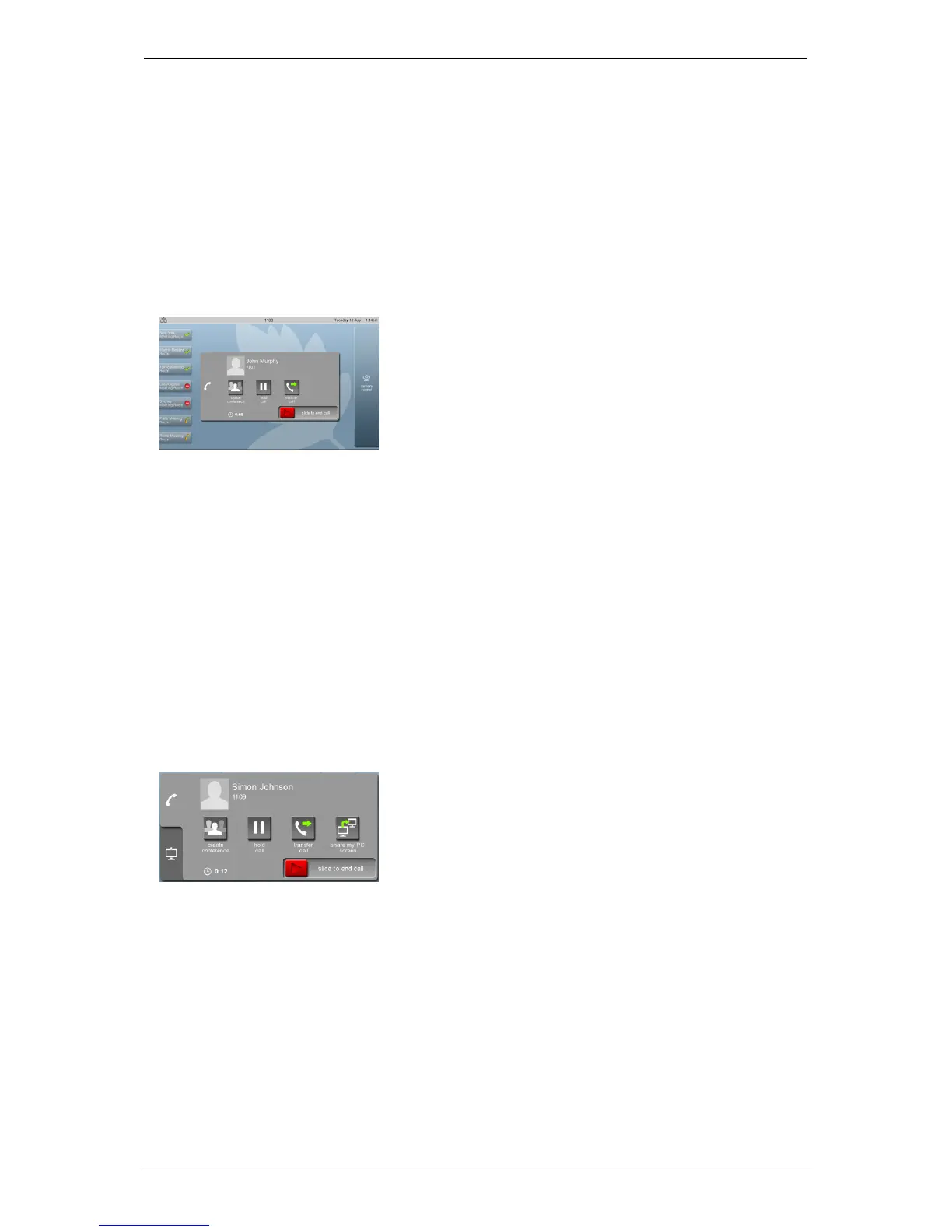
When you are in an audio call, the display looks something like this:
When you are in a video call
If you are in a video call, you see some or all of the following in-call options on the display,
in addition to the options listed above for audio-only calls:
n
share my PC screen: you can share your screen with other person (or people) in your
video call.
n
Display tab: provides you with options for the screen layout. Note that this tab also
provides a button to switch self view on and off
n
FECC tab: if you are in a video call and the device at the other end of the call allows it,
you can control that device's camera (for zooming and panning). FECC means Far End
Camera Control
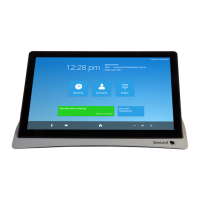
When you are in a video call, your in-call options panel looks something like this:
Group Telepresence, 27 September 2017 Page 11 of 38


 To Next Page