The home screen
The home screen
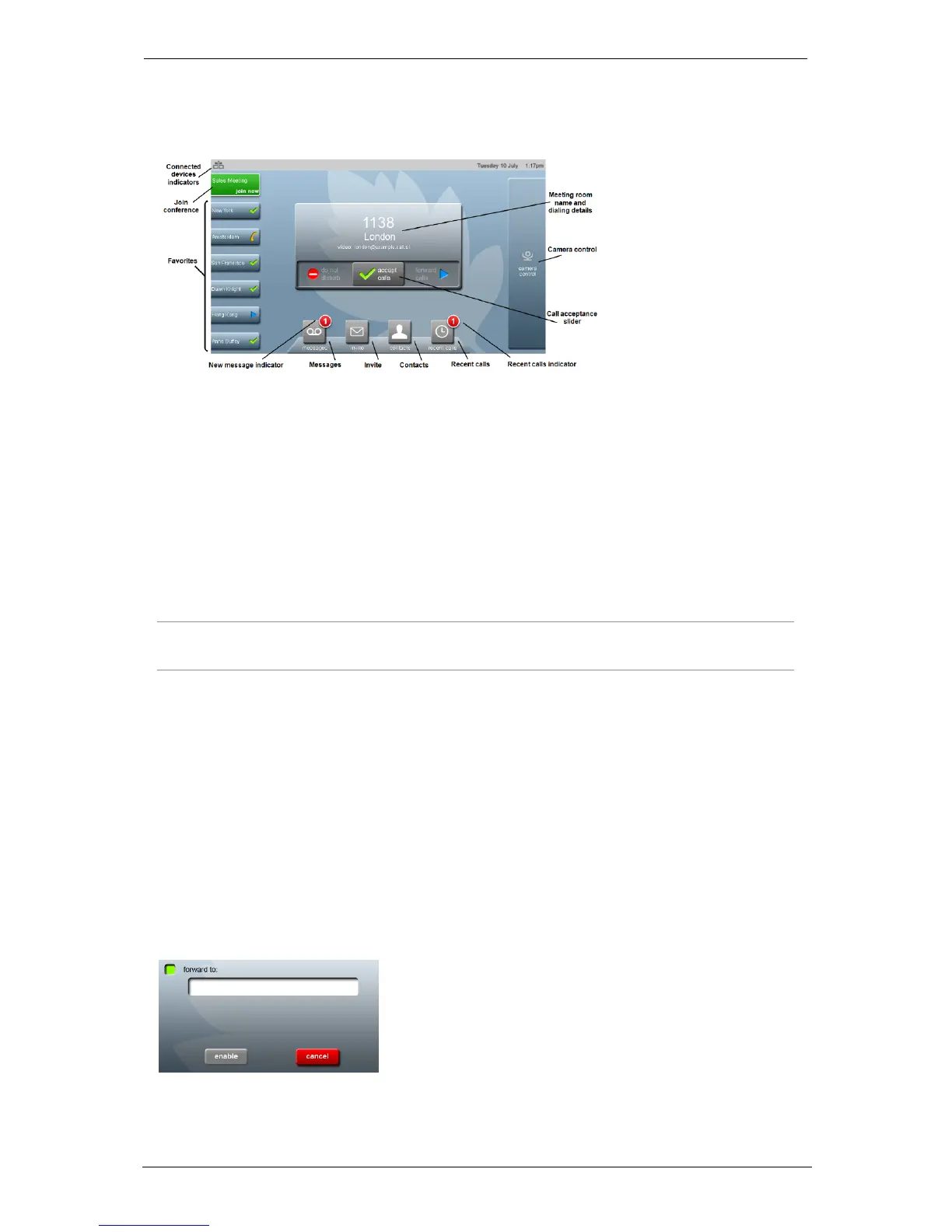
This is the home screen of the touchscreen controller:
To display the home screen of the touchscreen controller from any other of its other
screens, press the Home button. In the picture above, this system is assigned to the
London meeting room and its extension is 1138.
To access the settings, double-press the Home button.
Forwarding calls and Do not disturb
To forward calls either to voice mail or to another phone number, use the Call
acceptance slider.
Note: By default, StarLeaf Cloud meeting room systems do not have voice and video mail
enabled.
To set the status of the Group Telepresence system to 'do not disturb' move the Call
acceptance slider to do not disturb. If other users have the meeting room set as a favorite,
they can see that the room is busy because the meeting room name is displayed on their
home screen with a 'busy' icon.
If the Group Telepresence system does not have voicemail, then setting the touchscreen
controller to do not disturb causes a 'busy' tone for anyone attempting to call this system.
If voicemail is enabled for this meeting room system, the call will be immediately diverted
to the mailbox.
To forward calls to another phone number, move the Call acceptance slider to forward
calls. Choosing to forward calls means that anyone who has this system as a favorite can
see that you have forwarded the calls. When you choose to forward calls, you see the
following controls:
Group Telepresence, 27 September 2017 Page 6 of 38


 To Next Page