About guest invites
About guest invites
Guest invites allow StarLeaf users to invite guests to video call them using either their
browser or by installing Breeze (the StarLeaf software endpoint). In this way, a StarLeaf user
can have a video call with anyone.
Guest invites are included in the StarLeaf Cloud service at no extra cost for StarLeaf users.
StarLeaf does not limit users on the number of guest invitations.
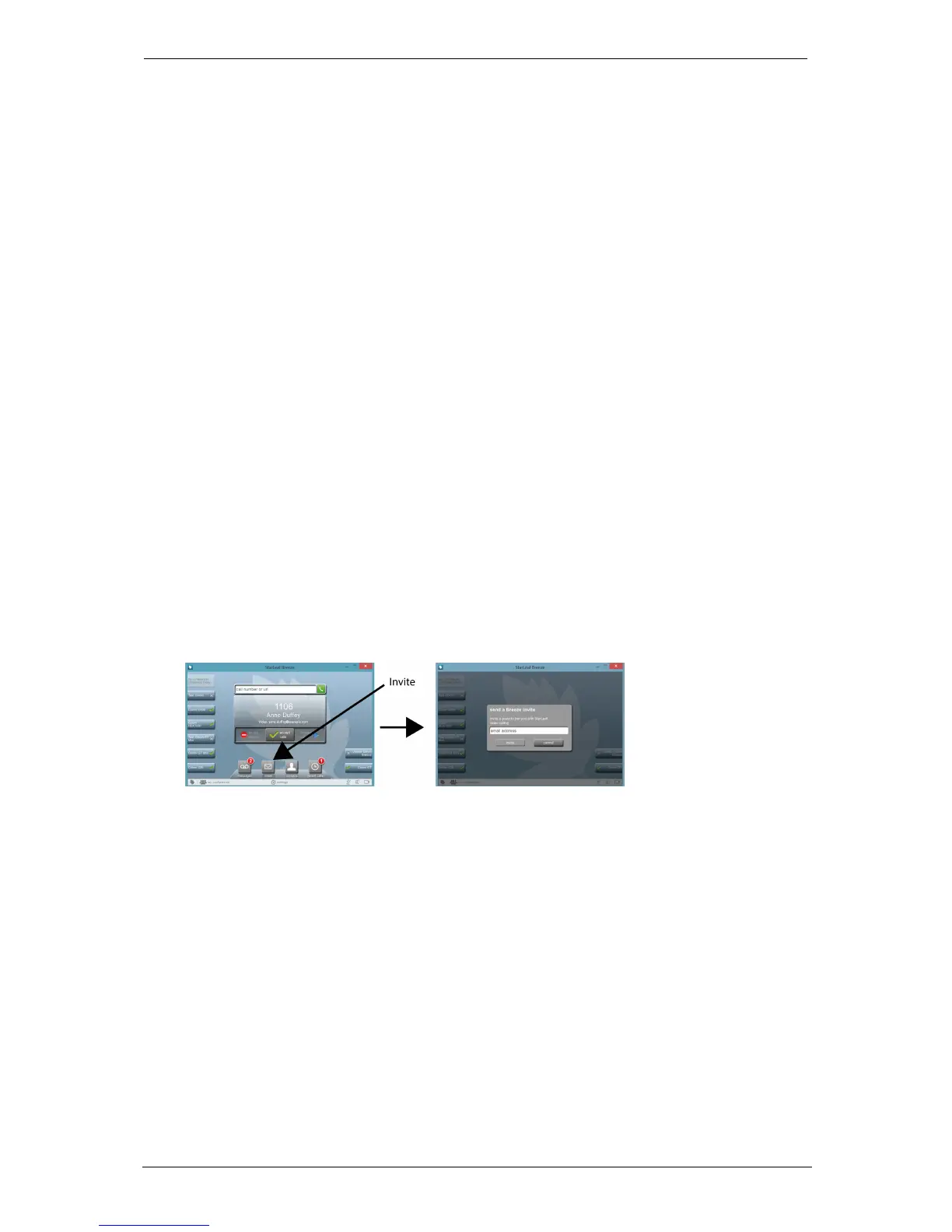
To send a guest invite, a user simply chooses Invite from the home screen of a StarLeaf
endpoint. Alternatively, you can add a guest email address to the list of participants when
creating a scheduled meeting.
If an invite is sent to a person who appears (by email address domain) to be associated
with one of your customers, you are notified. In this case, the guest is automatically added
to that customer's organization. Note that this auto-adding feature can be disabled if
required.
If an invite is sent to a person who appears (by email address domain) to be associated
with your organization, you are notified. In this case, the guest is added automatically to
your organization. Note that this auto-adding feature can be disabled if required.
In the case of a guest that subsequently wants to have a full StarLeaf account, you need
to contact StarLeaf support to have the original guest account deleted. (User email
addresses must be unique in the StarLeaf Cloud.)
Invite process
1.
A user, in this case Anne Duffy, chooses to send an invite by selecting Invite on her
StarLeaf Breeze:
2.
Anne then types the email of the person she wants to invite and selects invite.
3. The invited person receives an email that explains the invite. The invite includes:
l a 'click-to-call' link, which launches a video call from the browser
l a link to dialing instructions for calling into the StarLeaf Cloud
Group Telepresence, 27 September 2017 Page 33 of 38



 To Next Page