Connecting a laptop
Connecting a laptop
When you are in a video call you can show your laptop's display, for example if you want
to share what you are working on. To do so, your laptop must be connected to the Group
Telepresence system. Usually, your IT administrator will have left a cable in the meeting
room to which you can connect your laptop. If this is not the case, you need to consult
your IT administrator, or refer to the Group Telepresence Installation Guide, which is
available from the Knowledge Center. The Group Telepresence system includes a
number of adapters to suit different PC video outputs (HDMI, VGA, DVI-D).
Sharing the display
To share your laptop's display:
1. Ensure you have connected your laptop to the Group Telepresence codec using the
supplied cable.
2. Make a video call.
3.
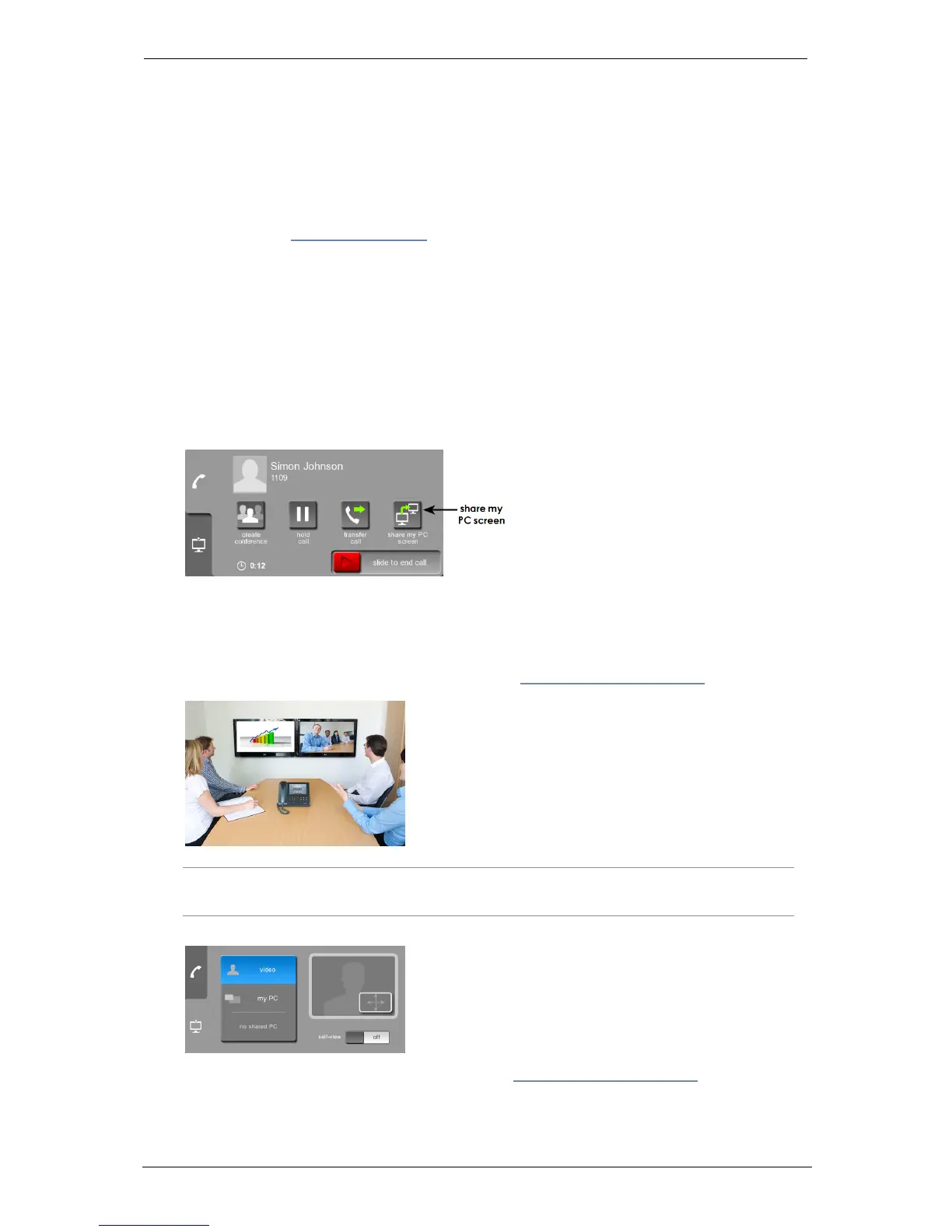
On the touchscreen controller, press share my PC screen:
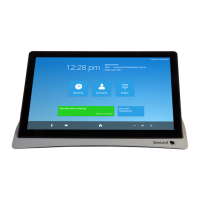
The display appears in one screen (connected to Video Out HDMI port 1 on the rear of
the codec), and the view of the conference appears in the other screen. If there is
only one telepresence screen, the display is the main view and the video shows in a
picture-in-picture view. You can change what you see in a video call using the
controls on the touchscreen controller (refer to Using in-call features (p11)).
Note: If you only have one screen, the main view is the PC display and the view of the
other participants is in PiP view in the corner of the screen
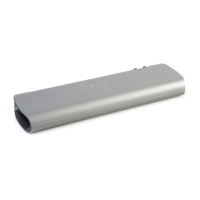
4. To change the view you see, use the display tab on the touchscreen controller:
The display tab is described in greater detail in Using in-call features (p11).
Group Telepresence, 27 September 2017 Page 16 of 38


 To Next Page