How to schedule a meeting
How to schedule a meeting
When you schedule a meeting, you will log in to the StarLeaf Portal. There, you can
choose when your meeting takes place and who attends. Your attendees receive email
invites to your meeting.
To schedule a meeting:
1. Either:
l go to portal.starleaf.com and log in (using your email address and the password
you created when you activated your StarLeaf account)
OR
l
if you are a Breeze user, choose my conferences on your Breeze display. This takes
you into the StarLeaf Portal
OR
l
if you are a StarLeaf app user, choose add meeting in the app. This takes you into
the StarLeaf Portal
2.
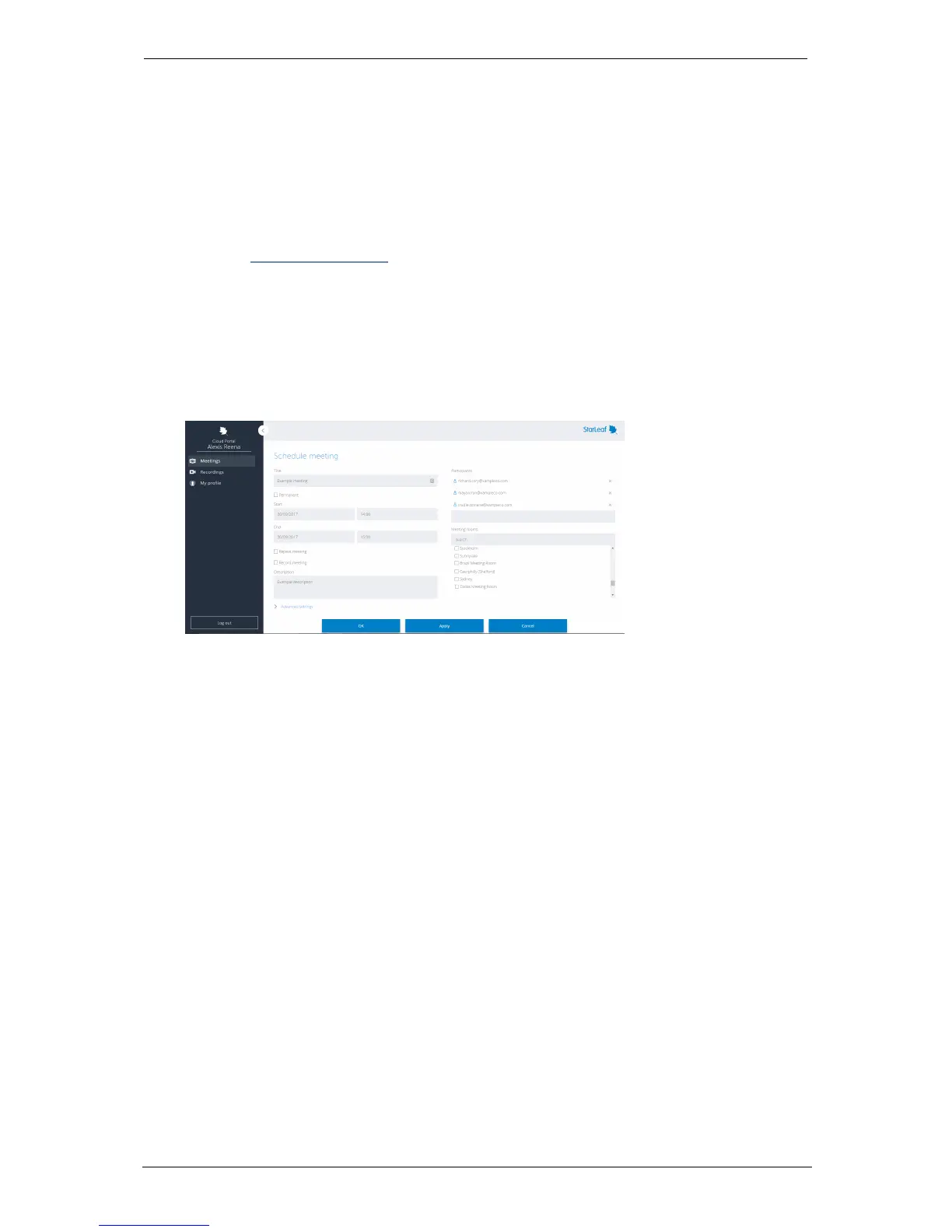
Go to Meetings > Schedule meeting. You can see the Schedule meetingpage:
3.
Add the details you require for Title and Description. These are included in the meeting
invites.
4.
If your organization has purchased the recording solution, select Record meetingto
record this meeting.
5. Set the time and date for your meeting .
l Select a start and end time and date for your meeting
l Set a repeat if this meeting happens on a regular basis
l
If this is a permanent meeting, select Permanent. The meeting never ends. It is a
virtual meeting, that anyone can dial into at any time
6.
Add Participants by email address. Separate email addresses with commas. You can
include anyone's email address. If participants do not already have StarLeaf, the 'invite'
email describes how to sign up as a guest or join using a browser. The invite also
describes how to join your conference from any other standards-based video
conferencing equipment and includes PSTN (telephone) numbers for audio-only
participants.
7.
If there are Room systems in your organization, you can add one or more. This means
that your participants know which meeting rooms are in the meeting if they want to
walk along to the nearest one.
8.
Advanced settings:
l
Keep people on hold until: Use this setting to determine whether people are able
to talk to each other before you join the meeting
l
Time zone: If you are in a different time zone to the one displayed here, correct it.
This ensures that everyone to whom you send an invite knows the correct time for
your meeting
Group Telepresence, 27 September 2017 Page 26 of 38



 To Next Page