168
The Performance Section
The Quick Controls
Quick Controls and Value Tooltips
Through the offset applied by a quick control, the actual value of a parameter usually
differs from the displayed value. Therefore, parameters that are assigned to a quick
control show a value tooltip. The value tooltip indicates the resulting parameter value
and the name of the assigned quick control.
Ö Especially with switches, quick controls can lead to ambiguous states: The switch can
be set to off, but the option can be activated by a quick control. In such a case, the
value tooltip helps you to see the cause of this without having to search the quick
control editor.
Ö Value tooltips can be deactivated on the Options page, see “Show Value Tooltips” on
page 184.
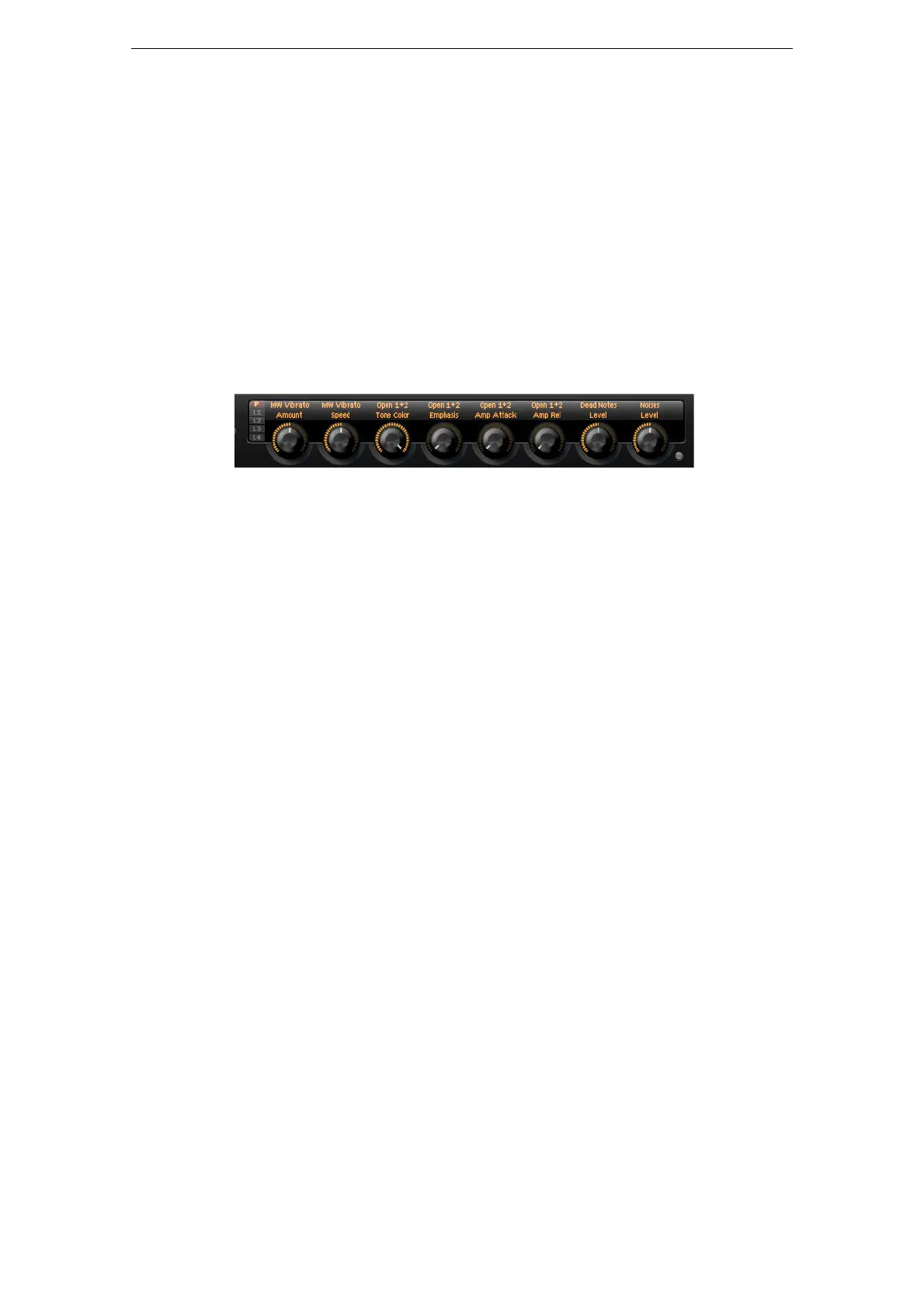
Quick Controls 1–8
The eight quick controls are located above HALion Sonic’s onscreen keyboard.
Typically, the eight most important sound parameters are assigned to them.
Accessing Quick Controls
To access the quick controls of the program or one of its layers, proceed as follows:
1. Select the program you want to edit in the Multi Program Rack.
2. Go to the left of the quick controls and click the program button (“P”) or one of the
layer buttons (“L1” to “L4”).
3. The quick controls change to the settings of the program or the selected layer
respectively.
Ö The Sphere displays P, L1, L2, L3 or L4 to indicate the selected program or layer
accordingly.
Assigning Quick Controls
When you assign quick controls in HALion Sonic, the following applies:
• The parameters of layers can only be assigned to the quick controls of the
respective layer itself. For example, if the parameter belongs to layer 1, it can only
be assigned to a quick control of layer 1. This includes the parameters in the
program editor, the layer editor and the effect inserts of the respective layer.
• The parameters of layers cannot be assigned directly to quick controls of the
program. First, you need to assign the parameter to a quick control of the layer.
Then you can assign the quick control of the layer to a quick control of the
program.
• The parameters of program effect inserts can be assigned directly to quick
controls of the program.
To assign a quick control to a parameter, proceed as follows:
1. In the program or layer editor or the editor of an effect insert, right-click the
parameter you want to remotely control.
2. From the menu, select the quick control you want to assign, for example, quick
control 1–8, sphere H & V, or mod wheel.
3. The assignment is created.



 To Next Page