174
The Performance Section
The Trigger Pads
The Trigger Pads
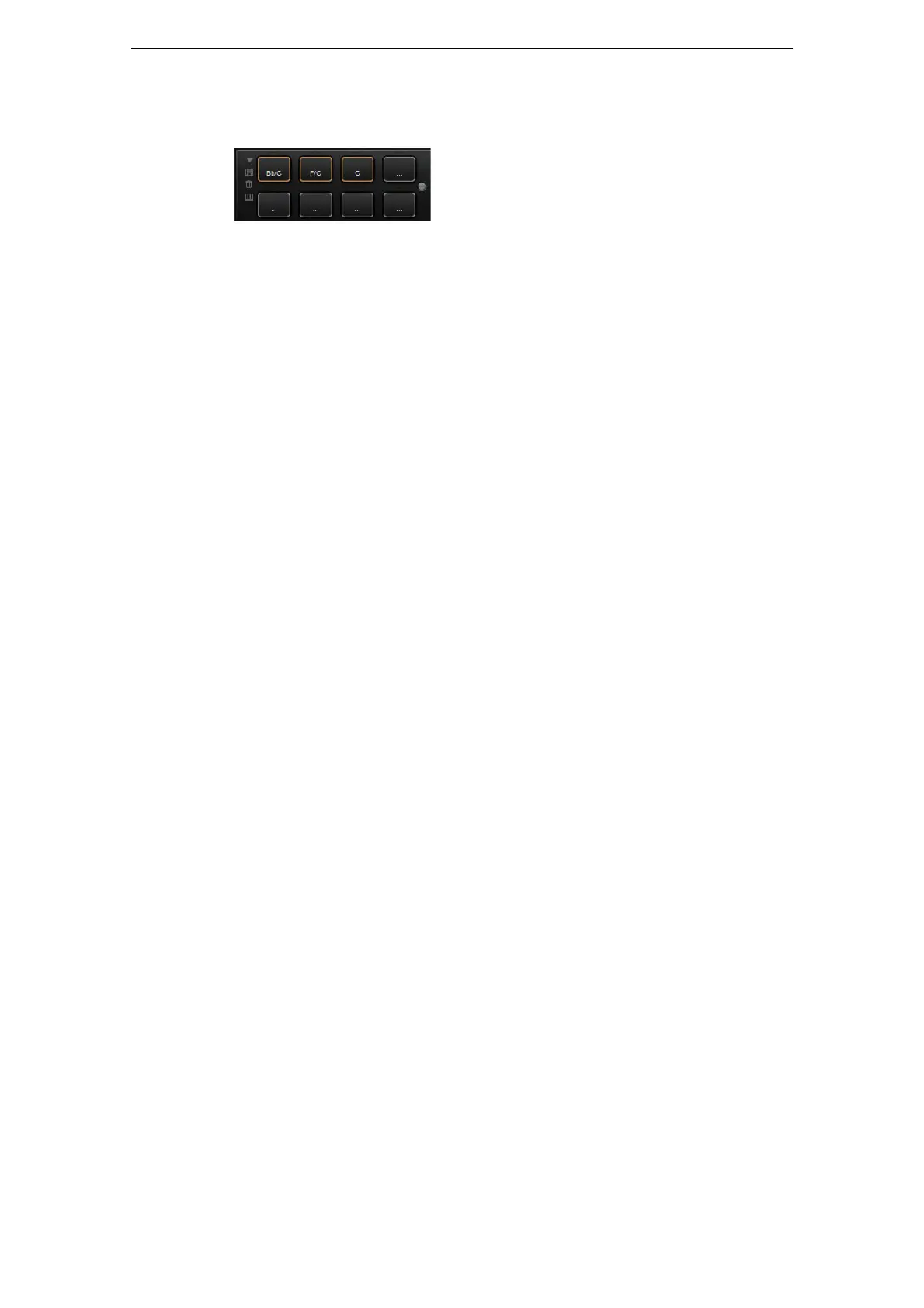
You can use HALion Sonic’s trigger pads to remotely trigger single notes or whole
chords and for switching between variations, for example for the FlexPhraser. Many of
the programs that come with HALion Sonic make use of the trigger pads:
• Blue pads have single notes or whole chords assigned.
• The line above the pad turns orange when the pad switches between FlexPhraser
variations.
• To trigger a pad with your mouse, simply click the corresponding pad.
Assigning Trigger Notes to Pads
You can assign a MIDI note to a pad and trigger the pad by playing this note.
To define the note, proceed as follows:
1. Right-click the pad.
2. From the menu, select “Assign Trigger Note”.
3. From the submenus, select the octave and note you want to assign.
or
1. Right-click the pad.
2. From the context menu, select “Learn Trigger Note”.
3. Play the note on your MIDI keyboard or click the note on the virtual keyboard.
The name of the MIDI note you assigned as trigger note is displayed in the top left
corner of the pad.
Ö Keys that serve as trigger notes light up in blue on the virtual keyboard. These keys no
longer play sounds, they trigger the corresponding pads instead.
To remove a trigger note from a pad, proceed as follows:
1. Right-click the pad.
2. From the context menu, select “Forget Trigger Note”.
Using Default Trigger Note Settings
By default, the assigned trigger notes are stored with each program to allow for
maximum flexibility. However, you may want to keep a fixed set of trigger notes to
reflect an existing hardware setup.
To be able to use default trigger note settings, you have to save them first:
• To specify a global set of trigger notes, set the trigger notes for all pads, right-click
a pad, and from the context menu, select “Save Trigger Notes as Default”.
Now you can activate the “Use Default Trigger Notes” option:
• Right-click a pad and select “Use Default Trigger Notes” or click the
corresponding button to the left of the pads.
Changing programs or multi-programs does not change the trigger notes
anymore.
When you deactivate this option, the trigger notes that were saved with the multi are
used.



 To Next Page