185
Global Functions and Settings
The Options Page
To assign programs to a General MIDI program change number:
1. Go to the Load page.
2. In the title bar of the lower section, click the “Set up Result Columns” button on
the right.
3. From the menu, select “Musical” and “GM Sound”.
The “GM Sound” column is added to the search result list.
4. In the “GM Sound” column of the search result list, set the sound to the General
MIDI program number that you want to use.
Note that you can assign the same “GM Sound” program number several times. If
a program number is used more than once, the Rating attribute can be used to
decide which program to load.
Now, any MIDI program change messages load the assigned programs into the slot of
the corresponding MIDI channel.
Ö Slot 10 ignores any program change messages and keeps the loaded drum set.
Solo Mode
You can choose between two solo modes: Standard and Exclusive.
• In Standard mode, you can solo multiple programs or layers to hear them
combined.
• In Exclusive mode, only one program or layer can be soloed at a time.
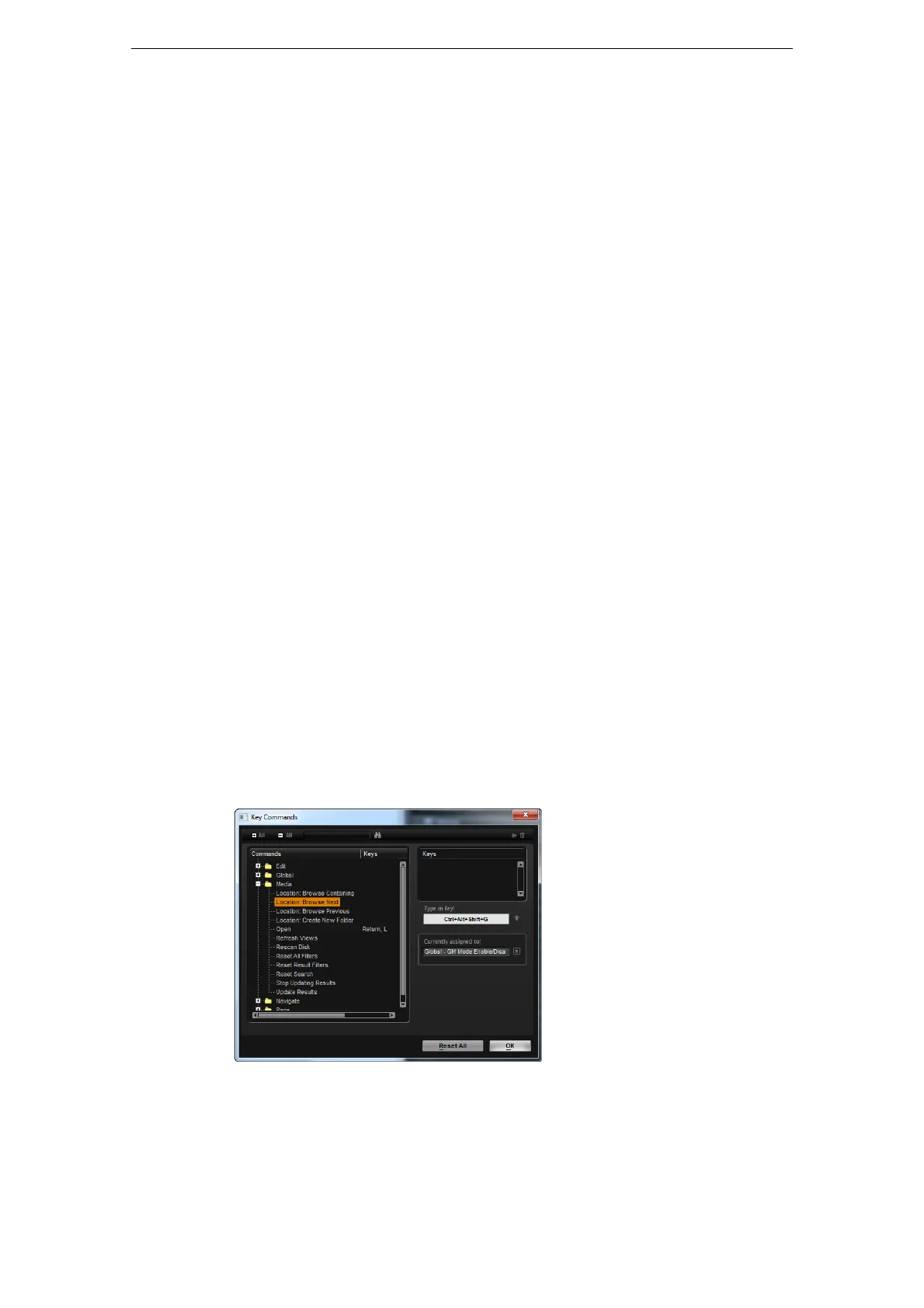
The Key Commands Dialog for Instrument Functions
Click the Key Commands button to open the Key Commands dialog. You can assign
key commands to most operations that can be performed via the panel of HALion
Sonic.
• To access the Key Commands for instrument functions, click the Key Commands
button in the Global section of the Options page.
The Key Commands dialog opens.
The commands are arranged in a hierarchical folder structure, similar to the Windows
Explorer and Mac OS Finder. When you open a category folder by clicking the plus
sign beside it, the items and functions are displayed with any currently assigned key
commands.
To get an overview of the available commands and the assigned keys, proceed as
follows:
• Click the plus sign in the top left corner of the dialog.
The list of commands and assigned keys is displayed.



 To Next Page