49
Editing
Editing Layers
• Loop: The envelope starts playback from the first node to the loop nodes. The loop
will be repeated as long as the key is held. The envelope plays the stages behind
the Sustain when you release the note. This mode is ideal for adding motion to the
Sustain (which would be steady in Normal mode).
• One Shot: The envelope will be played from the first to the last node, even if you
release the note. The envelope has no Sustain stage. This mode is ideal for drum
samples.
• Sample Loop: This mode allows you to preserve the natural attack of the sample.
The decay of the envelope does not start until the sample has reached the sample
loop start. Set the second node to the maximum level. Then, use any of the
following nodes to shape the decay during the loop phase of the sample. This way,
the envelope only affects the level during the loop phase of the sample. The attack
of the envelope is still executed.
Ö The Sample Loop mode is only available for sample layers.
Setting up the Loop
You can set up the envelope to repeat its playback between the nodes you select.
Proceed as follows:
1. Set the envelope mode to “Loop”.
2. Adjust the loop with the graphical envelope editor:
• The loop is indicated by the green region in the graphical envelope editor. You can
specify the loop start and end by dragging the borders of the region.
• Drag the left border to the node where the loop should start.
• Drag the right border to the node where the loop should end.
Ö The loop region can only be set up in the Decay of the envelope, i. e. after the first and
before the sustain node.
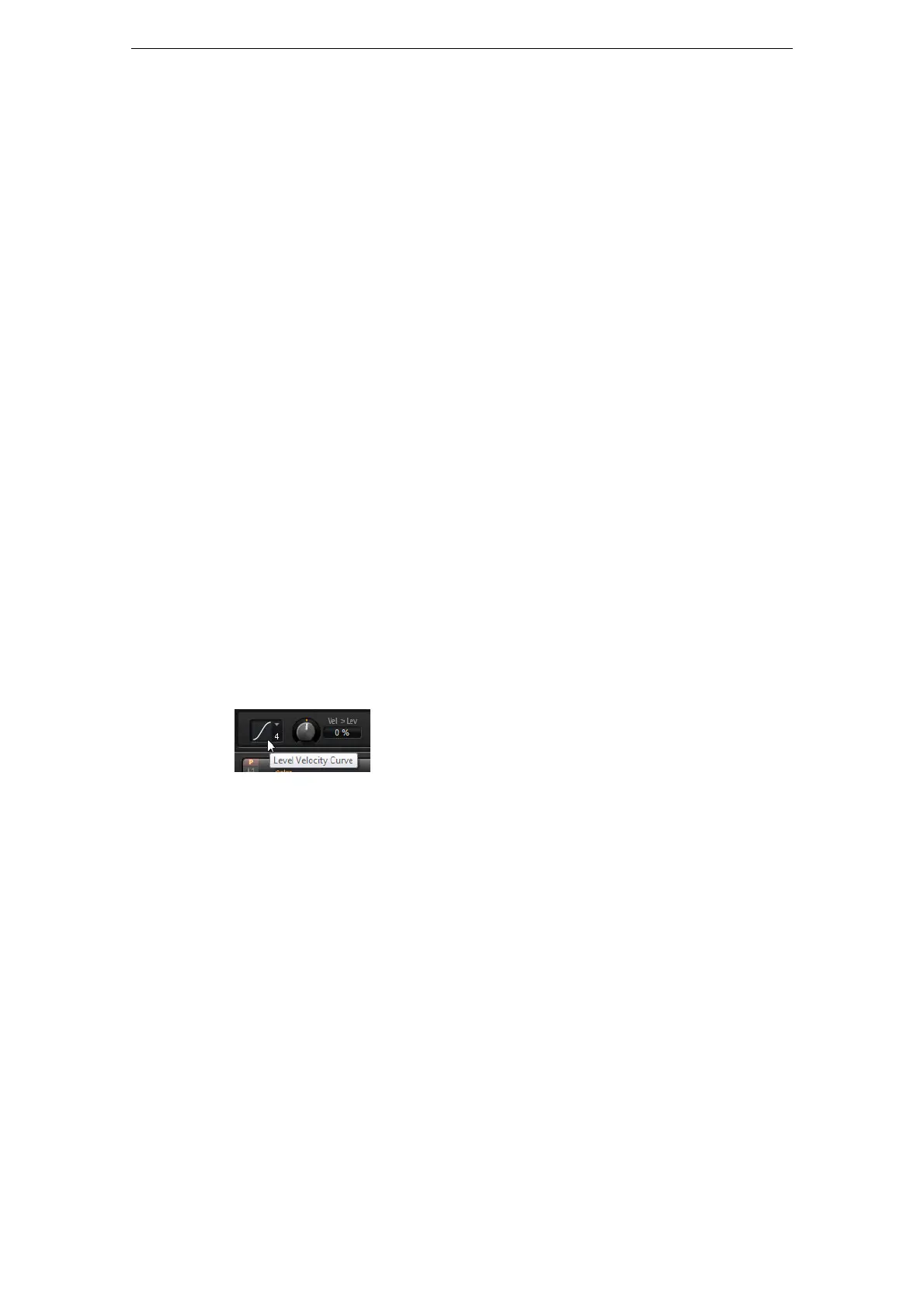
Level Velocity Curve
You can select one of eight curves to specify how the incoming velocity translates to
the level of the envelope. The characteristic of each curve is displayed by a small icon.
The menu offers the following mathematical functions for velocity:
- 1 = Linear
-2 = Squared
- 3 = Squared Inverse
-4 = 2 Poles Squared
- 5 = 2 Poles Squared Inverse
-6 = Cubic
- 7 = Quadric
-8 = dB
-9 = Logarithmic
- 10 = Constant (127)
Level Velocity (Vel>Lev)
Use this parameter to adjust how the velocity affects the level of the envelope. The
level of the envelope depends on the setting of this parameter and how hard you hit a
note: Positive values increase and negative values decrease the level of the envelope
the harder you hit a note.



 To Next Page